
Ask an AI about this page
 ChatGPT
 Claude
 Perplexity
 Google AI Mode
 Microsoft Copilot
 Grok
 Mistral Le Chat
Turn on two-factor authentication (2FA)
Two-factor authentication (2FA) asks for an extra code after your password each time that you log in to the Mail Niaga console. If another person gets your password, that person still cannot log in without the code. Each user must turn on 2FA for their own login.
You can get the code in two ways:
| Method | How you get the code | When to use it |
|---|---|---|
| Email Verification | The console sends a one-time code to your email address at each login. | This is the easiest method. You do not need an app. |
| Authenticator App | An app on your phone, such as Google Authenticator or Authy, shows a 6-digit code. | This method is safer, and it works without email. |
Turn on 2FA
Section titled “Turn on 2FA”Do these steps after you log in.
-
Click your name at the bottom of the sidebar, then click Account.
-
In the left menu, click SECURITY & ACCESS → Two-Factor Auth.
-
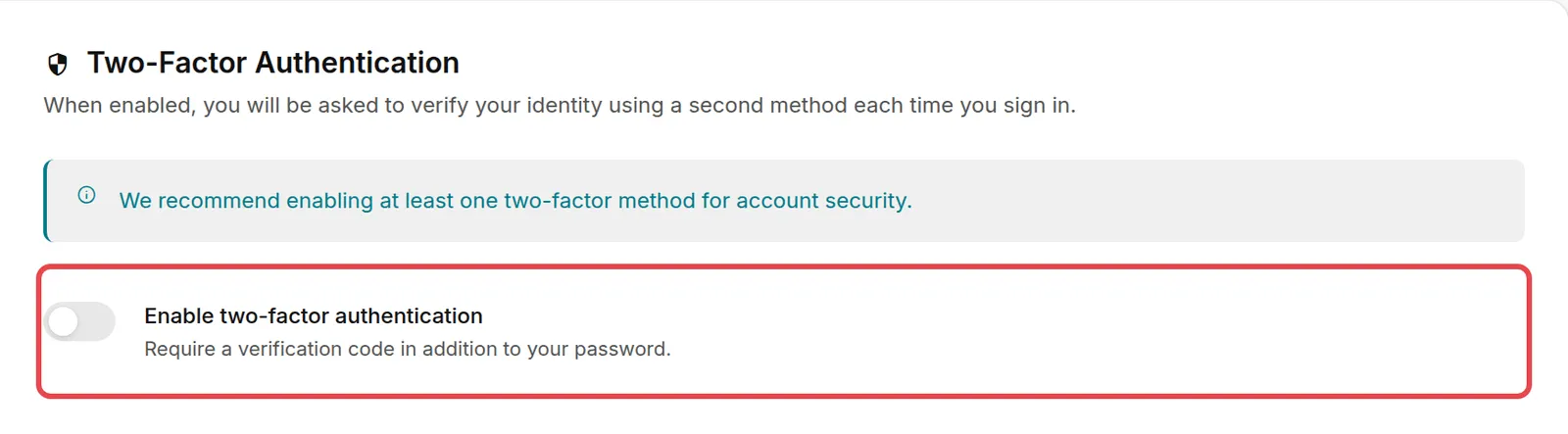
Turn on the Enable two-factor authentication switch. The console saves the setting immediately.
-
The Verification Methods area shows. Make sure that at least one method is active. Email Verification is usually active already.
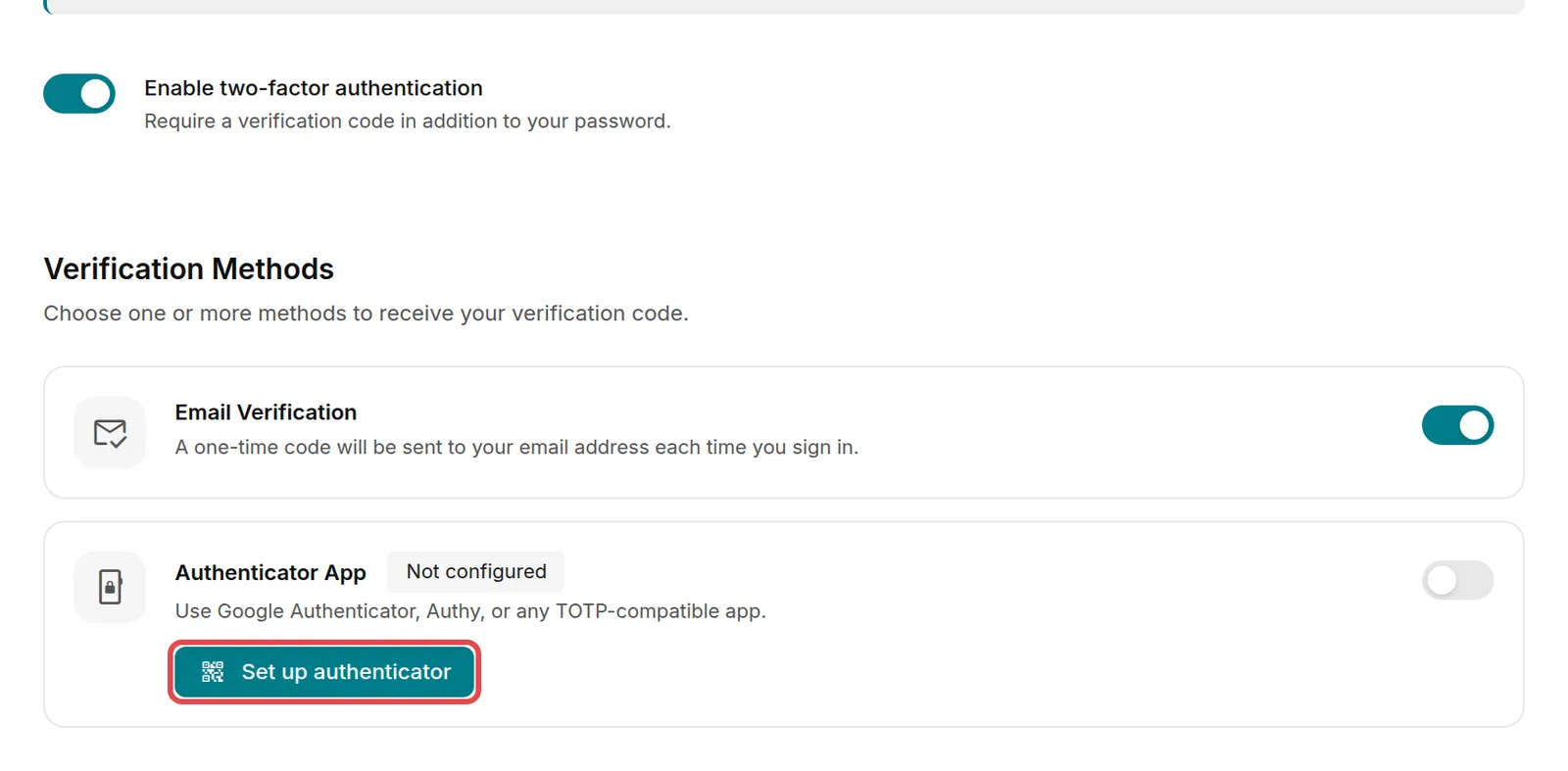
The console shows the message Two-factor authentication enabled. when 2FA is on.
Set up an authenticator app
Section titled “Set up an authenticator app”Do these steps if you want to use a code from your phone. You need an authenticator app such as Google Authenticator or Authy.
- On the Authenticator App card, click Set up authenticator.
- The Set Up Authenticator App panel shows a QR code.
- Open the authenticator app on your phone, then scan the QR code. If you cannot scan the code, type the key in Manual entry key into the app.
- Type the 6-digit code from the app in Verification code.
- Click Verify & save.
The Authenticator App card now shows Configured, and its switch is on. To use a new phone, click Reconfigure and do these steps again.
Log in with 2FA
Section titled “Log in with 2FA”When 2FA is on, the login has one extra step.
- Log in as usual with your email address and password.
- On the Choose 2FA Method page, choose how to get the code: Send a verification code to your email or Use Google Authenticator app.
- Type the code from the email or the app.
- Click Verify (email code) or Authenticate (app code).
If the email code does not arrive, click Resend the verification code. To change the method, click Select different method.
Turn off 2FA
Section titled “Turn off 2FA”Open Two-Factor Auth again and turn off the Enable two-factor authentication switch. The console saves the setting immediately and shows Two-factor authentication disabled. At the next login, the console asks only for your password. If you turn on 2FA again later, look at Verification Methods again. The main switch also turns off the active methods.
This advice helps you keep access to your account:
- Turn on the two methods. If you lose your phone, you can still log in with the email code.
- Ask each team member to turn on 2FA. 2FA is a setting for each user, not for the full account.
Common issues
How do I log in if I lost the phone with the authenticator app?
If Email Verification is also on, click Select different method on the code page, then choose the code by email. If it is not on, contact the Mail Niaga support team.
Why is the 6-digit code from the app rejected?
The code changes every 30 seconds. Type the newest code. Also make sure that the time on your phone is set automatically. If the code is wrong at login, the console shows the message The entered code is invalid. When you set up the app, the message is Invalid verification code. Please try again.
What do I do if the email code does not arrive?
Look in your spam or promotions folder. Then click Resend the verification code on the code page to get a new code.
Was this article helpful?
Thanks for your feedback.
Sorry, this page did not help. Chat on Messenger and we will help you fix it.