
Ask an AI about this page
 ChatGPT
 Claude
 Perplexity
 Google AI Mode
 Microsoft Copilot
 Grok
 Mistral Le Chat
Check your usage & plan limits
The Resource Usage page shows the usage of your account against the limits of your subscription plan: lists, campaigns, subscribers, automations, storage, sending domains and team users. The page also shows your credits and the features that your plan includes.
Open Resource Usage
Section titled “Open Resource Usage”You can open this page in two ways:
- Click your name at the bottom of the sidebar, then click Credits used.
- Or open Account Settings, then click Resource Usage under ACCOUNT.
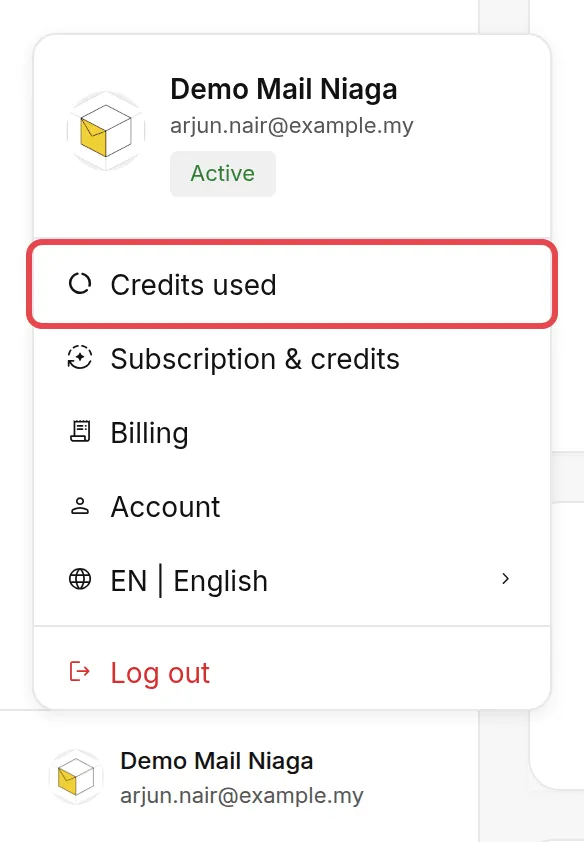
To learn about the account menu, see Menus and navigation in the Mail Niaga console.
Usage cards
Section titled “Usage cards”The top of the page says that your subscription plan sets the limits. Each card shows your usage and the plan limit:
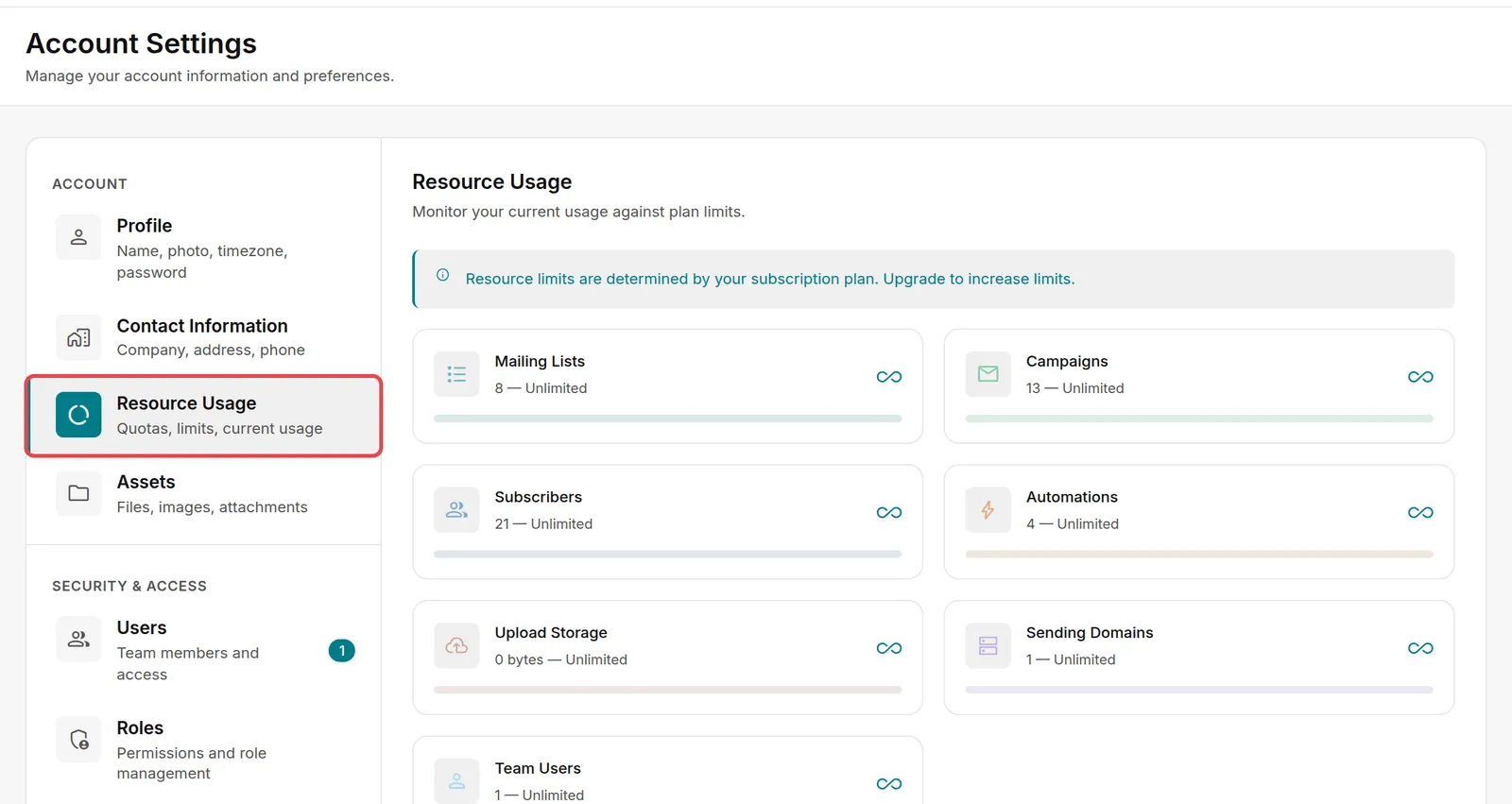
| Card | What it counts |
|---|---|
| Mailing Lists | The number of lists in your account. |
| Campaigns | The number of campaigns. |
| Subscribers | The total number of subscribers in all lists. |
| Automations | The number of automations. |
| Upload Storage | The size of the files that you upload, for example the pictures in templates. |
| Sending Domains | The number of sending domains. |
| Team Users | The number of users in your team. |
If your plan has no limit for a resource, the card shows Unlimited with an infinity icon.
When your usage is near the limit
Section titled “When your usage is near the limit”For a plan with limits, each card shows the number used, the plan limit, the percentage of usage and a bar. The bar fills as your usage increases. A resource that your plan does not include shows Not included with a padlock icon.
On the Home page, the bars of the LISTS, CAMPAIGNS and SUBSCRIBERS cards become red when the usage gets to 80% of the limit. See Get to know the Mail Niaga dashboard.
When you get to the limit, the console does not let you add more of that resource. The console shows a message such as “You’ve reached your plan limit for contact lists”, with a recommendation to upgrade your plan.
Credits
Section titled “Credits”The Credits area shows the credits from your plan. These credits fill again at each billing cycle:
- Send Email: credits to send email.
- Verify Contact: credits to verify the email addresses of subscribers.
The Send Email card also shows Credits bought, which are the credits that you bought. The credits that you buy do not expire. To see your full credit balance and to buy credits, open Subscription & credits in the account menu.
Entitlements
Section titled “Entitlements”The Entitlements area shows the features that your plan includes. A check mark icon shows an included feature. A cross icon shows a feature that is not included.
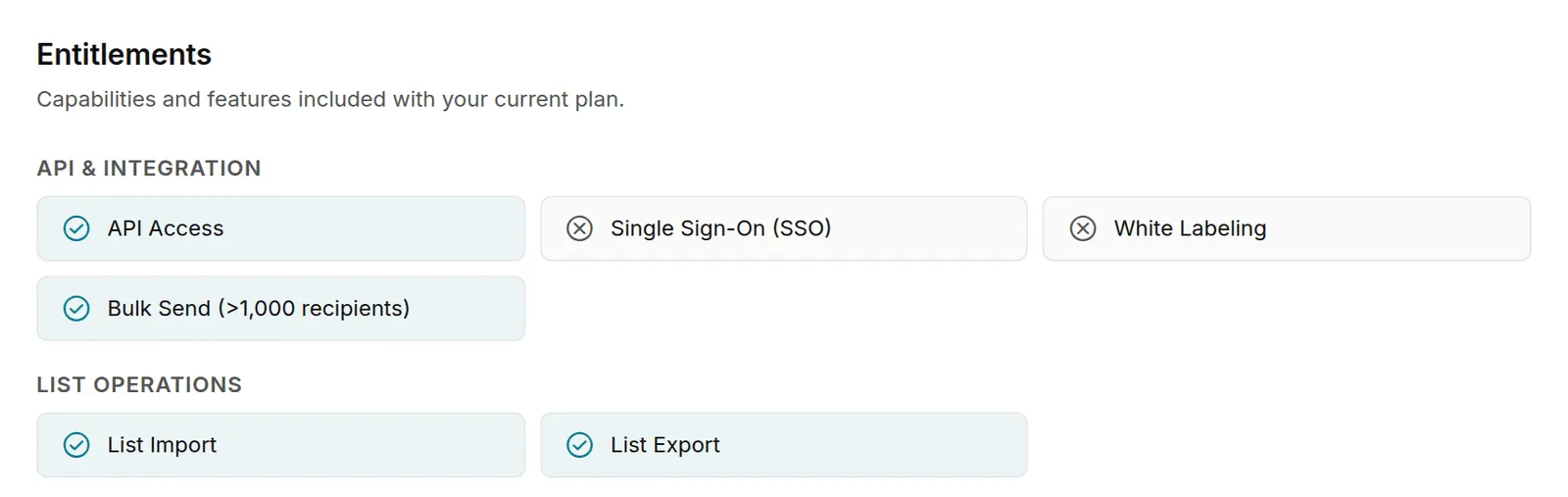
The features are in groups, for example API & INTEGRATION (with API Access) and LIST OPERATIONS (List Import and List Export). If your plan does not include a feature, the console sometimes does not show the menu item or the button for that feature.
This advice helps you stay inside the limits of your plan:
- Check this page before a large import. Make sure that the Subscribers limit of your plan is sufficient for all the new subscribers.
- Compare Credits bought with the size of your campaign. Make sure that you have sufficient credits before you send a campaign to a large list.
Common issues
The menu says Credits used, but the page title is Resource Usage. Is it the same page?
Yes. Credits used in the account menu opens the Resource Usage page. The same page is also in Account Settings, under ACCOUNT.
How can I increase my plan limits?
Your subscription plan sets the limits. To upgrade your plan, open Subscription & credits in the account menu.
Why are the numbers here the same as the cards on the dashboard?
The LISTS, CAMPAIGNS and SUBSCRIBERS cards on the Home page use the same counts as the Mailing Lists, Campaigns and Subscribers cards here.
Was this article helpful?
Thanks for your feedback.
Sorry, this page did not help. Chat on Messenger and we will help you fix it.