
Ask an AI about this page
 ChatGPT
 Claude
 Perplexity
 Google AI Mode
 Microsoft Copilot
 Grok
 Mistral Le Chat
Add subscribers one at a time
Use the Add subscriber form to add one subscriber to a list. To add many subscribers at a time, import a CSV file.
Open the Add subscriber form
Section titled “Open the Add subscriber form”Open the correct list, then use one of these methods:
- Click Add subscriber at the top right of the Subscribers page.
- Click the Subscribers tab → Add.
- Click the Add a subscriber card above the subscriber table.
Fill in the subscriber details
Section titled “Fill in the subscriber details”The form shows one box for each list field, in the same order as the list fields in the list.
-
Fill in Email. This field is mandatory. The address must be unique in this list.
-
Fill in the other fields, for example First name and Last name. The fields with a * are mandatory.
-
Click Add subscriber.
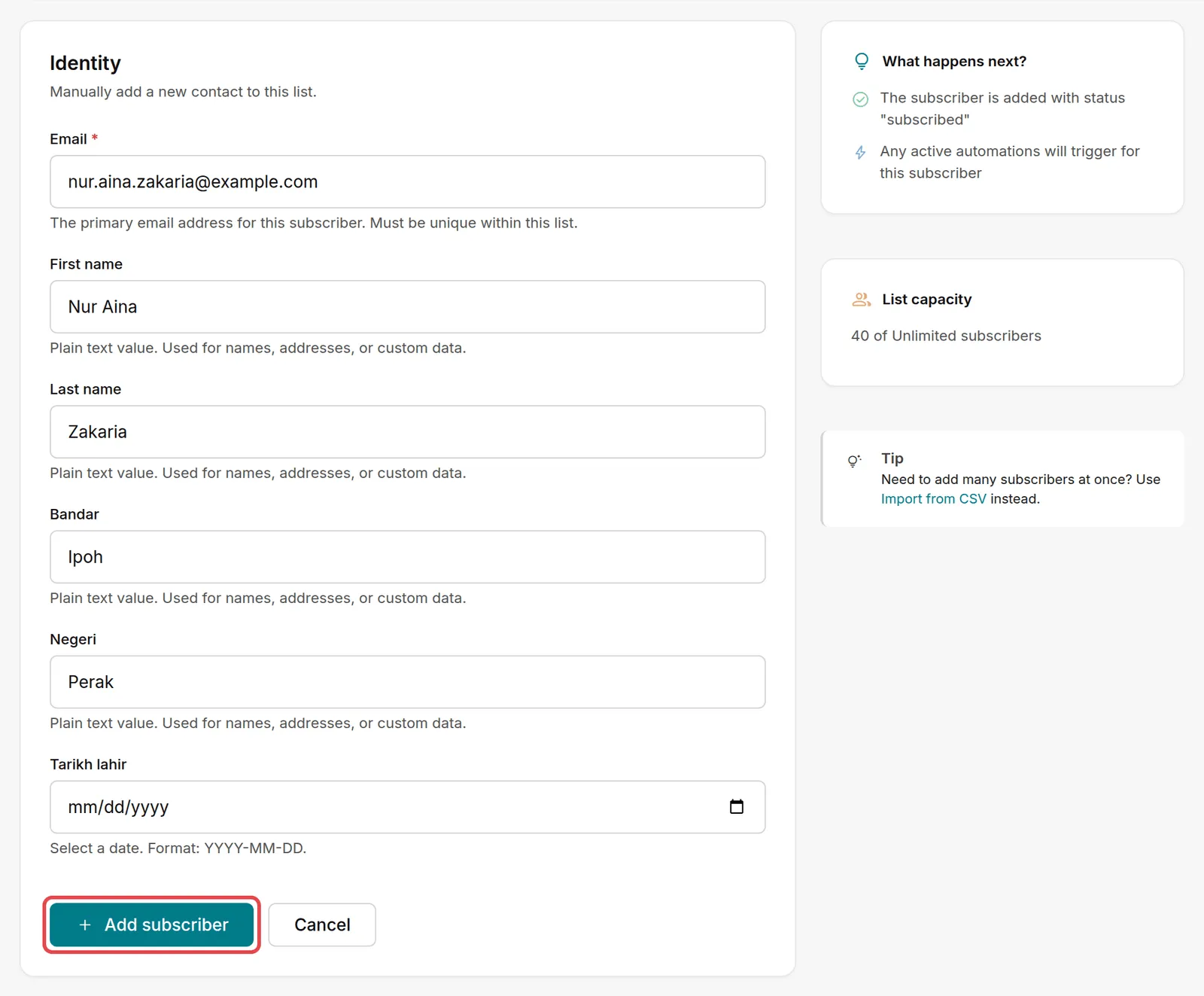
Mail Niaga shows Subscriber added successfully. and opens the subscriber table again. To close the form and not save, click Cancel.
What happens after you add a subscriber
Section titled “What happens after you add a subscriber”The lines in the What happens next? card change with the list settings. The card next to the form gives a summary of these items:
- The subscriber gets the Subscribed status immediately.
- The active automations of this list will start for this subscriber.
- If Send welcome email is on in the list settings, the card also says that Mail Niaga sends the welcome email automatically.
Below it, the List capacity card compares the number of subscribers in the list with the limit of your plan.
Mail Niaga does not send a confirmation email to a subscriber that you add manually. This is also true for a double opt-in list.
This advice helps you add subscribers faster:
-
Add the list fields before you add subscribers. The form shows only the list fields that are in the list. Add fields such as a phone number first. Then you can fill in all the details at one time.
-
Add tags after you add the subscriber. Open the subscriber profile. Then click + below the name. See Use tags for subscribers.
Common issues
Why does the message "has already been taken" show when I add a subscriber?
The email address is already in this list. Each address must be unique in a list. Find the address on the Subscribers page and update the subscriber that is already there.
Why can I not add an address that is in the blacklist?
You cannot add an address from the blacklist again. Remove the address from your blacklist first (Sending → Blacklist). If the address is in the system blacklist, only a Mail Niaga administrator can remove it.
Will the subscriber that I add receive a confirmation email?
No. A subscriber that you add manually gets the Subscribed status immediately, also when the list uses double opt-in.
Was this article helpful?
Thanks for your feedback.
Sorry, this page did not help. Chat on Messenger and we will help you fix it.