
Ask an AI about this page
 ChatGPT
 Claude
 Perplexity
 Google AI Mode
 Microsoft Copilot
 Grok
 Mistral Le Chat
A/B test an email campaign
An A/B test sends two or more versions of an email (variants) to a part of your list. Each variant has its own subject and design. After a wait period, Mail Niaga chooses the variant with the most opens or clicks and sends it to the other subscribers.
Create an A/B test
Section titled “Create an A/B test”Start from the campaign list in the Mail Niaga console.
- Click Campaigns → Email.
- Click Create campaign.
- The Create a new campaign page opens. Click Create on the A/B Test card.
The A/B Test Setup page opens with three steps: Campaign, Variants and Winner Rules.
Step 1: Campaign
Section titled “Step 1: Campaign”Fill in the basic data of the A/B test in this step:
| Field | Description |
|---|---|
| Campaign name | The name of the campaign, for your reference. |
| Audience list | The list that gets the A/B test. |
| Test audience size | The percentage of the list that gets the variants during the test, from 1% to 100%. The other subscribers get the winning variant. |
| Assignment strategy | Exact split (exact, correct for most lists) or Hash split (approximate, faster for very large lists). |
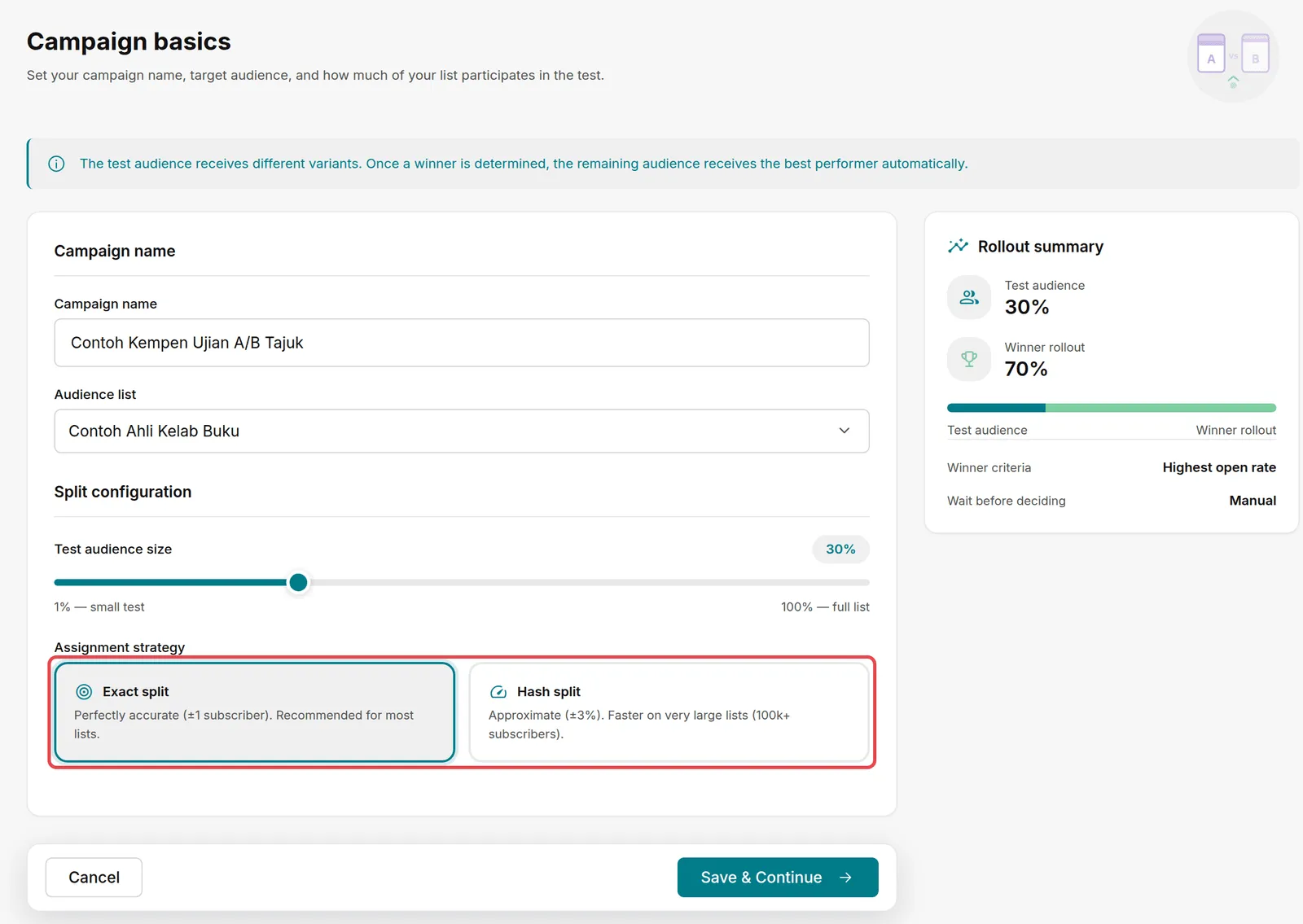
Click Save & Continue to go to the Variants step. The Rollout summary at the side of the page shows two percentages of the list. Test audience is the part in the test phase. Winner rollout is the part that gets the winning variant.
Step 2: Variants
Section titled “Step 2: Variants”Each variant is one full version of the email. You need a minimum of two variants. Each variant card shows the subject, the sender and the part of the test phase for that variant.
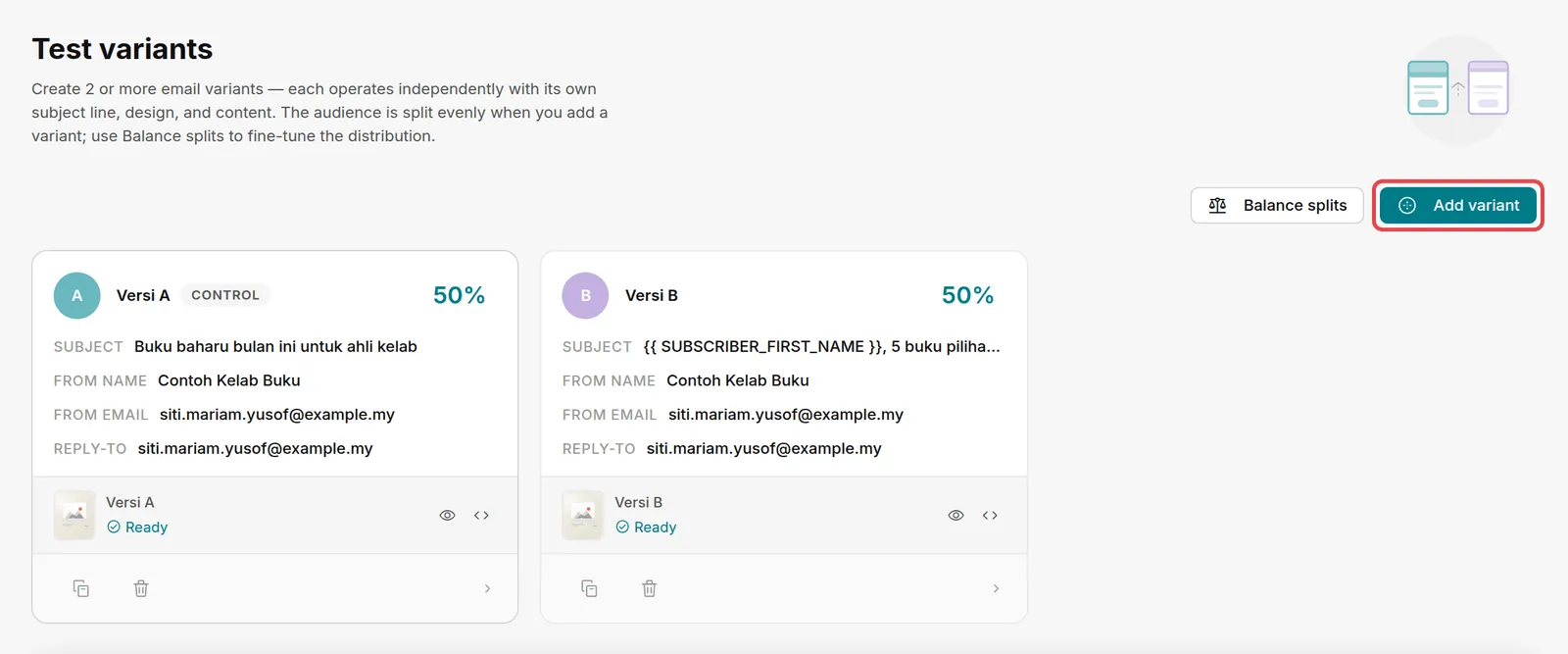
To add a variant, do these steps:
- Click Add variant.
- Fill in the Variant name, for example “Variant A”, and the Email subject.
- Click Add variant in the box.
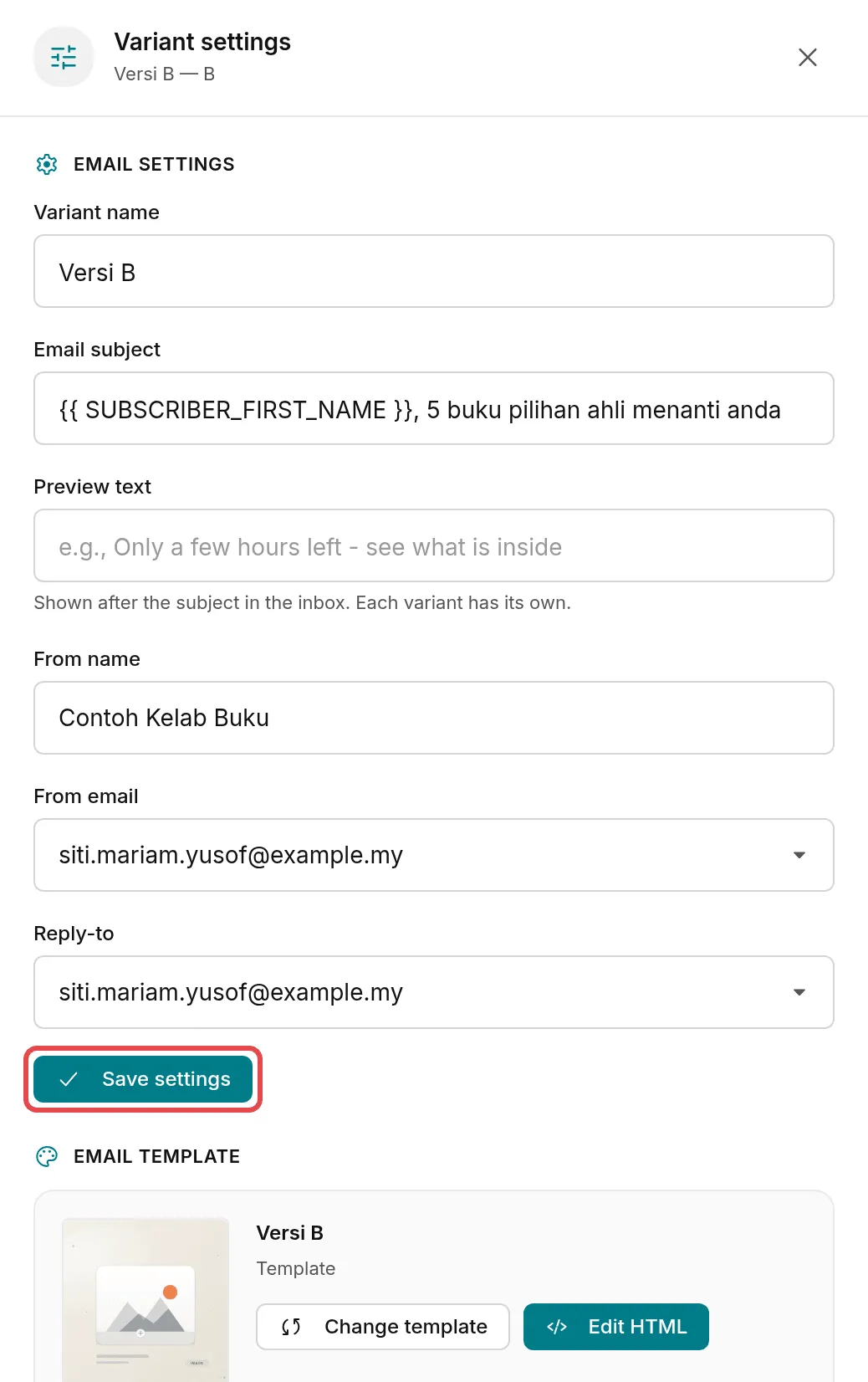
- Click the variant card. The Variant settings panel opens.
- Fill in Preview text, From name, From email and Reply-to.
- Click Save settings.
- In the Email template section, click Choose template (or Change template if the variant already has a template). Choose a template in System templates or My templates. To paste your own HTML, click Paste custom HTML.
- Do steps 1 to 7 again for the other variants.
- Click Continue to Winner Rules.
To copy a variant, click the copy icon (Duplicate variant) below the variant card. Then change only the subject or the content. With this method, you test one difference at a time.
The console divides the test phase equally each time that you add a variant. To change the part of each variant, click Balance splits. Move the slider of each variant, then click Save distribution. The total of all the parts is always 100%.
Step 3: Winner Rules
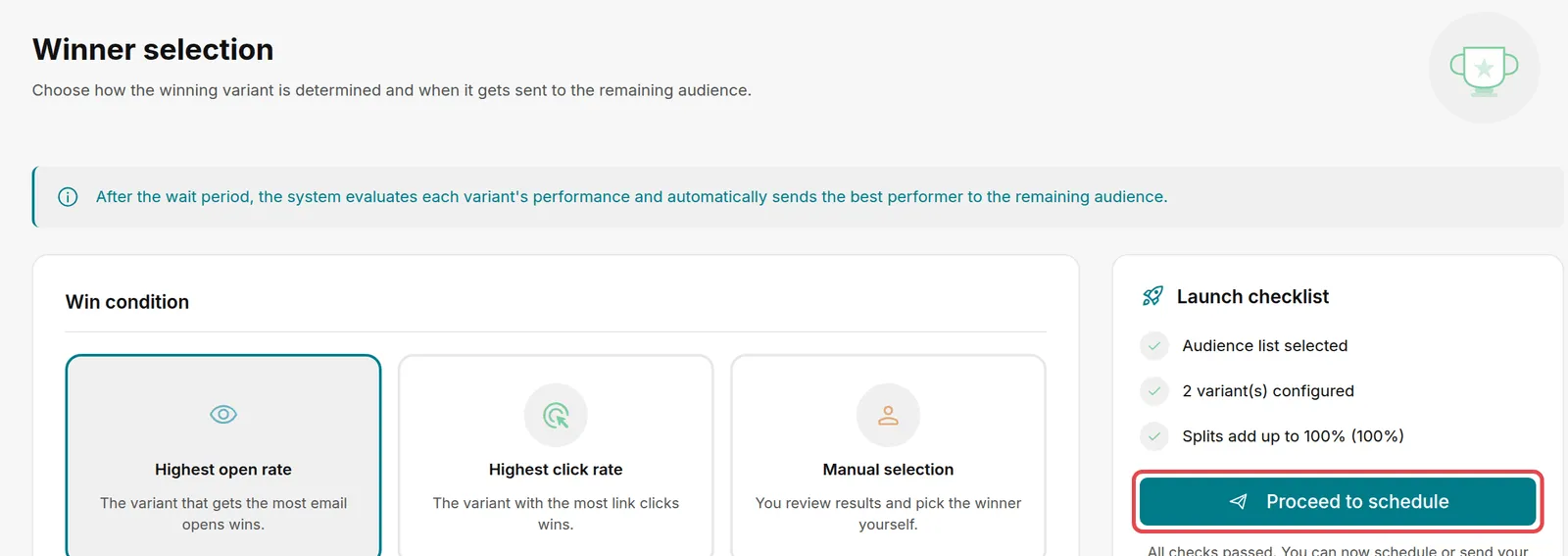
Section titled “Step 3: Winner Rules”In this step, you set how Mail Niaga chooses the winning variant. Choose one Win condition:
| Option | The winning variant |
|---|---|
| Highest open rate | The variant with the most opens. |
| Highest click rate | The variant with the most clicks on its links. |
| Manual selection | You examine the results and choose the winner yourself. |
Then fill in Wait before deciding: the number of hours after the send before Mail Niaga automatically compares the results. Click Save & Continue.
Launch the A/B test
Section titled “Launch the A/B test”The Launch checklist at the side of the page examines the list, the number of variants and the split. When all the checks pass, click Proceed to schedule.
The Review & Launch page checks Audience, Variants, Split balance, Email templates, Subject lines, Sender info (from name & email) and Win condition again. All the checks must pass.
- Choose Send now or Schedule for later.
- If you choose Schedule for later, choose the date and time in Schedule date & time.
- Click Launch A/B Test.
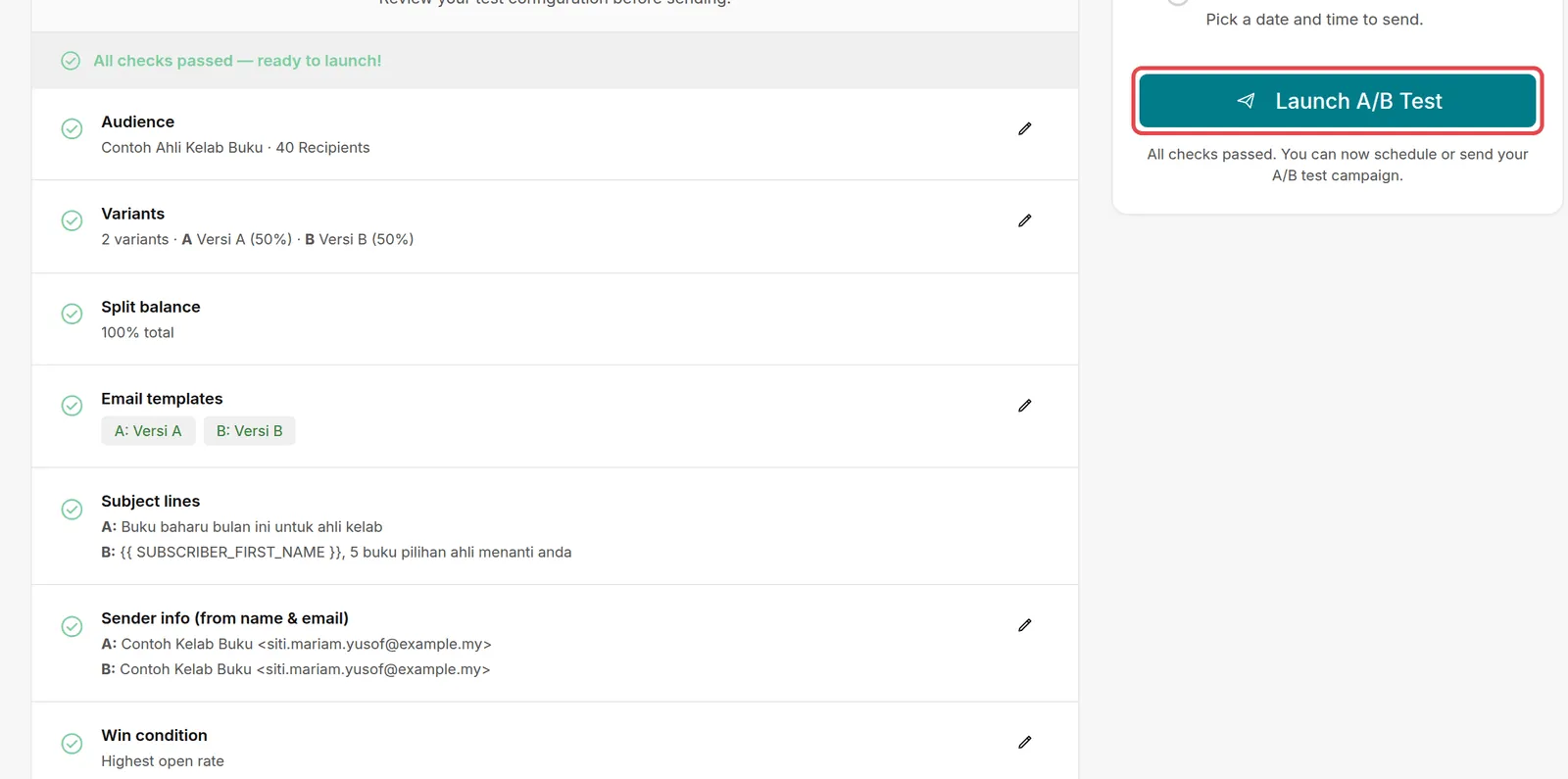
The console opens the A/B Test Report. In the campaign list, the A/B test has the A/B badge and shows its status, for example Testing, Awaiting winner or Sending winner.
How the winning variant is sent
Section titled “How the winning variant is sent”An A/B test has two phases:
- Test phase: each variant goes to its part of the test audience.
- Winner rollout: after the Wait before deciding period, Mail Niaga compares each variant and automatically sends the best variant to the other subscribers.
If you chose Manual selection, open the A/B Test Report and click Choose as winner on the variant that you want. The console asks for a confirmation before it sends that variant to the other subscribers.
Read the A/B report
Section titled “Read the A/B report”The A/B Test Report compares the performance of each variant. The report has these sections:
- Variant comparison: the open rate, the click rate, the bounces and the unsubscribes of each variant.
- Statistical confidence: if the difference between the variants is strong, or if the data is not sufficient yet.
- Insights & Recommendations: the best variant and recommendations, for example to test with a larger list if the sample is less than 1,000.
The winning variant has the Winner label.
This advice helps you to get better results:
- Test only one difference at a time. If the subject and the content are both different, you do not know which one caused the result.
- Use Highest click rate if your goal is sales or sign-ups. Some email apps open emails automatically, and this can change the open rate.
- Give a sufficient wait period. Most subscribers open an email in the first hours. If the period is too short, Mail Niaga can choose the incorrect variant.
Common issues
Why can I not launch my A/B test?
Check the Launch checklist and the Review & Launch page. An A/B test needs a list, a minimum of two variants and splits that add up to exactly 100%. Each variant also needs a subject, a template, a From name and a From email.
When does the winning version go to the other subscribers?
After the Wait before deciding period ends, if you chose Highest open rate or Highest click rate. If you chose Manual selection, the version goes only after you click Choose as winner in the A/B Test Report.
What is the difference between Exact split and Hash split?
Exact split divides the subscribers exactly (a difference of one subscriber only), and it is correct for most lists. Hash split divides the subscribers approximately (a difference of about 3%), but it is faster for very large lists, for example more than 100,000 subscribers.
Was this article helpful?
Thanks for your feedback.
Sorry, this page did not help. Chat on Messenger and we will help you fix it.