
Ask an AI about this page
 ChatGPT
 Claude
 Perplexity
 Google AI Mode
 Microsoft Copilot
 Grok
 Mistral Le Chat
Delete a list
Delete the lists that you do not use. This keeps the Lists page clean. You can delete one list from the row menu, or many lists at a time with the checkboxes.
Delete one list
Section titled “Delete one list”Do these steps in the Mail Niaga console:
-
Click Audience → Lists.
-
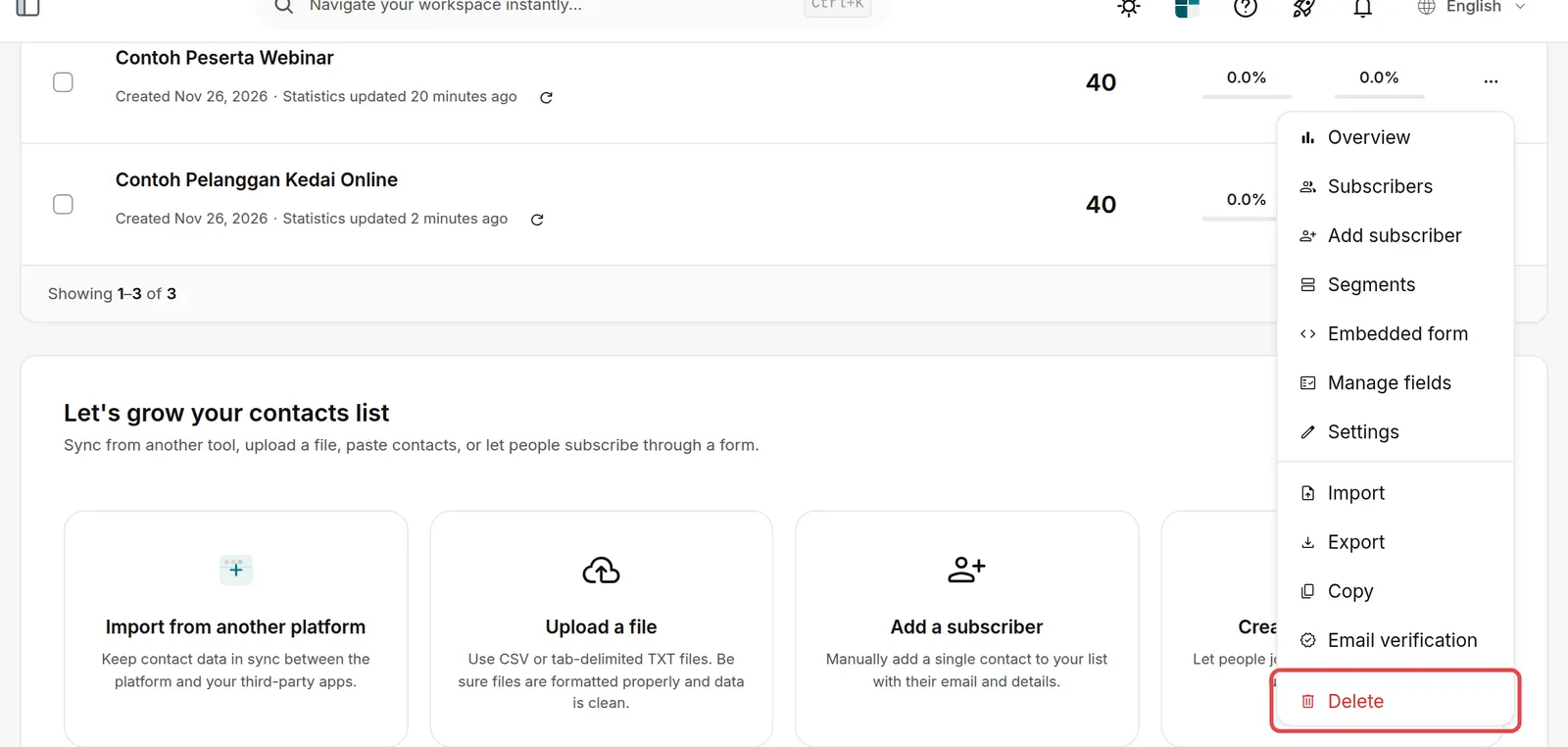
Click the … button on the row of the list that you want to delete.
-
Click Delete.
-
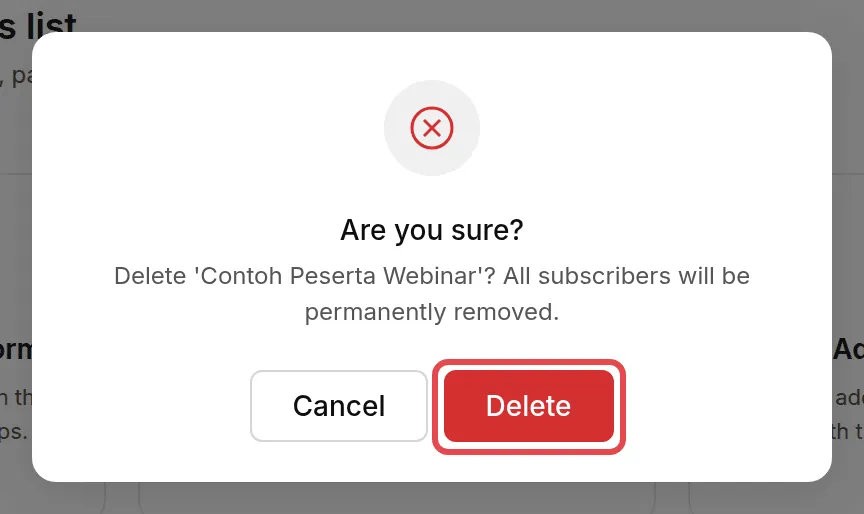
Make sure that the list name in the Are you sure? popup is correct. The popup also tells you that Mail Niaga will delete all the subscribers.
-
Click Delete to delete the list, or Cancel to stop.
Delete many lists at a time
Section titled “Delete many lists at a time”Do these steps to delete more than one list:
-
Click Audience → Lists.
-
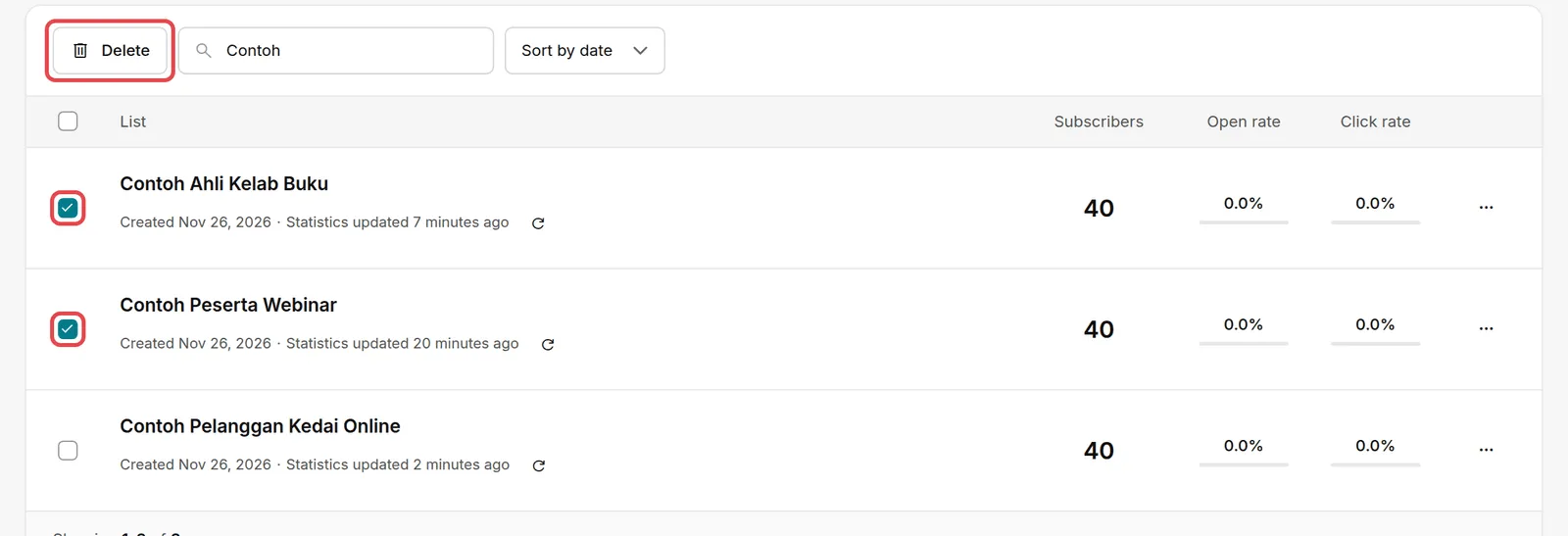
Tick the checkbox on the left of each list that you want to delete. The Delete button shows above the table.
-
Click Delete above the table.
-
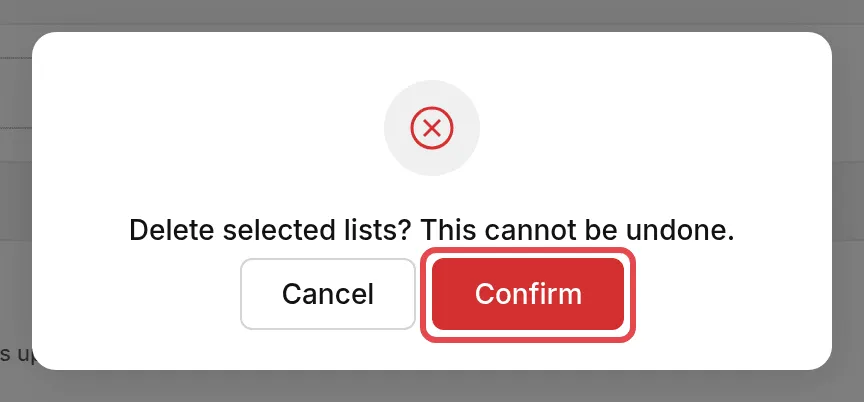
The popup “Delete selected lists? This cannot be undone.” opens. Click Confirm to delete the lists, or Cancel to stop.
This advice helps you delete lists with no data loss:
- Export first, then delete. After you delete a list, the export file is the only copy of your subscribers.
- Delete only the subscribers if you want to keep the list. See Bulk actions for subscribers.
- Read the list name in the confirmation popup. When two list names are almost the same, it is easy to choose the wrong list.
Common issues
Can I get back a list that I deleted?
No. You cannot undo the deletion of a list. If you will need the data later, export the subscribers of the list first (... → Export).
What happens to the subscribers in a deleted list?
All the subscribers in the list are deleted together with the list. You cannot undo this action.
Was this article helpful?
Thanks for your feedback.
Sorry, this page did not help. Chat on Messenger and we will help you fix it.