
Ask an AI about this page
 ChatGPT
 Claude
 Perplexity
 Google AI Mode
 Microsoft Copilot
 Grok
 Mistral Le Chat
Connect Google Forms to Mail Niaga with Pabbly Connect
Pabbly Connect connects Mail Niaga to other apps without code. This example adds each Google Form response to a Mail Niaga list as a new subscriber. You can use the same method for other triggers in Pabbly.
This article is for users who already have a Pabbly Connect account. You need:
- A Mail Niaga account with a minimum of one list.
- Your Mail Niaga API token and API endpoint.
- A Google Form that keeps its responses in Google Sheets.
Get the API token & API endpoint
Section titled “Get the API token & API endpoint”Pabbly needs these two values to connect to your Mail Niaga account. Do these steps in the Mail Niaga console:
-
Click API in the sidebar.
-
In the Your API token section, click Copy.
-
In the Getting started section, copy the API endpoint value:
https://manage.mailniaga.com/api/v1.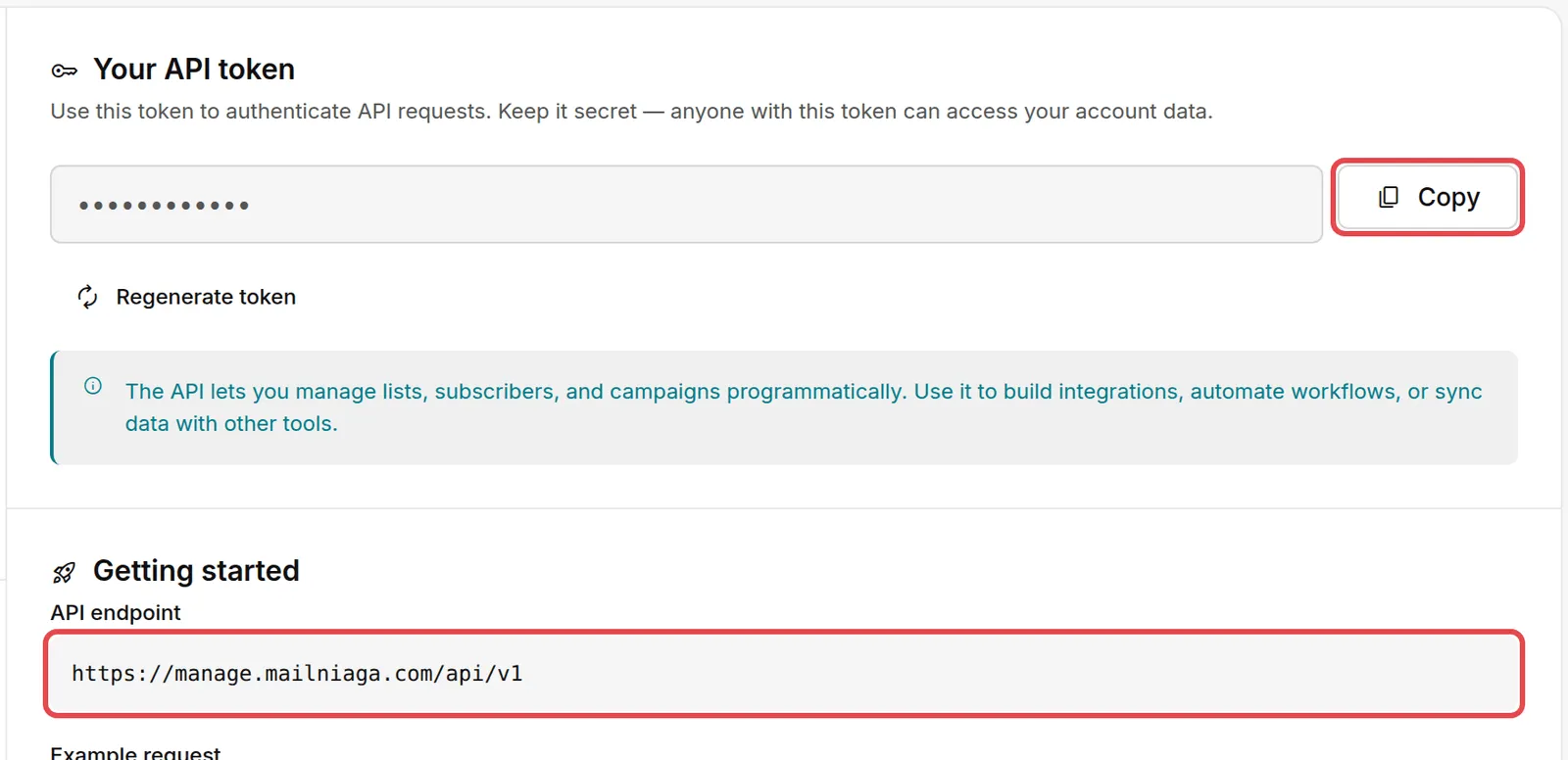
Set up the Google Form trigger
Section titled “Set up the Google Form trigger”The steps in Pabbly and Google change from time to time. Use these steps as a guide:
- In Pabbly Connect, create a new workflow.
- Choose Google Forms as the trigger, and choose the event for new responses.
- In your Google Form, open the Responses tab and connect the form to Google Sheets.
- In Google Sheets, install the Pabbly Connect Webhooks add-on, then paste the webhook URL from Pabbly. Set it to send each new response.
- Fill in one sample response in your Google Form, then make sure that Pabbly receives it.
Add the Mail Niaga action
Section titled “Add the Mail Niaga action”This action adds the person who fills in the form as a subscriber in a Mail Niaga list. Do these steps in the same workflow:
- Add an action, then find the Mail Niaga app. In Pabbly, the name of this app is Acelle Mail.
- Choose the Add Subscriber event.
- Click Connect, then paste the API token and the API endpoint that you copied before.
- Choose your Mail Niaga list in the list field.
- Match the email, name and other fields from Google Sheets to the subscriber fields.
- Save and send a test. Then find the new subscriber in your list. Click Audience → Lists, and open the list.
Send campaign events to Pabbly
Section titled “Send campaign events to Pabbly”You can also use Mail Niaga as a trigger. A campaign webhook sends Open, Click or Unsubscribe events to Pabbly. Then Pabbly can send that data to other apps. Do these steps:
- In Pabbly, create a workflow with a webhook trigger, then copy the webhook URL.
- In the Mail Niaga console, click Email in the sidebar. Click Edit on the row of your campaign, then go to the Setup step.
- Open Advanced Settings, and open the Webhooks card. Then click Manage.
- In the Manage Webhooks popup, click Add webhook.
- Choose the Webhook type, and paste the Pabbly webhook URL in Endpoint URL. Then click Add webhook.
See Campaign webhooks for the data format and how to check the signature.
This advice helps you test and use the integration:
- Test with a new email address. Mail Niaga refuses an address that is already in the list, and then the test looks like a failure.
- Use one list for each form. Then each campaign goes to the correct people.
Common issues
Pabbly shows "The email field has already been taken". What does it mean?
That email address is already in the Mail Niaga list that you chose. Mail Niaga does not add the same subscriber again. Test with a different email address.
What do I do when Pabbly shows "List not found"?
The list that you chose in Pabbly is not in your Mail Niaga account, or the API token is for a different account. Choose the list again in Pabbly, and check your API token.
Why did my integration stop after I clicked Regenerate token?
The old token stops working after you make a new token. Copy the new token from the API page, then update the Mail Niaga connection in Pabbly.
Was this article helpful?
Thanks for your feedback.
Sorry, this page did not help. Chat on Messenger and we will help you fix it.