
Ask an AI about this page
 ChatGPT
 Claude
 Perplexity
 Google AI Mode
 Microsoft Copilot
 Grok
 Mistral Le Chat
Email templates: overview
A template is an email design that you save and use again in campaigns. You design the email one time only. Then you choose that template each time that you create a new campaign. All your templates are on the Templates page in the Mail Niaga console.
Open the Templates page
Section titled “Open the Templates page”This page lists all the templates that you made.
- Log in to the Mail Niaga console.
- In the left sidebar, click Campaigns → Templates.
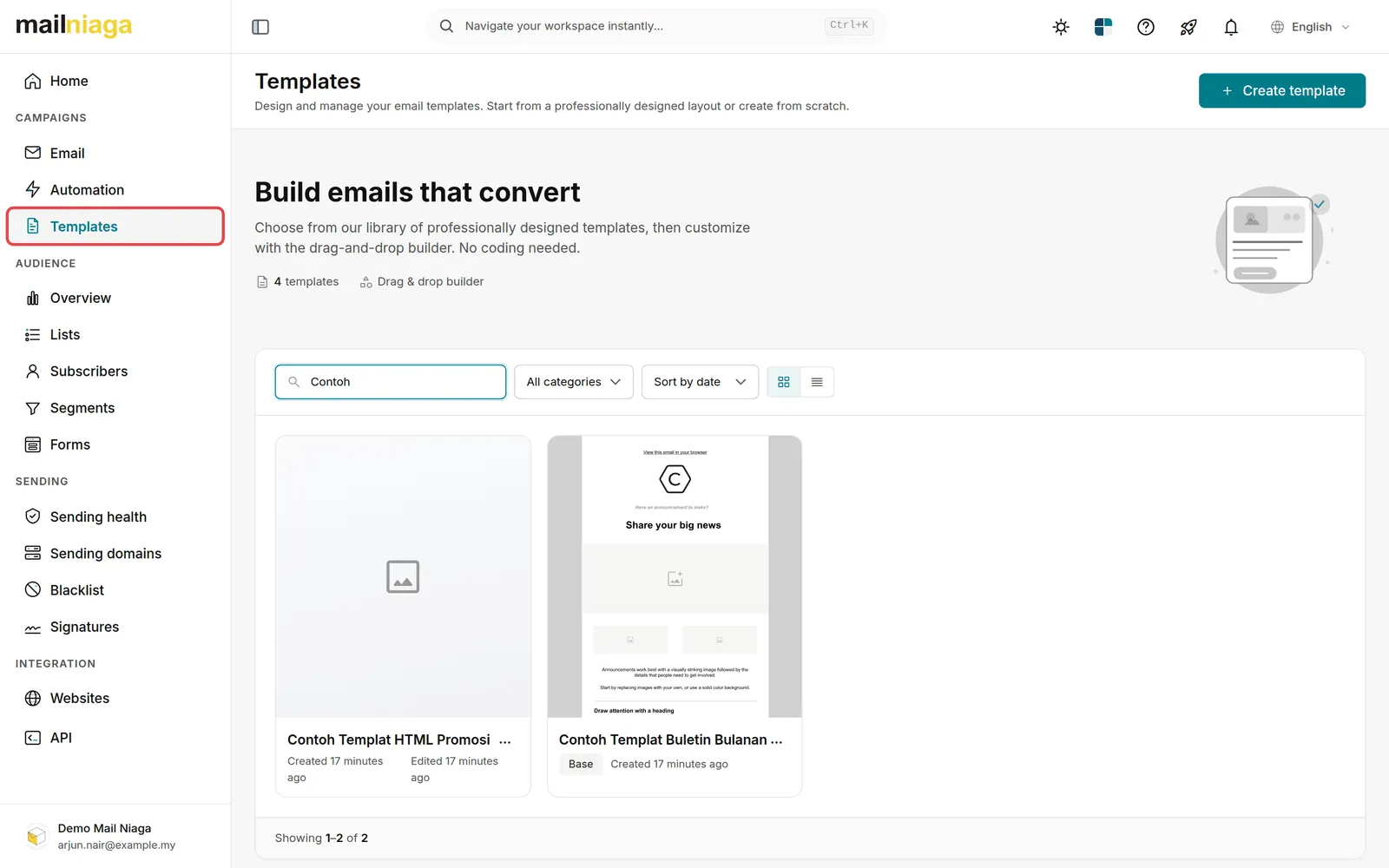
The Create template button at the top opens the gallery, where you create a new template. For the steps, see Create an email template from the gallery.
Two types of template
Section titled “Two types of template”Mail Niaga has two types of template. How you edit a template changes with its type.
| Type | How to create it | How to edit it |
|---|---|---|
| Builder template | Choose a design from the gallery, then click Create & Design. | Click Edit on the card, or Open builder in the … menu. The template opens in the email builder (drag and drop), with no code. |
| Custom HTML template | Click Edit as Custom HTML on a builder template, then paste your own HTML. | Click Edit HTML on the card, or in the … menu. |
You can change a builder template into a Custom HTML template, but you cannot change it back. Read Use your own HTML (Custom HTML) before you change it.
Find & sort templates
Section titled “Find & sort templates”The bar above the list helps you to find a template when you have many templates.
| Control | What it does |
|---|---|
| Search templates… | Find a template by its name. |
| All categories | Filter by category: Base, Simple or Extended. |
| Sort by date / Sort by name | Sort by date or by name. |
| Grid and list buttons | Show cards (Grid view) or rows (List view). Your browser keeps this choice. |
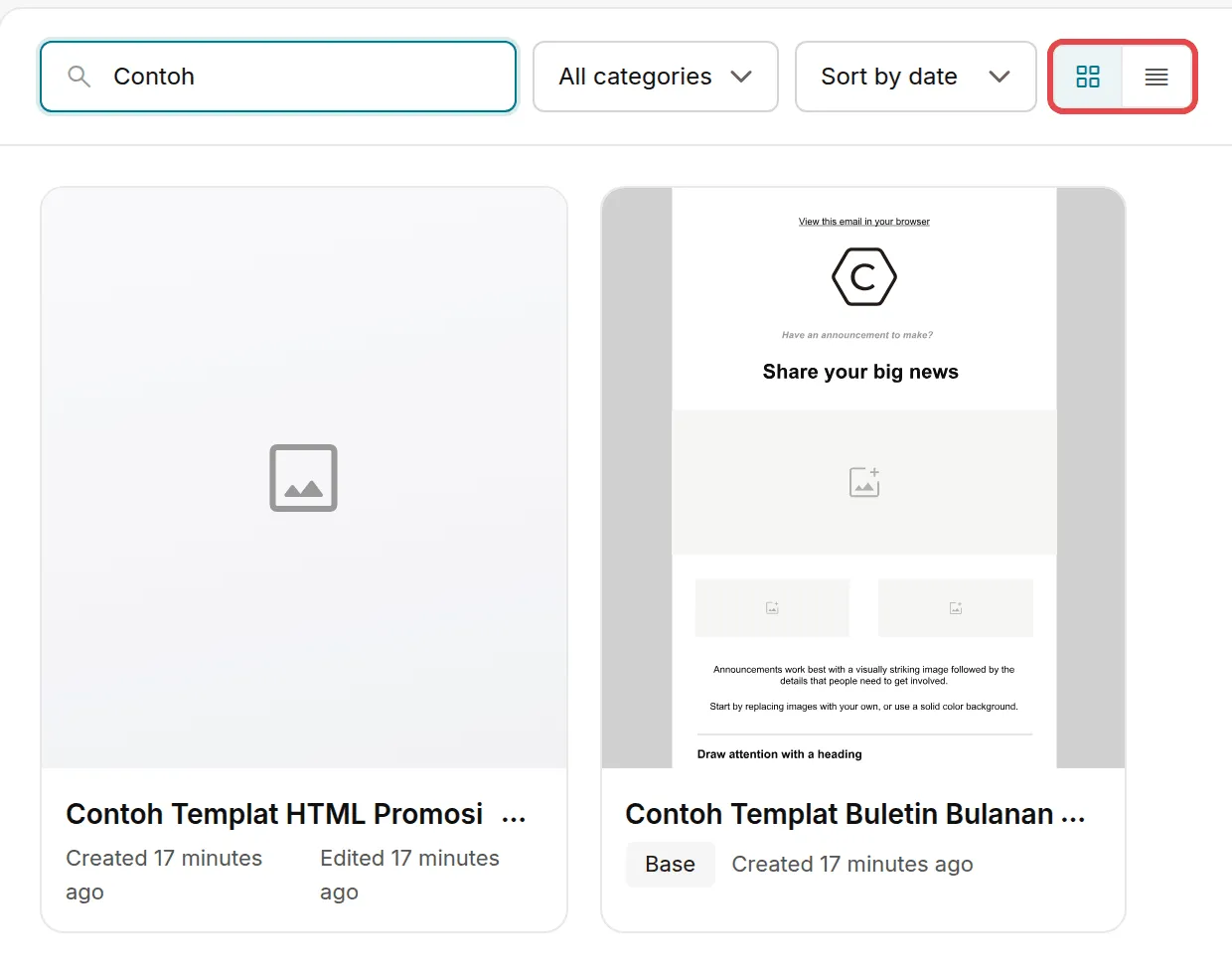
Each card shows the name of the template and the date when it was created (Created). A template from the gallery also shows its category, for example Base. If the template was changed, the card also shows the date of the last change (Edited).
Template actions
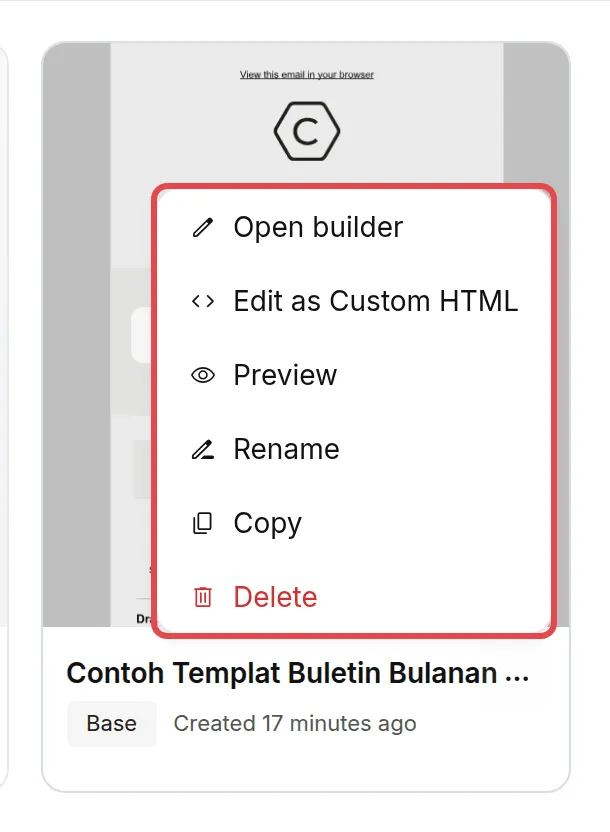
Section titled “Template actions”Each card has a three-dot menu (…) next to the name of the template. The items in this menu change with the type of template.
| Type | The … menu on the card |
|---|---|
| Builder template | Open builder, Edit as Custom HTML, Preview, Rename, Copy, Delete |
| Custom HTML template | Edit HTML, Preview, Rename, Copy, Delete |
In the list view, each row has an Edit (or Edit HTML) icon and a Preview icon. A vertical three-dot menu is at the end of the row. That menu has only Rename, Copy and Delete, and Edit as Custom HTML for a builder template.
Preview and thumbnail
Section titled “Preview and thumbnail”The preview shows how the email looks before you use it in a campaign.
- Click … on the card, then click Preview. You can also move the pointer onto the card, then click Preview.
- To see the email at a different screen size, click the desktop, tablet or phone icon.
- To use this image of the email as the card thumbnail, click Capture as thumbnail.
- To close the preview, click Close.

Rename a template
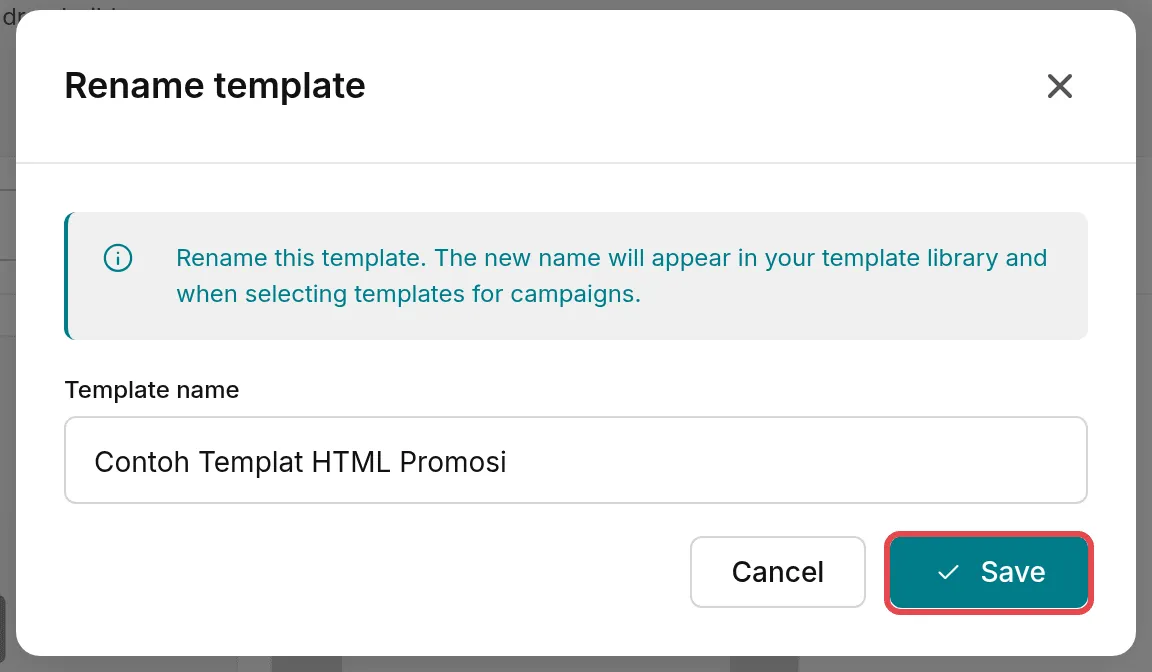
Section titled “Rename a template”The new name will show in the template list and when you choose a template for a campaign.
- Click … on the card, then click Rename.
- In Template name, type the new name.
- Click Save.
Copy a template
Section titled “Copy a template”Copy a template when you want a new design that is almost the same as a template that you have. The original template does not change.
- Click … on the card, then click Copy.
- In Name for the copy, check or change the name. The default name is “Copy of” and the name of the template.
- Click Create copy.
The copy keeps all the content and the design of the original template.
Delete a template
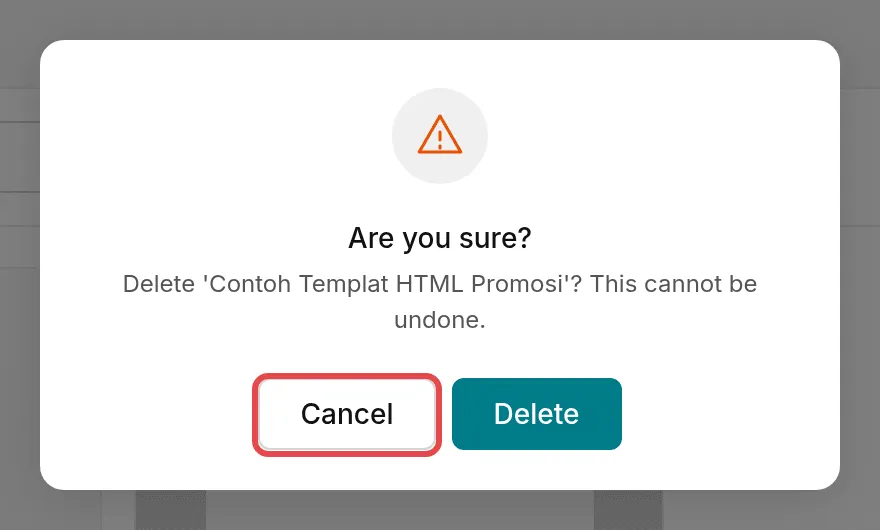
Section titled “Delete a template”You cannot get back a deleted template.
- Click … on the card, then click Delete.
- Mail Niaga asks “Are you sure?” with the name of the template. To delete the template, click Delete. To stop, click Cancel.
This advice helps you keep your templates in order:
- Give each template a clear name. For example, “Monthly newsletter” or “Year-end promotion”. You will see that name when you choose a template for a campaign.
- Copy a template that works before you change it. If the change does not work, you still have the original template.
- Save a thumbnail for the templates that you use frequently. A card with an image is easier to recognise than a grey icon.
Common issues
Where is the Template menu? I cannot find it in the top menu.
The menu changed. Click Campaigns → Templates in the left sidebar of the Mail Niaga console.
I searched for a template name, but I see "No templates yet". Are my templates lost?
No. The same message shows when the search finds no template. To see all your templates, clear the search box and choose All categories.
Why does my template card show only a grey image icon?
The template has no thumbnail yet. Open Preview. Then click Capture as thumbnail to save an image of the email as the card thumbnail.
Was this article helpful?
Thanks for your feedback.
Sorry, this page did not help. Chat on Messenger and we will help you fix it.