
Ask an AI about this page
 ChatGPT
 Claude
 Perplexity
 Google AI Mode
 Microsoft Copilot
 Grok
 Mistral Le Chat
Connect an AI assistant (Connect AI)
Connect AI lets an AI assistant such as Claude or ChatGPT work with your Mail Niaga account. You can build lists, prepare campaign drafts, read reports and send campaigns by chat, in plain words. Mail Niaga uses MCP (Model Context Protocol). MCP is the open standard that AI assistants use to connect to other apps.
A connected assistant can only see and change the things that you can see and change. It cannot see the data of other accounts. The assistant always asks you before it sends a campaign, starts an automation or deletes anything.
Open the Connect AI page
Section titled “Open the Connect AI page”Do these steps after you log in to the Mail Niaga console:
-
In the sidebar, under INTEGRATION, click Connect AI. The How it works tab opens.
-
Find the address in Your MCP address. Click Copy to copy this address:
https://manage.mailniaga.com/mcp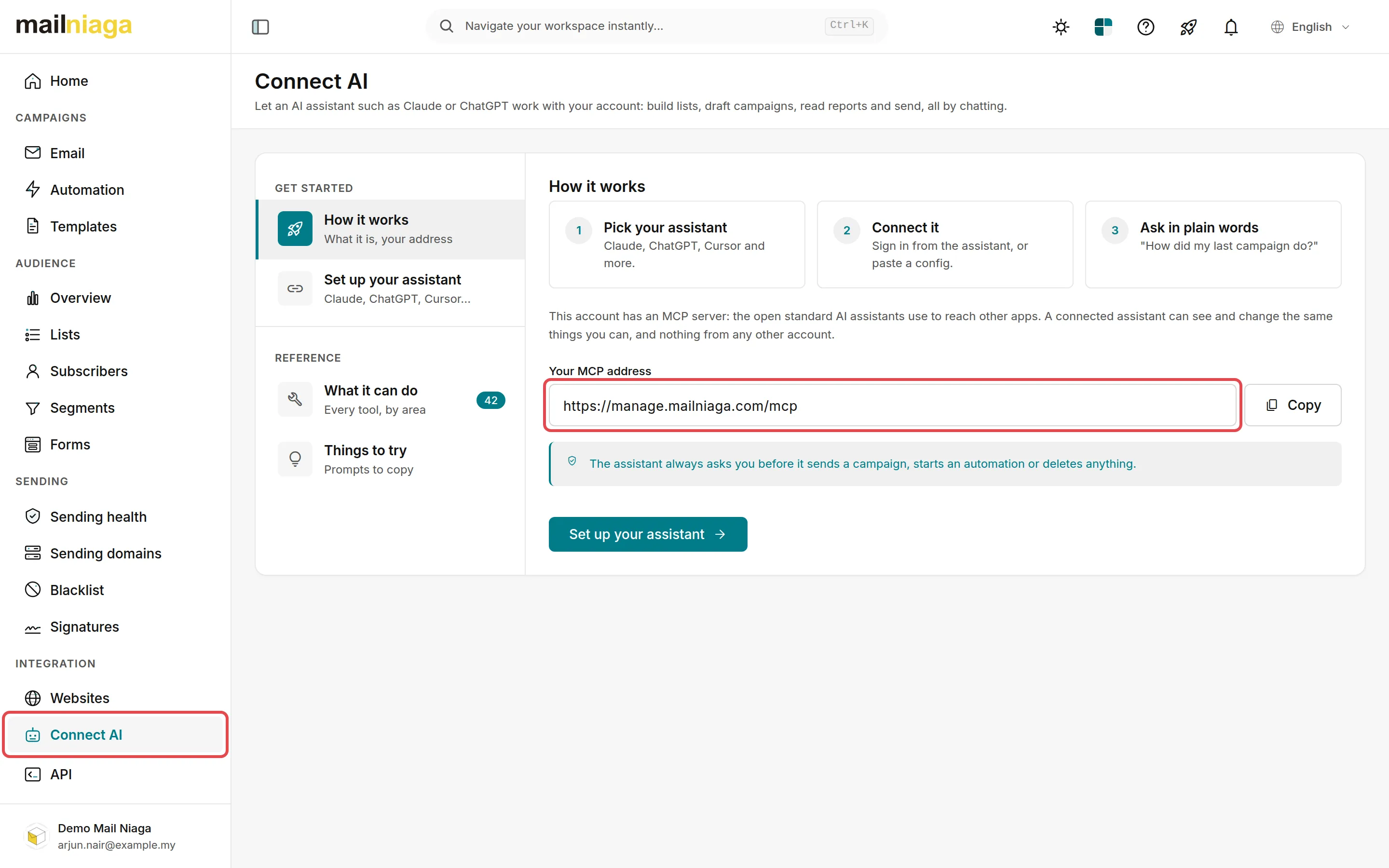
-
Click Set up your assistant to see the steps for your assistant.
Connect Claude
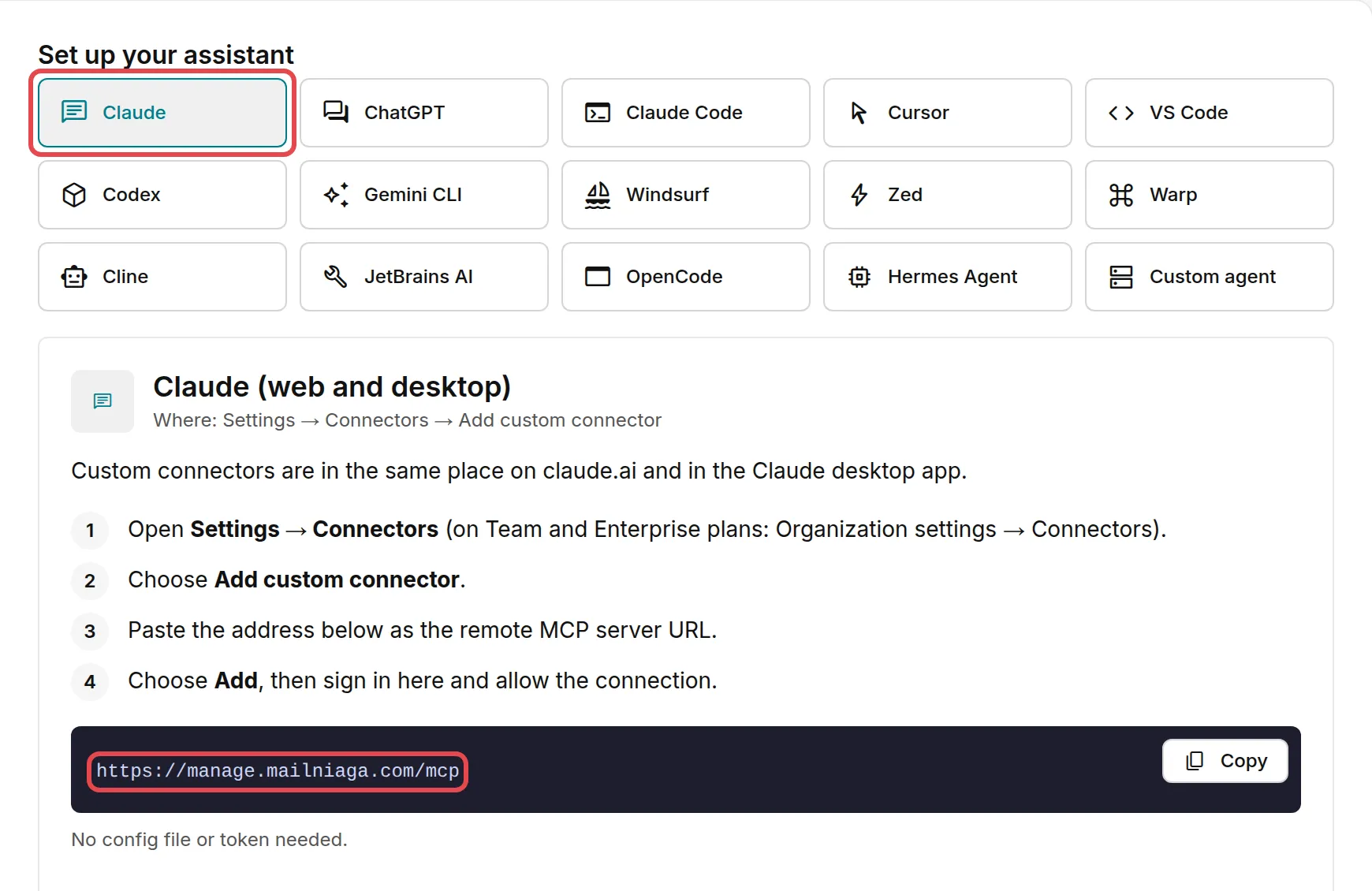
Section titled “Connect Claude”These steps are the same for claude.ai and the Claude desktop app. You do not need a config file or an API token.
-
On the Connect AI page, click Set up your assistant, then click Claude.
-
In Claude, open Settings → Connectors. On the Team and Enterprise plans, open Organization settings → Connectors.
-
Click Add custom connector.
-
Paste the MCP address as the URL of the remote MCP server.
-
Click Add. Log in to Mail Niaga, then allow the connection. See Allow the connection.
Connect ChatGPT
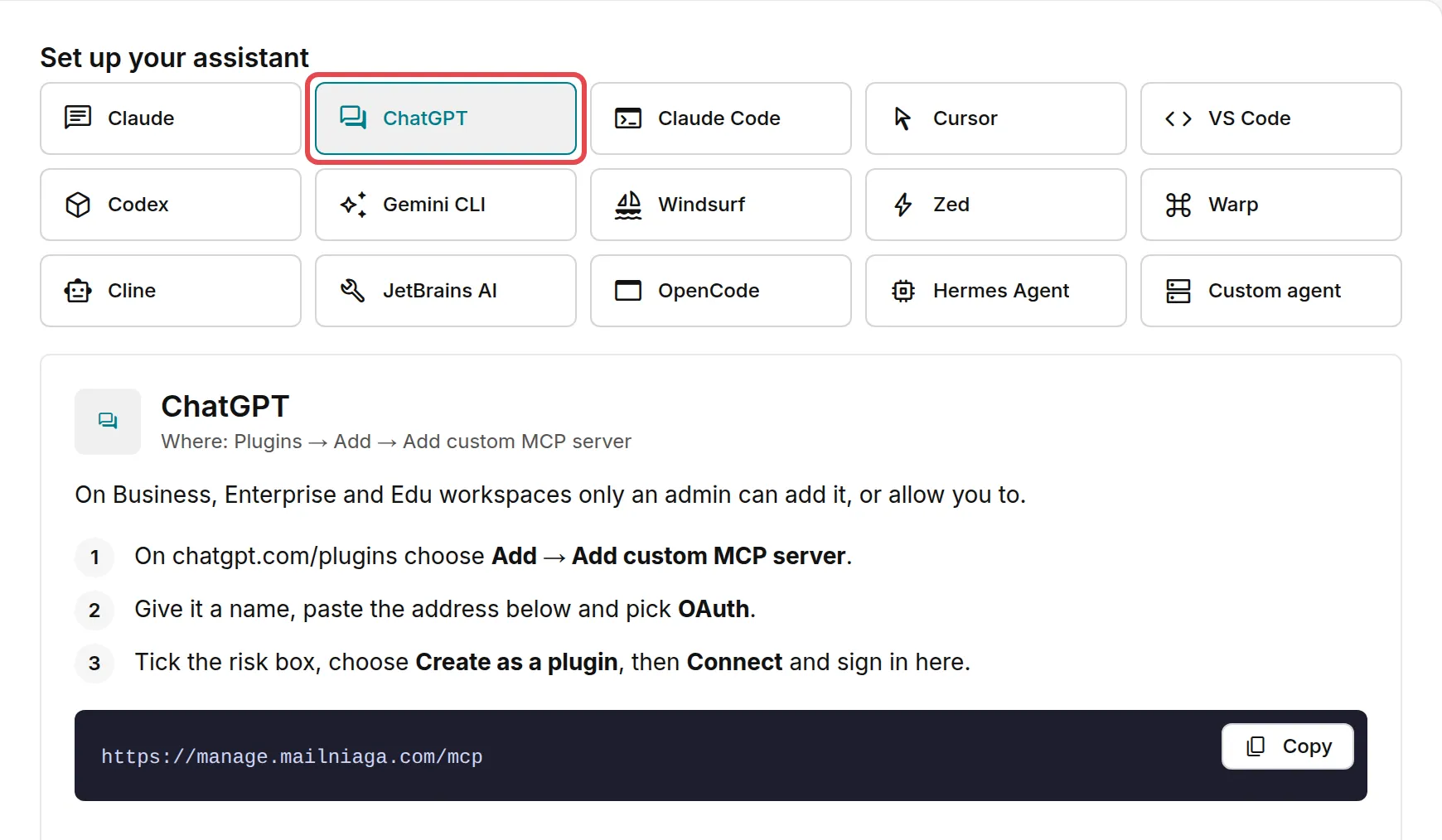
Section titled “Connect ChatGPT”In Business, Enterprise and Edu workspaces, only an admin can add an MCP server. An admin can also give you permission to add one.
-
On the Connect AI page, click Set up your assistant, then click ChatGPT.
-
Open chatgpt.com/plugins, then click Add → Add custom MCP server.
-
Type a name, paste the MCP address, then choose OAuth.
-
Tick the risk check box, choose Create as a plugin, then click Connect.
-
Log in to Mail Niaga, then allow the connection.
Other assistants
Section titled “Other assistants”The Set up your assistant tab also has steps for these assistants. Click the name of an assistant to see the exact steps and config:
| Assistant | Where to add the server | How to log in |
|---|---|---|
| Claude Code | The claude mcp add command, or the .mcp.json file |
Browser login (recommended), or API token |
| Cursor | ~/.cursor/mcp.json or .cursor/mcp.json |
Browser login, or API token |
| VS Code (GitHub Copilot) | The code --add-mcp command, or .vscode/mcp.json |
Browser login, or API token |
| Codex | ~/.codex/config.toml |
The codex mcp login command |
| Gemini CLI | The gemini mcp add command, or ~/.gemini/settings.json |
Browser login, or API token |
| Windsurf | ~/.codeium/windsurf/mcp_config.json |
Browser login, or API token |
| Zed | Agent Panel → Add Remote Server | Browser login, or API token |
| Warp | Settings → Agents → MCP servers → Add | Browser login |
| Cline | Cline → MCP Servers → Configure MCP Servers | API token |
| JetBrains AI | Settings → Tools → AI Assistant → Model Context Protocol (MCP) | API token |
| OpenCode | opencode.json |
The opencode mcp auth command |
| Hermes Agent | ~/.hermes/config.yaml |
API token |
| Custom agent | Any MCP SDK over HTTP | API token |
A config that uses an API token shows YOUR_API_TOKEN. Replace that text with your API token. See Get and change your API token.
Allow the connection
Section titled “Allow the connection”When the assistant asks you to log in, your browser opens a Mail Niaga page. The page shows the name of the assistant and what the assistant can do:
- See your campaigns, lists, contacts and reports.
- Create and change campaigns, lists and contacts.
- Send campaigns to your contacts.
Click Allow to connect the assistant, or click Deny to cancel. Allow only an app that you trust.
What the assistant can do
Section titled “What the assistant can do”Click What it can do to see all the tools that the assistant can use. There are 42 tools in the groups Account, Lists, Contacts, Imports, Campaigns, Automations and Files. Each tool acts as you and follows the limits of your plan.
Each tool has a label:
| Label | What it means |
|---|---|
| Reads | The tool only reads data, for example your lists or campaign statistics. |
| Changes | The tool creates or changes data, for example a new list or a new contact. |
| Asks first | The tool asks for your approval first, for example before it deletes a list. |
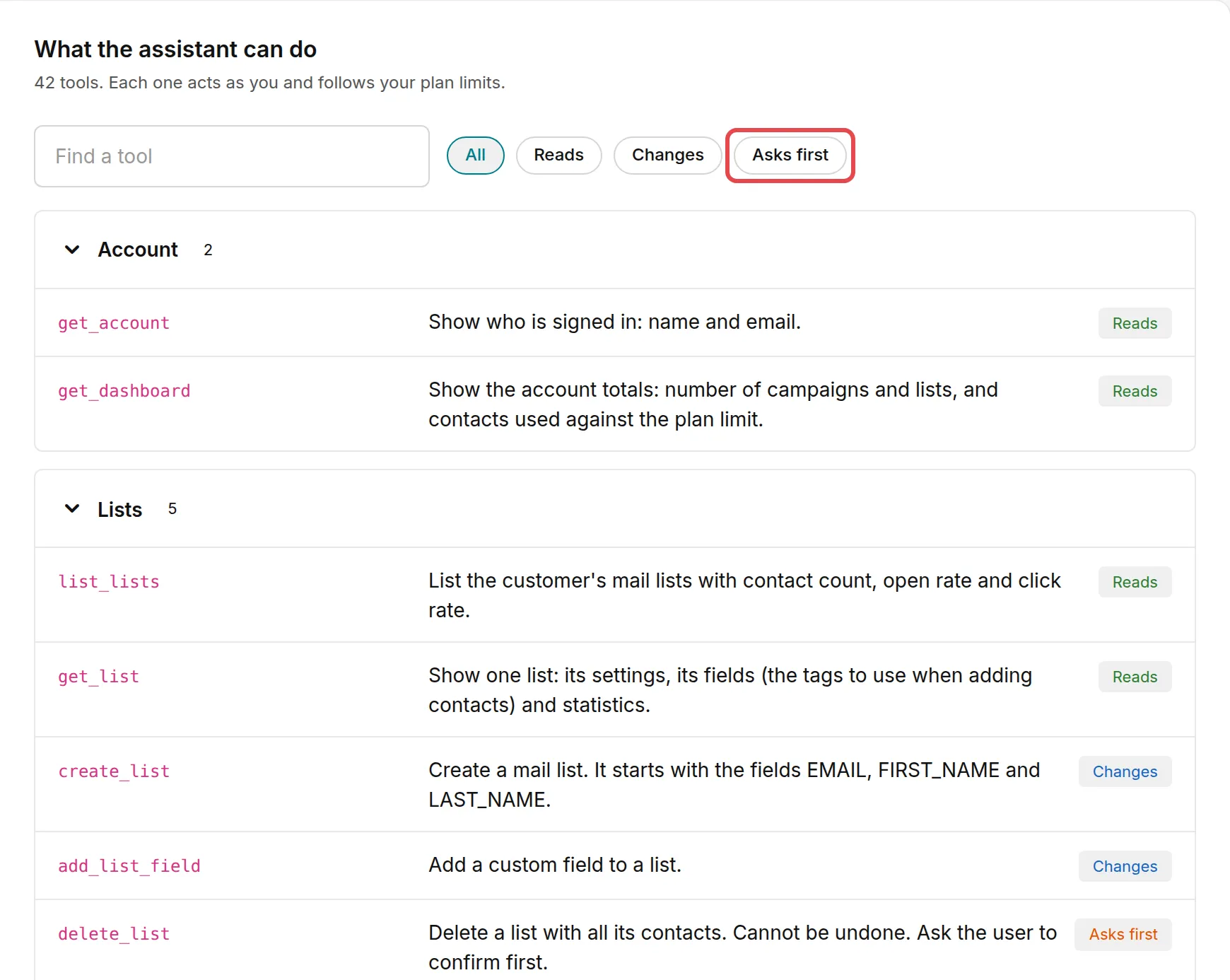
Type in Find a tool to find a tool, or click Reads, Changes or Asks first to filter the list.
Sample prompts
Section titled “Sample prompts”Click Things to try to see sample prompts. Click the copy icon on a prompt, then paste the prompt into your assistant.
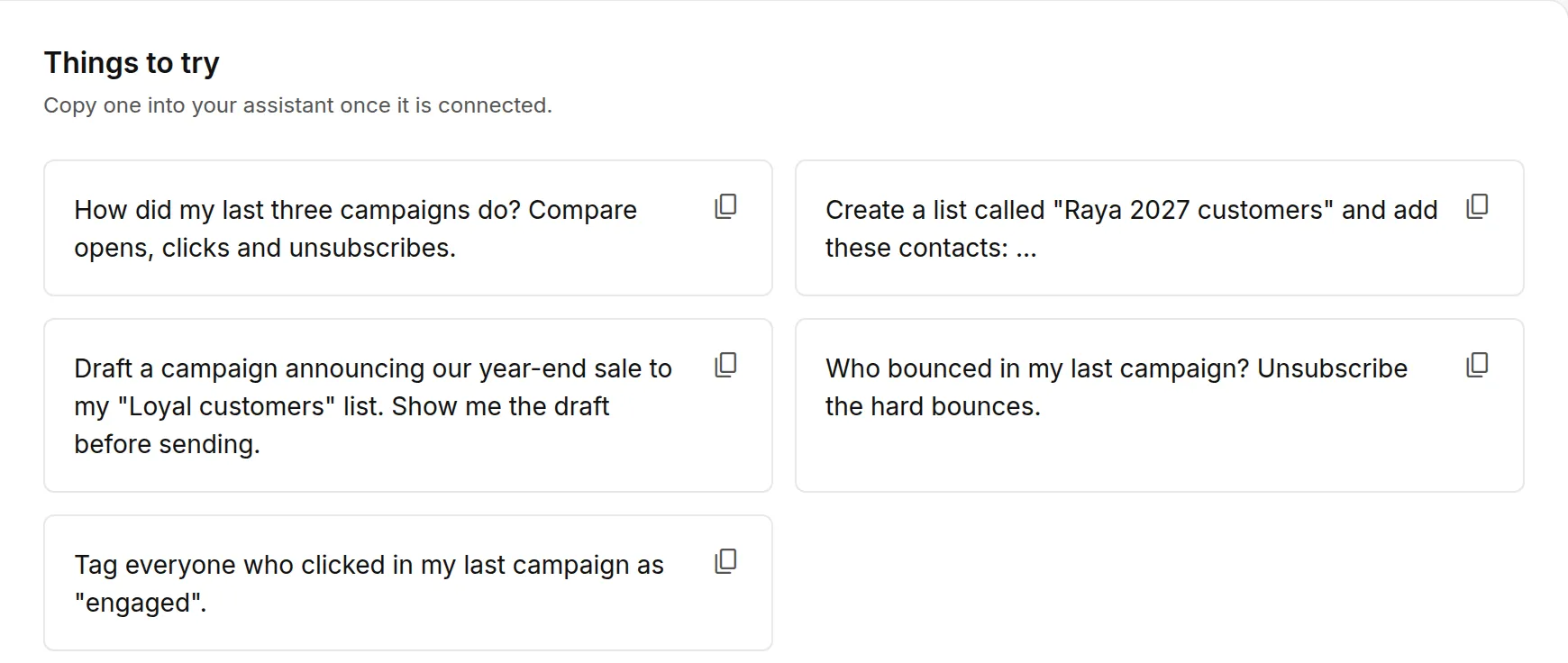
The assistant also understands prompts in Bahasa Melayu.
Disconnect an app
Section titled “Disconnect an app”Do these steps to remove the access of an assistant:
-
Click your name at the bottom of the sidebar, then click Account.
-
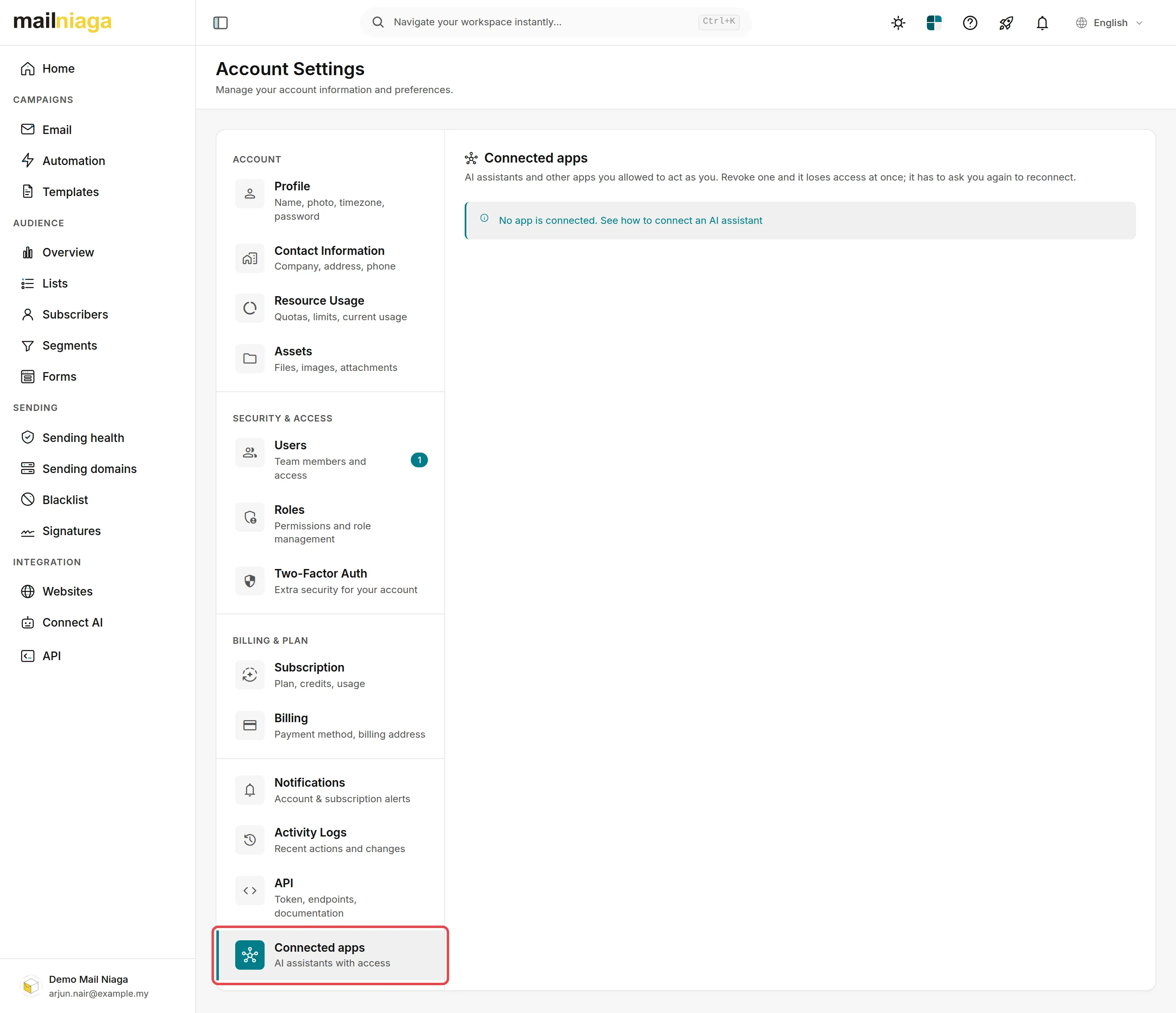
In the left menu, click Connected apps. This page shows each connected app, the date of the connection (Connected) and the date when the access stops (Access ends).
-
Click Revoke on the app, then confirm.
The access of the app stops immediately. To connect again, the assistant must ask for your permission again.
This advice helps you use an AI assistant safely:
- Ask the assistant to show you the draft first. Write “Show me the draft before sending” in your prompt. Then check the draft in the console.
- Use the browser login if your assistant has it. Then you do not keep an API token in a config file.
- Check Connected apps regularly. Revoke the apps that you do not use now.
Common issues
Do I need an API token to connect Claude or ChatGPT?
No. For Claude and ChatGPT, you only paste the MCP address, then log in to Mail Niaga and click Allow. Some other assistants, for example JetBrains AI, and systems without a browser need an API token.
Can an AI assistant send a campaign without my approval?
No. The assistant always asks you before it sends a campaign, starts an automation or deletes anything. Check the campaign draft before you agree.
Why can my assistant not get access to my account now?
The access of each app has an end date. See the Access ends column on the Connected apps page. The access also stops when you click Revoke. Connect the assistant again and click Allow again.
Can the assistant see the data of other accounts?
No. The assistant can only see and change the things that you can see and change in your account. Each action also follows the limits of your plan.
Was this article helpful?
Thanks for your feedback.
Sorry, this page did not help. Chat on Messenger and we will help you fix it.