
Ask an AI about this page
 ChatGPT
 Claude
 Perplexity
 Google AI Mode
 Microsoft Copilot
 Grok
 Mistral Le Chat
Connect your website to Mail Niaga
Websites connects your website to Mail Niaga. After you connect a website, visitors see the popup forms that you connect to that website. Each visitor who fills in a form goes into the list of that form.
You need access to edit the code of your website (for example, WordPress admin access).
Add a website
Section titled “Add a website”Do these steps in the Mail Niaga console:
-
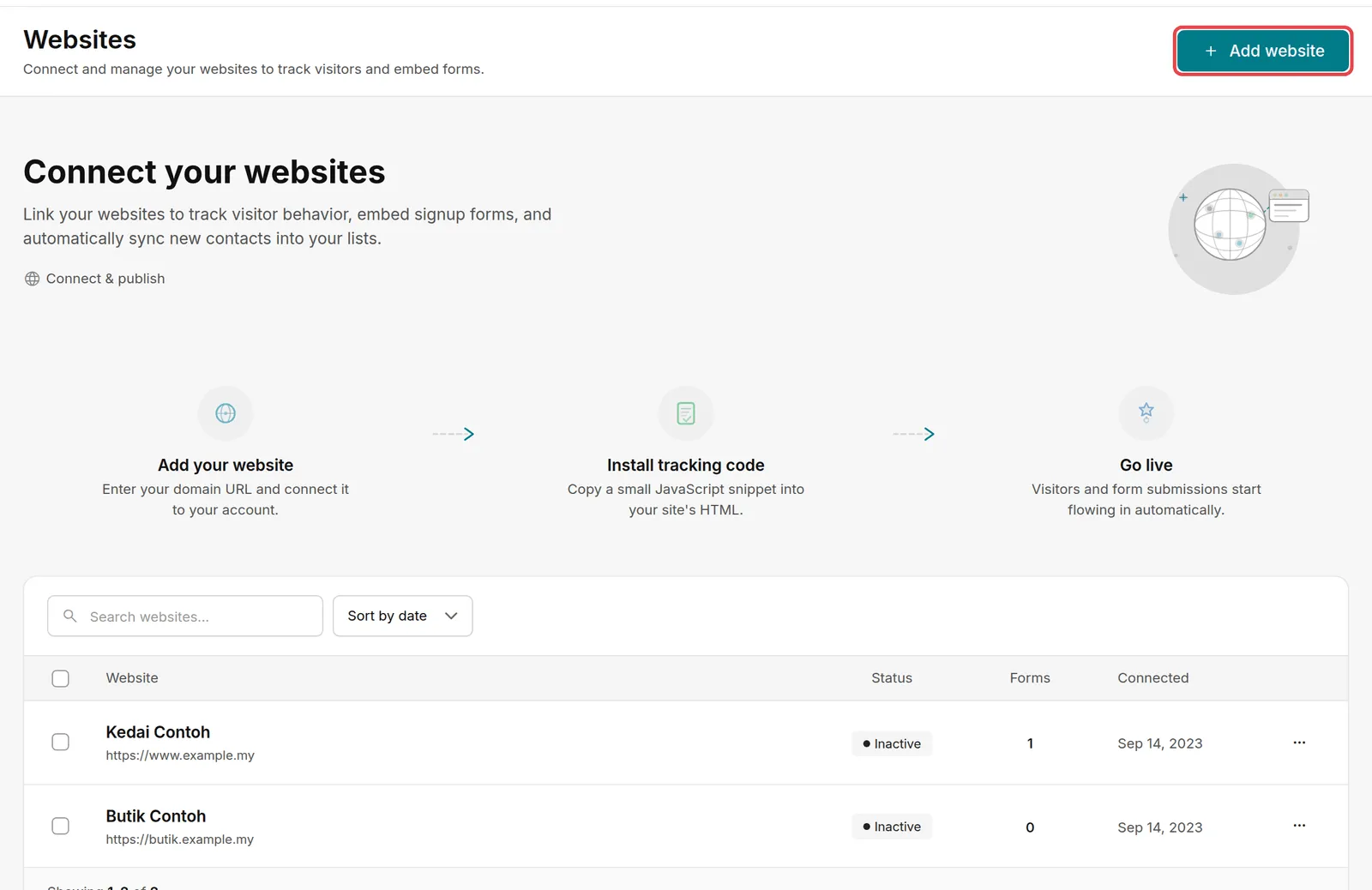
Click Integration → Websites in the sidebar.
-
Click Add website.
-
In Website URL, type the full URL of your website, with
https://. Example:https://www.example.my. -
Click Add website. The Edit website page for that website opens.
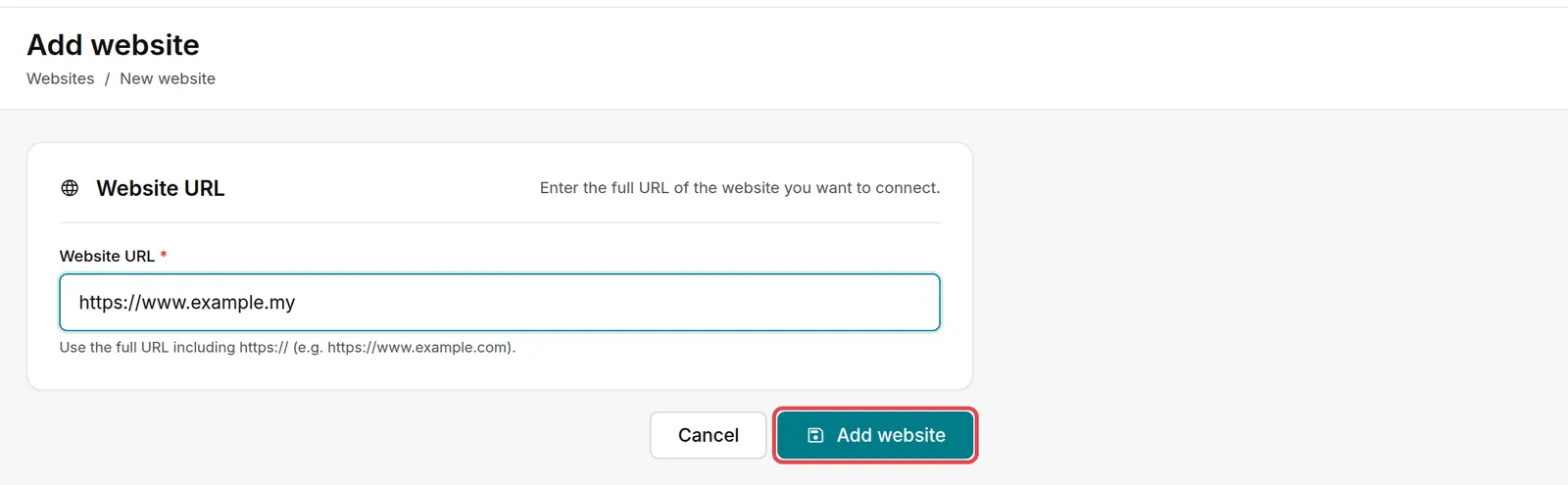
Mail Niaga gets the title of your website and shows it in the Websites list. If the URL is incorrect or the domain does not exist, Mail Niaga does not save the website.
Install the Tracking code
Section titled “Install the Tracking code”This code is one line of JavaScript that connects your website to Mail Niaga. Do these steps:
-
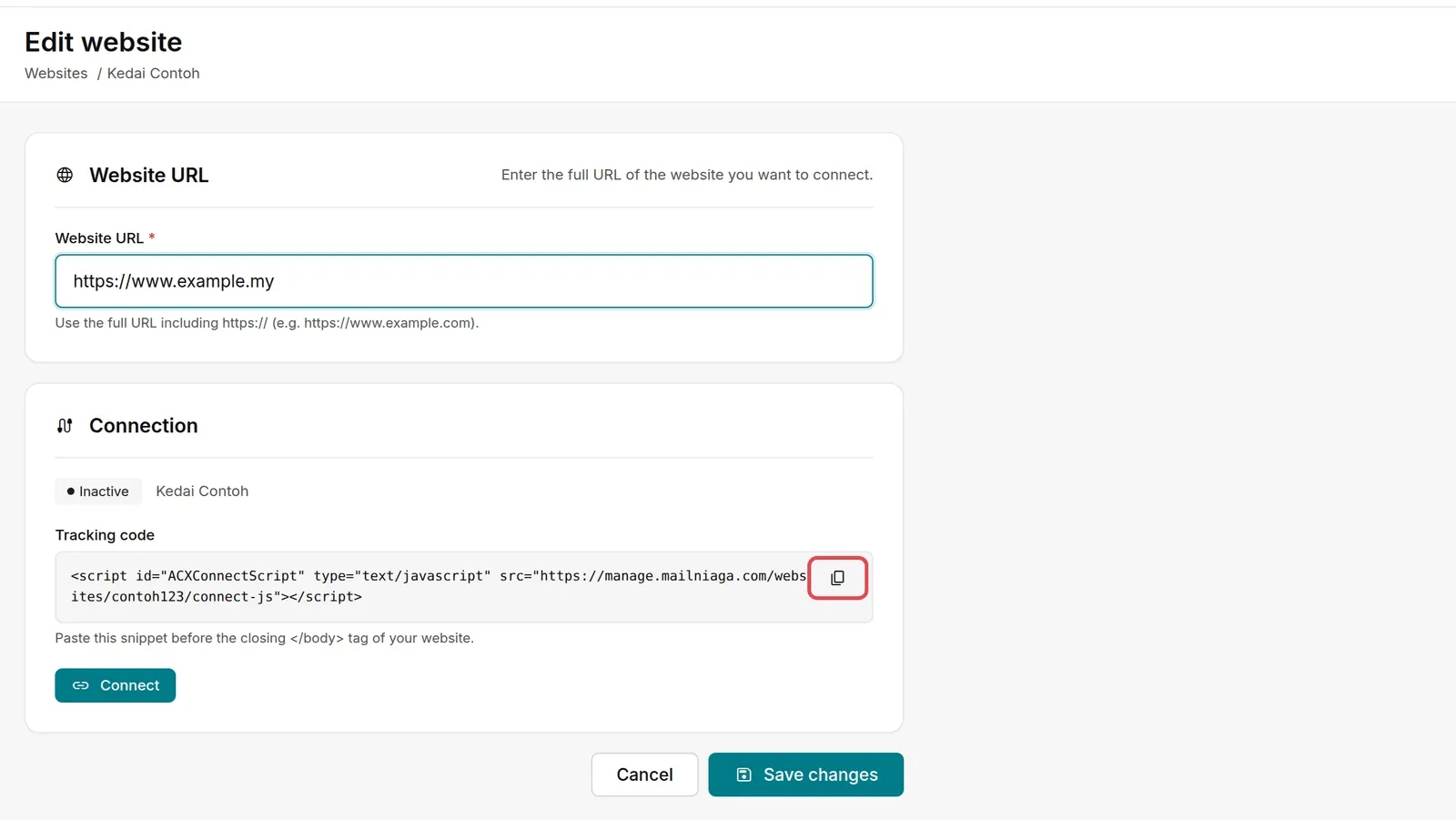
On the Edit website page, find the Connection section.
-
Click the copy button next to Tracking code.
-
Paste the code into your website, before the
</body>tag. The code must be on each page that must show the popup form. -
Open your website in a browser. Mail Niaga changes the status of the website to Connected when the page opens.
For WordPress, paste the code into the footer of your theme (Appearance → Theme File Editor → footer.php, before </body>). You can also use a header and footer plugin that adds code to the footer of each page.
If the status is still Inactive, click Connect in the Connection section. Mail Niaga opens your website and looks for the Tracking code.
Website status
Section titled “Website status”The Status column in the Websites list shows if the website is connected:
| Status | What it means | What to do |
|---|---|---|
| Inactive | Mail Niaga did not find the Tracking code on the website yet. | Install the Tracking code, then open the website or click Connect. |
| Connected | The website is connected. The connected popup forms show on it. | Connect popup forms to this website. |
The Forms column shows the number of forms that are connected to the website.
Connect a popup form to a website
Section titled “Connect a popup form to a website”A popup form shows only on the websites that you connect to the form. In the Forms list, a form that is not connected shows Not connected. Do these steps in the form builder:
-
Click Audience → Forms, then click Build on your form.
-
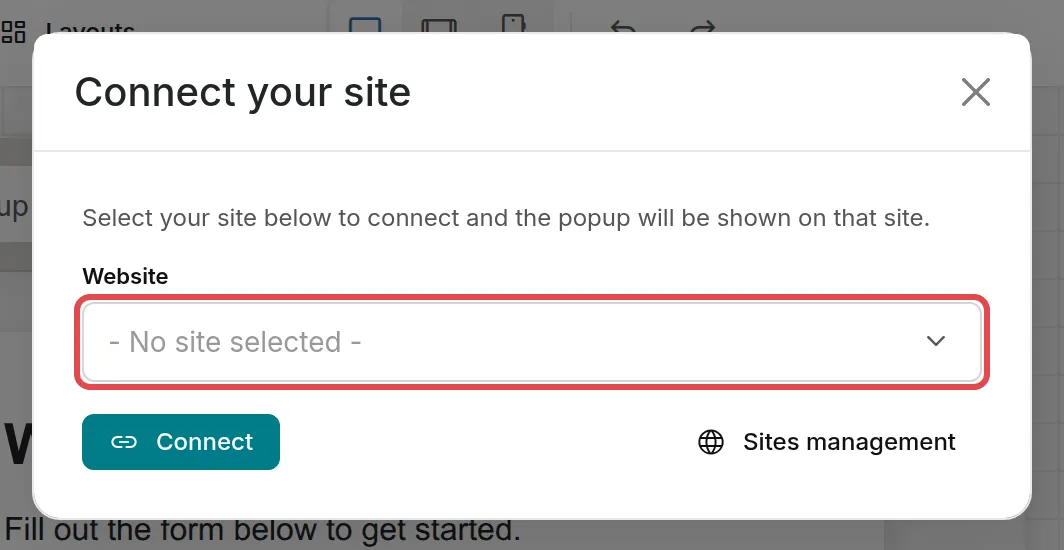
On the bar above the form preview (“Connect your website to publish your pop-up on your site”), click Integrate to your website. The Connect your site popup opens.

-
Choose your website in Website. The default option is - No site selected -.
-
Click Connect.
The Website list shows only the websites that have the Connected status. If the list is empty, click Sites management to open the Websites page, and connect your website first. The form must also have the Published status before it shows on your website.
After you connect the form, the bar shows the URL of your website. Click Edit on the bar to change the website.
Edit or delete a website
Section titled “Edit or delete a website”Click … on the row of the website in the Websites list, then choose one of these items:
- Edit to change the URL or copy the Tracking code again. Click Save changes after you change the URL.
- Connect to tell Mail Niaga to look for the Tracking code on a website that is still Inactive.
- Delete to delete the website from Mail Niaga. Also remove the Tracking code from your website.
This advice helps your popup forms show on your website:
- Install the code in the footer, not on one page only. Pages without the Tracking code do not show the popup form.
- Clear the cache after you paste the code. A WordPress cache plugin can continue to show the old page without the code.
Common issues
Why is the status of my website still Inactive?
Mail Niaga did not find the Tracking code on that website yet. Make sure that the code is before the </body> tag, clear the cache of your website, then open the website one time in a browser. Another method: click Connect on the Edit website page.
Why is my website not in the Website list when I connect a form?
The Connect your site popup lists only the websites that have the Connected status. It does not show a website that is still Inactive. Install the Tracking code and connect the website first.
Does Mail Niaga record the visitors to my website?
No. The Tracking code connects your website to Mail Niaga and shows the popup forms that you connect. New subscribers go into the list through those forms.
Was this article helpful?
Thanks for your feedback.
Sorry, this page did not help. Chat on Messenger and we will help you fix it.