
Ask an AI about this page
 ChatGPT
 Claude
 Perplexity
 Google AI Mode
 Microsoft Copilot
 Grok
 Mistral Le Chat
DNS records for a sending domain (SPF, DKIM, DMARC)
DNS records prove that the domain is yours. They also let Mail Niaga send email for that domain. You copy the records from the DNS records table in the Mail Niaga console to your DNS provider (for example Cloudflare or cPanel). This guide is for the domain owner, or for the person who manages the DNS of the domain.
If you did not add your domain yet, start with Add and verify a sending domain.
Records in the DNS records table
Section titled “Records in the DNS records table”Each sending domain has its own records, with different values for each domain. To see them, go to Sending → Sending domains. Click the three-dot icon on the row of the domain, then click DNS records.
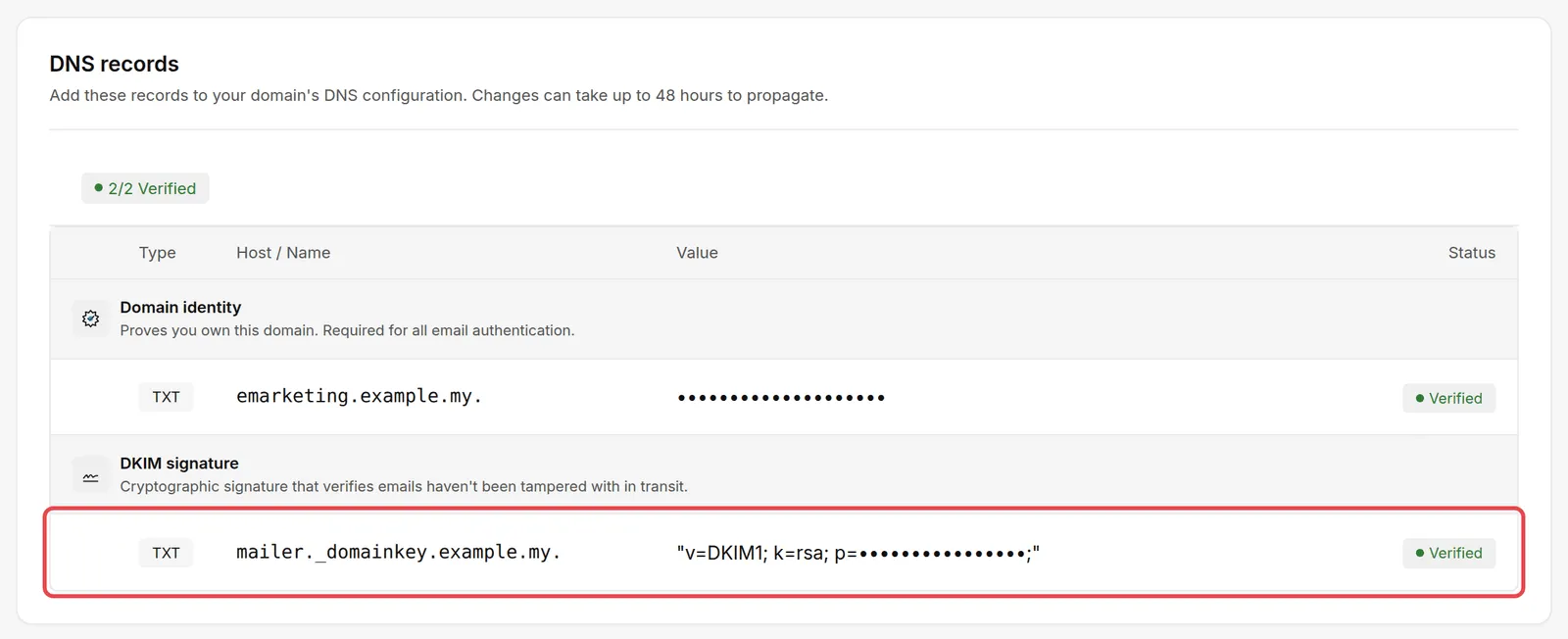
The table puts the records in groups by their purpose. Each row has a Type, a Host / Name, a Value and a Status:
| Group | Type | Function |
|---|---|---|
| Domain identity | TXT | Proves that you are the owner of the domain. |
| DKIM signature | TXT | The public key for the DKIM signature. The host ends with ._domainkey. and your domain name, for example mailer._domainkey.syarikatanda.com. Recipients use this key to make sure that nobody changed the email. |
| SPF record | TXT | Gives the Mail Niaga servers permission to send email for your domain. This row shows only for some domains. See the SPF section below. |
| DMARC policy | TXT | Tells receiving servers what to do if SPF or DKIM fails. This row shows only for some domains. |
Add the records at your DNS provider
Section titled “Add the records at your DNS provider”These steps use Cloudflare as an example. Other DNS providers have different menus. But the fields that you fill in are the same: the type, the name and the value.
- Log in to Cloudflare and choose your domain.
- Click DNS → Records, then click Add record.
- Choose TXT as the Type.
- In the Name field, type the Host / Name value from the Mail Niaga console. Remove the dot at the end of the value.
- In the Content field, paste the Value from the Mail Niaga console.
- Click Save.
- Do steps 2 to 6 again for each record in the DNS records table.
After you add all the records, go back to the page of the domain in the Mail Niaga console and click Verify DNS records. The records that the console finds change to Verified.
Only one SPF record
Section titled “Only one SPF record”A domain must have only one SPF record. An SPF record starts with v=spf1. Two SPF records on the same domain cause an error, and receiving servers can reject your email.
Your SPF record must have include:spf.mailniaga.mx. Choose the record for the other email services that your domain uses:
| Your domain uses | SPF record |
|---|---|
| Only Mail Niaga | v=spf1 include:spf.mailniaga.mx ~all |
| Mail Niaga and Google Workspace | v=spf1 include:_spf.google.com include:spf.mailniaga.mx ~all |
| Mail Niaga and Microsoft 365 (Office 365) | v=spf1 include:spf.protection.outlook.com include:spf.mailniaga.mx ~all |
If your domain already has an SPF record, do not add a new record. Edit the record that you have, and put include:spf.mailniaga.mx before ~all (or -all).
DMARC record
Section titled “DMARC record”DMARC tells receiving servers what to do with email that fails SPF or DKIM. Gmail and Yahoo now ask bulk email senders for a DMARC record.
If the DNS records table has no DMARC policy row, and your domain has no DMARC record, add a TXT record with this value:
| Type | Name | Content |
|---|---|---|
| TXT | _dmarc |
v=DMARC1; p=none; |
The value p=none only monitors email. It does not block email. A domain can have only one DMARC record. If your domain already has a DMARC record, do not add a second record.
SPF or DKIM warnings in the console
Section titled “SPF or DKIM warnings in the console”Mail Niaga checks the SPF and DKIM records of each sending domain each day. If there is a problem, the console shows a yellow banner at the top of the page. This table explains the banners:
| Banner | What it means | What to do |
|---|---|---|
| Your domain name, then is not authorized to send through | The SPF record of the domain does not have include:spf.mailniaga.mx. Gmail and Yahoo can reject your email or put it in the spam folder. |
Replace your SPF record with the record that the banner shows. That record keeps your other email services. If your domain has no SPF record, add the TXT record that the banner shows. |
| Your domain name, then is missing its DKIM record | The DKIM record of the domain is not in the DNS. Gmail and Yahoo can reject email from that domain. | Add the DKIM record that the banner shows at your DNS provider again. |
| Your domain name, then is no longer verified | The DKIM record was still missing at the next check. For now, you cannot send email from that domain. | Add the DKIM record again. The domain becomes verified again automatically after the console finds the record. |
After you correct the record at your DNS provider, click Check again on the banner. DNS changes can take up to one hour to show. If the banner is still there, try again later.
Check the SPF, DKIM and DMARC results in Gmail
Section titled “Check the SPF, DKIM and DMARC results in Gmail”You can see if email from your domain passes SPF, DKIM and DMARC. Send one email from Mail Niaga to your Gmail address, then do these steps.
- Open the email in Gmail.
- Click the three-dot icon on the right side of the email, then click Show original.
- Look at the SPF, DKIM and DMARC lines at the top of the page.
Each line must show PASS. If a line shows FAIL, check that record at your DNS provider.
This advice helps you keep your DNS records correct:
- Select all the text in the Value column before you copy it. A DKIM key is very long. If one character is missing, the record fails.
- Keep the DNS records after the domain is Verified. Mail Niaga checks the records each day. If you delete the DKIM record, the domain can lose its Verified status.
- Check your SPF record when you change an email service. A new service usually asks for its own SPF record. Put all of them in one record.
Common issues
Can I use the CNAME record dkim._domainkey.mailniaga.mx from an old guide?
No. That record is for the old system. Now each sending domain has its own DNS records. Copy the records from the DNS records table on the page of your domain in the Mail Niaga console.
My domain already has an SPF record for Google Workspace. Must I add a second SPF record?
No. A domain can have only one SPF record. Add include:spf.mailniaga.mx to the record that you have, before ~all. For example, v=spf1 include:_spf.google.com include:spf.mailniaga.mx ~all.
Why is the status still Pending after I added the DNS records?
DNS changes can take 15 minutes to 48 hours to propagate. Also make sure that you copied the Host / Name and the Value exactly, with no extra spaces. Then click Verify DNS records again.
Was this article helpful?
Thanks for your feedback.
Sorry, this page did not help. Chat on Messenger and we will help you fix it.