
Ask an AI about this page
 ChatGPT
 Claude
 Perplexity
 Google AI Mode
 Microsoft Copilot
 Grok
 Mistral Le Chat
Use your own HTML (Custom HTML)
With Custom HTML, you can use your own email HTML code. An example is an email that you designed in another application. Mail Niaga has no upload button for templates. You must paste the HTML code directly into the editor.
Change a builder template to Custom HTML
Section titled “Change a builder template to Custom HTML”Do these steps for a template that you made from the gallery.
-
In the left sidebar, click Campaigns → Templates.
-
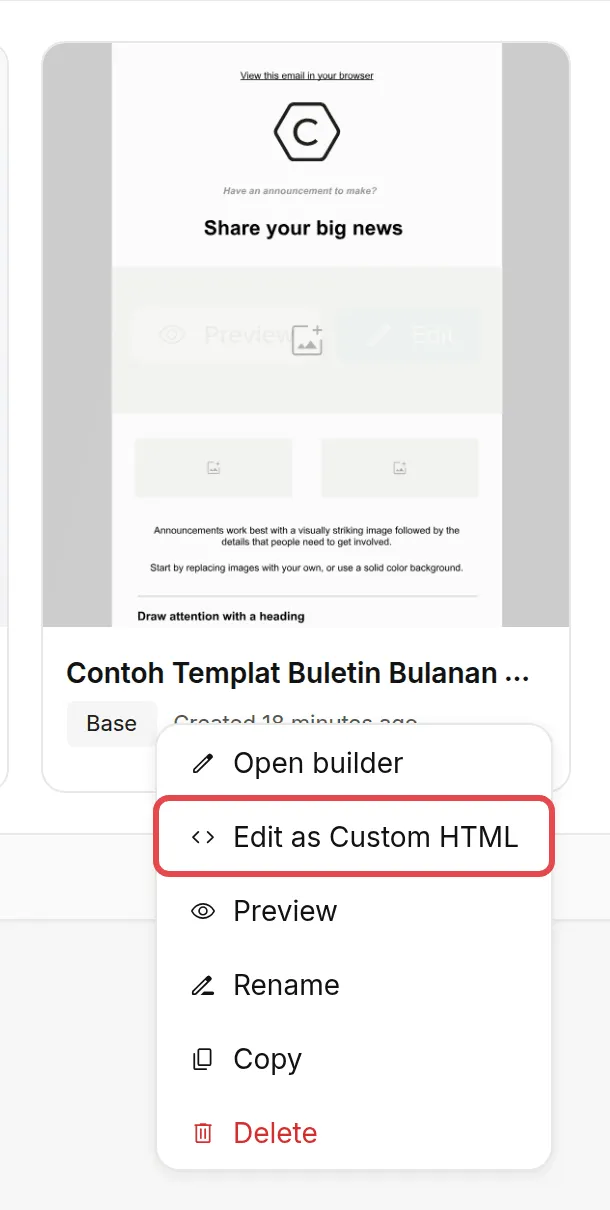
Click … on the template card, then click Edit as Custom HTML.
-
The Custom HTML page opens with an empty editor. Paste your HTML code (see the steps below).
-
Click Save HTML.
-
Mail Niaga asks “Switch to Custom HTML?”. Click Switch to Custom HTML to continue, or Cancel to stop.
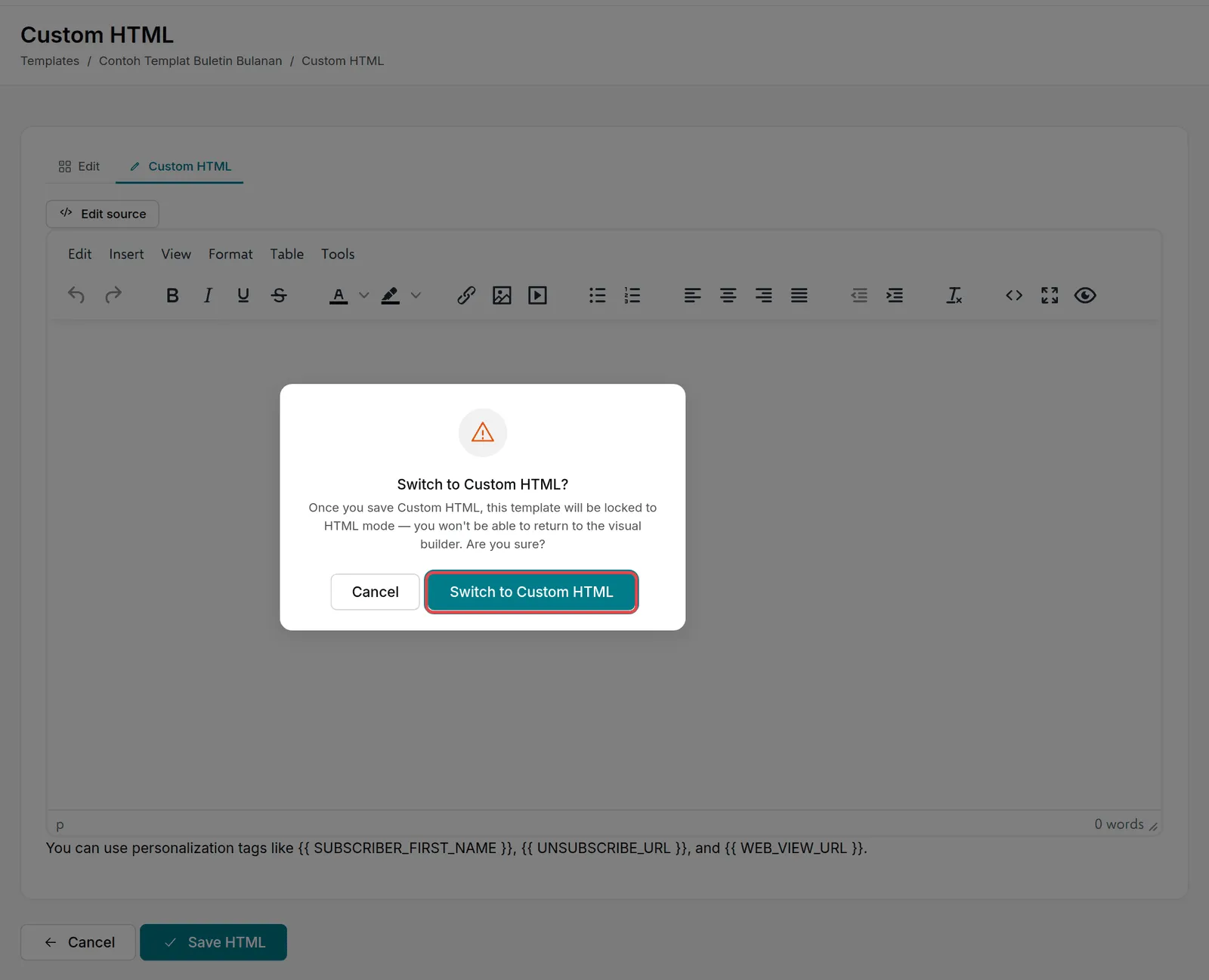
If you want to keep the builder version, click Copy on the template first. Then change the copy to Custom HTML. See Email templates: overview.
Edit a Custom HTML template
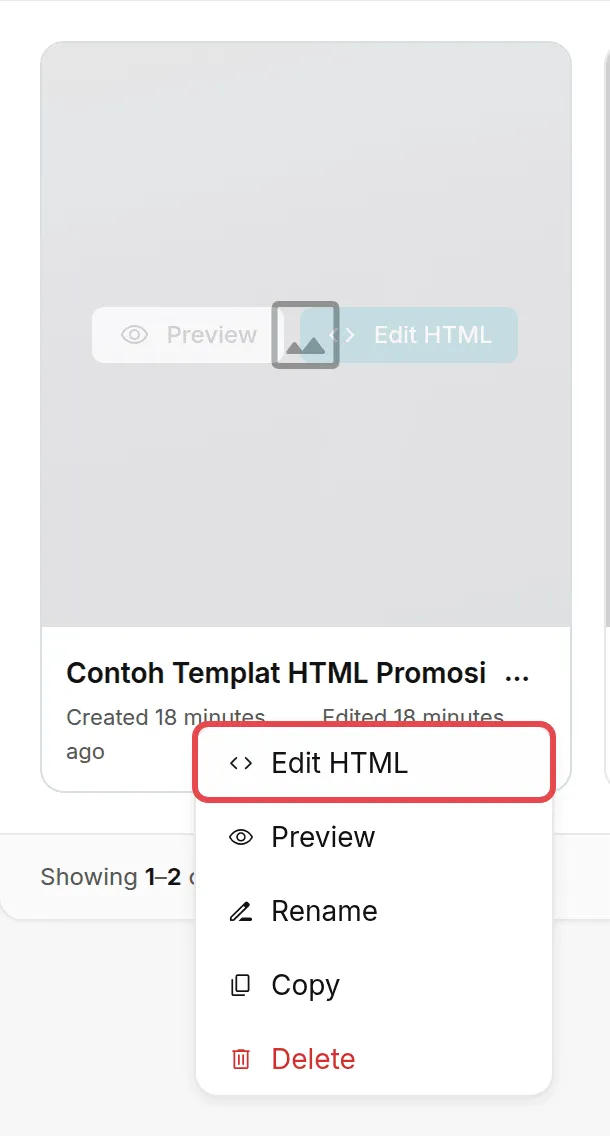
Section titled “Edit a Custom HTML template”A Custom HTML template has an Edit HTML button on its card and in the … menu.
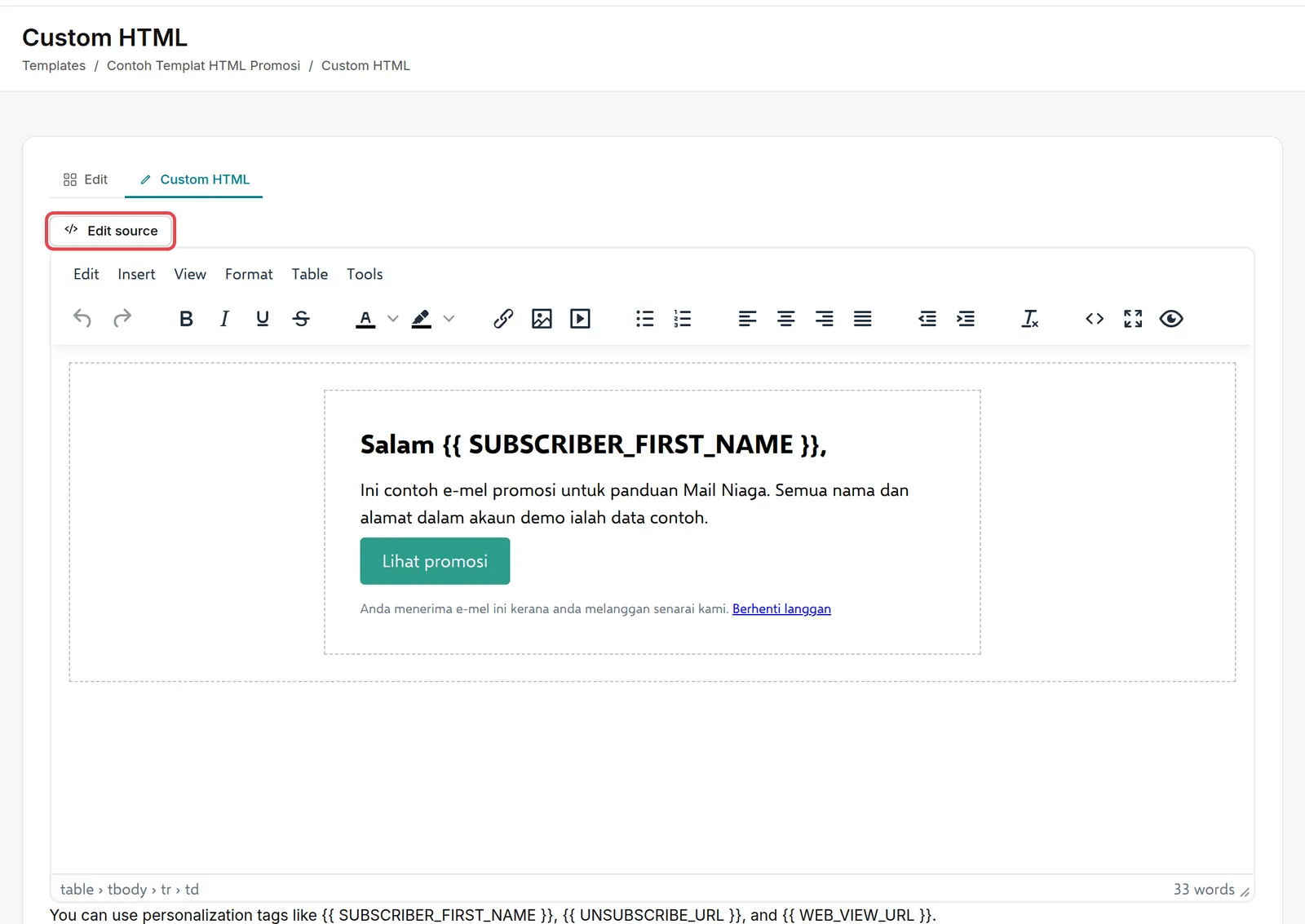
The Custom HTML page has a visual editor with the menus Edit, Insert, View, Format, Table and Tools. You can change text, links and images directly here.
Paste HTML from another application
Section titled “Paste HTML from another application”Use the code mode when you have complete HTML from another application or from a designer.
- On the Custom HTML page, click Edit source.
- Delete the code that is there, then paste your HTML code.
- Click Visual editor to see the email. The Dark or Light button only changes the colour of the code editor.
- Click Save HTML.
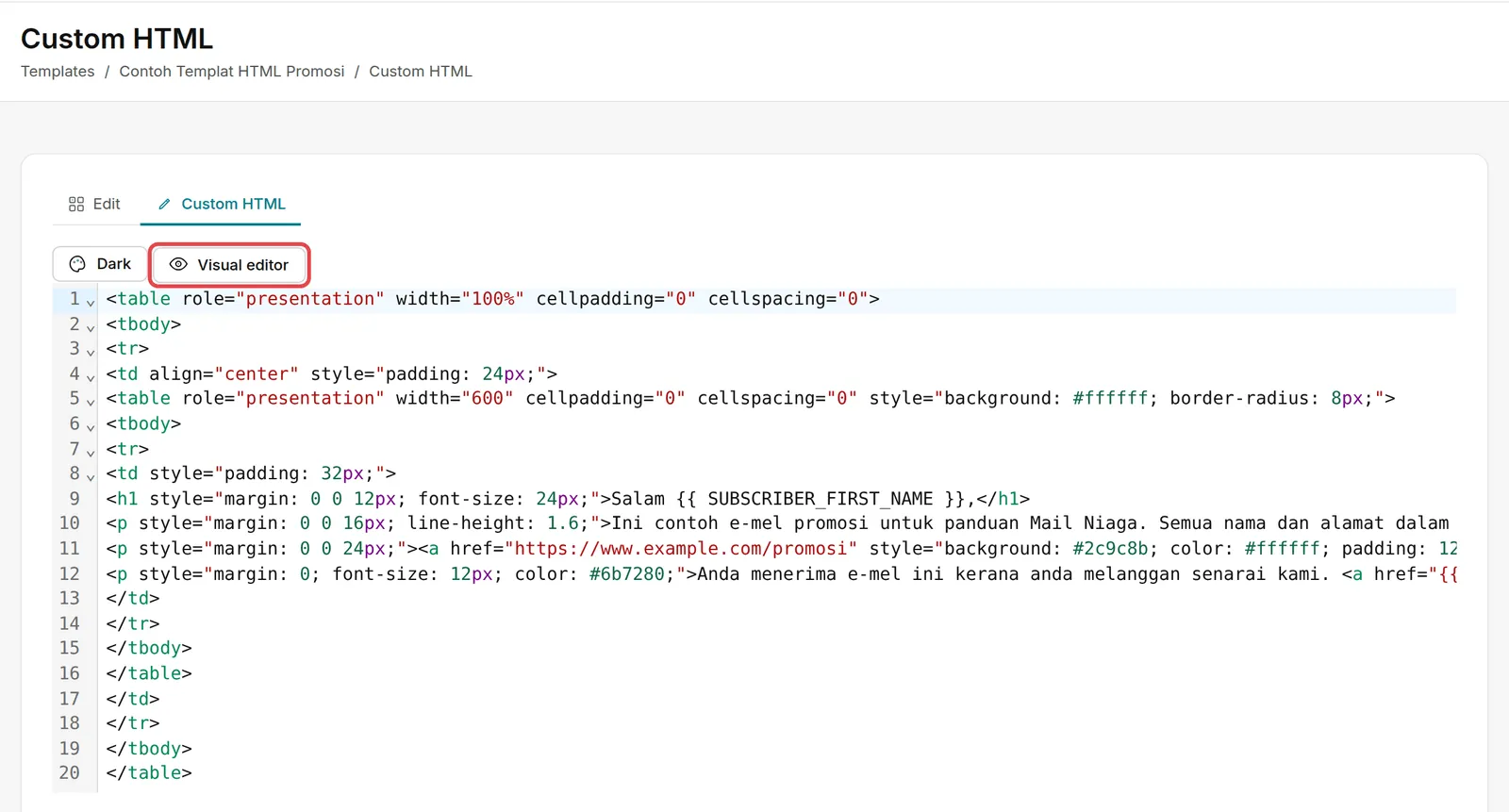
To leave and not save, click Cancel.

Personalisation tags in HTML
Section titled “Personalisation tags in HTML”You can put tags in your HTML code. Mail Niaga replaces the tags when it sends the email.
| Tag | What it does |
|---|---|
{{ SUBSCRIBER_FIRST_NAME }} |
The first name of the subscriber. |
{{ UNSUBSCRIBE_URL }} |
The unsubscribe link. |
{{ WEB_VIEW_URL }} |
A link that opens the email in a browser. |
Mail Niaga has other tags too, for example for the email address of the subscriber and the campaign name. See Use personalisation tags in emails.
This advice helps you get good results with your own HTML:
- Put an unsubscribe link in each email. Use
{{ UNSUBSCRIBE_URL }}. With this link, a recipient can unsubscribe and does not have to report your email as spam. See Put an unsubscribe link in your emails. - Use HTML that is made for email. Most email applications show table layouts better. They also show CSS styles on each element (inline CSS) better.
- Keep a copy of your HTML outside Mail Niaga. If you must change many parts, edit the original file and paste the code again.
Common issues
Can I change a Custom HTML template back to the email builder?
No. After you save Custom HTML, the template stays an HTML template. If you want to keep the builder version, copy the template first with Copy.
Why does the page go back to Custom HTML when I click the Edit tab?
The template is a Custom HTML template. This type of template cannot open in the email builder, so Edit takes you back to the Custom HTML page.
How can I upload an HTML file from another application?
Templates have no upload button. Open the HTML file in a text editor and copy all the code. Then paste the code in Edit source mode and click Save HTML.
Was this article helpful?
Thanks for your feedback.
Sorry, this page did not help. Chat on Messenger and we will help you fix it.