
Ask an AI about this page
 ChatGPT
 Claude
 Perplexity
 Google AI Mode
 Microsoft Copilot
 Grok
 Mistral Le Chat
Your subscription and credits
The Subscription & Credits page in the Mail Niaga console shows your plan, your next billing date, your credit balances and all your subscription invoices. Open this page before you send a large campaign, or when you must download an invoice for your company accounts.
Open the Subscription & Credits page
Section titled “Open the Subscription & Credits page”This page is in the user menu at the bottom of the sidebar.
-
Click your name at the bottom of the sidebar.
-
Click Subscription & credits.
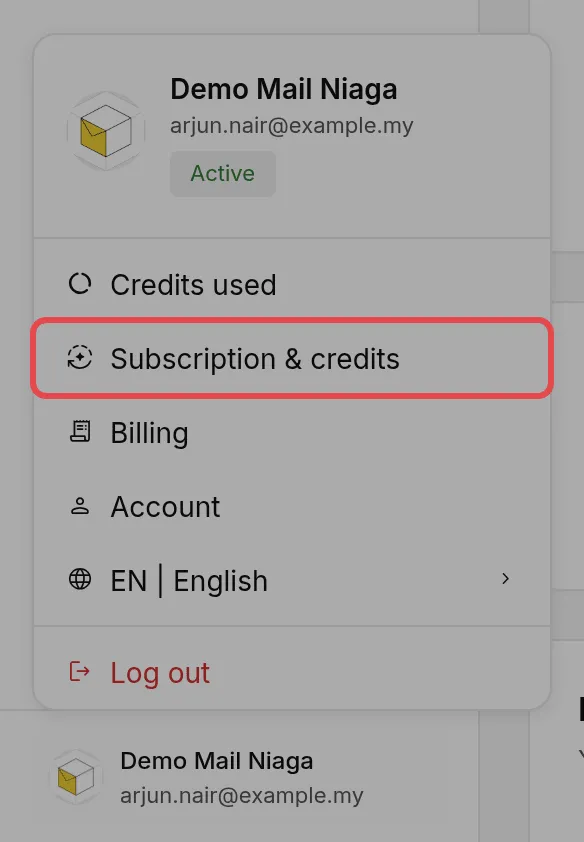
You can also open Account Settings (user menu → Account), then click Subscription in the BILLING & PLAN area of the left menu.
Read the plan and credit cards
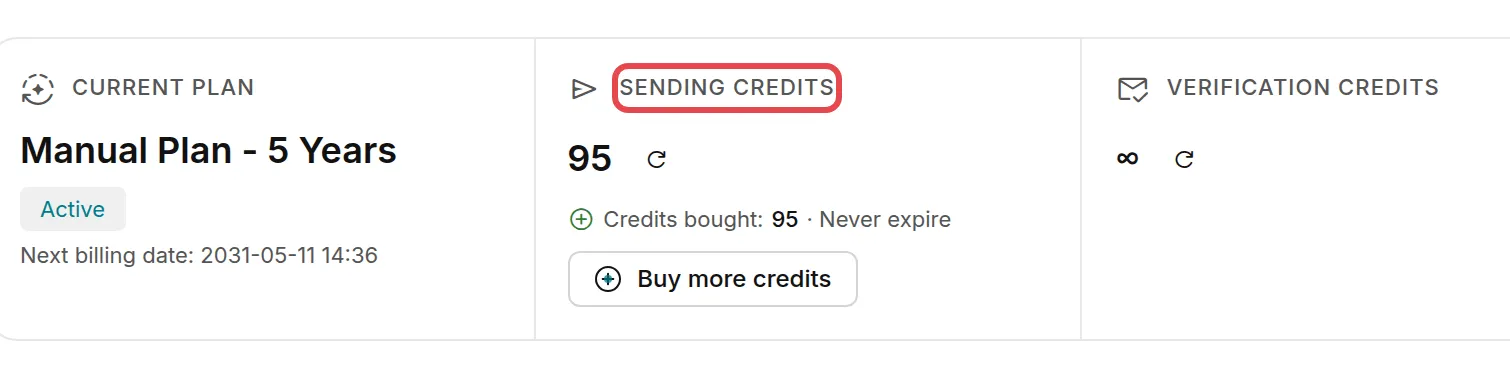
Section titled “Read the plan and credit cards”Three cards at the top of the page give a summary of your account.
| Card | What it shows |
|---|---|
| CURRENT PLAN | The name of your plan, its status (for example Active) and the Next billing date, which is the date of the next invoice. |
| SENDING CREDITS | The balance of credits to send email. Credits bought are the credits that you bought, and these credits do not expire. To add credits, click Buy more credits. |
| VERIFICATION CREDITS | The balance of credits to verify the email addresses of subscribers. The symbol ∞ means that there is no limit. |
If your plan gives an allowance of credits for each billing cycle, Mail Niaga uses that allowance first. Mail Niaga uses the credits that you bought after the plan allowance is empty. The SENDING CREDITS card shows when the allowance fills again.
The card shows the balance from the last update. To see the time of that update, put the mouse pointer on the refresh icon next to the balance. An example is “Updated 1 day ago”. To get the newest balance, click the icon.
The prices of plans and credit packages change from time to time. See the current prices at mailniaga.com/harga.
Check the status of your subscription
Section titled “Check the status of your subscription”The Your subscription card shows the name of your plan and the date of the next invoice. Recurring billing shows if the subscription renews automatically (Enabled) or not (Disabled).
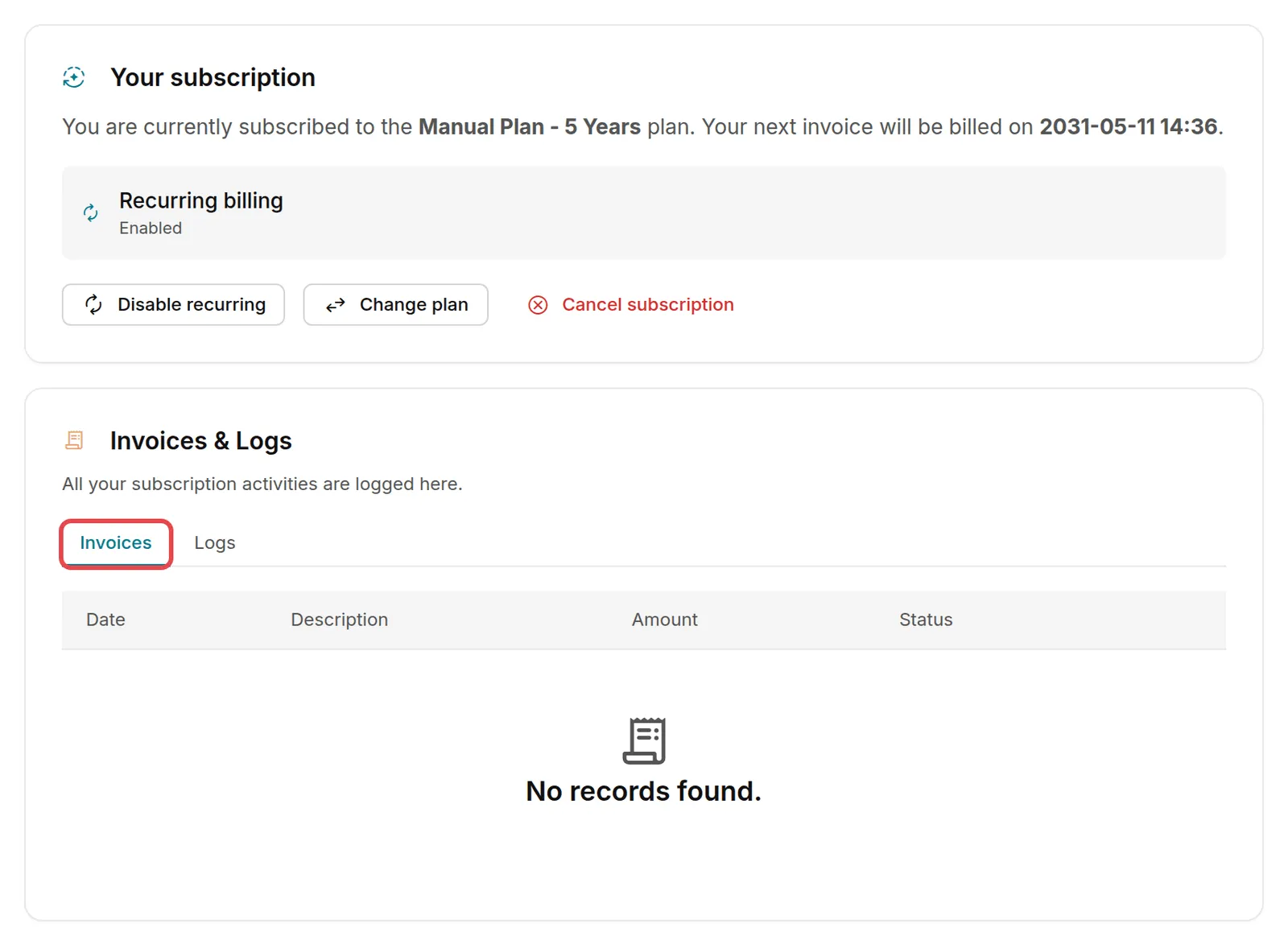
Three buttons on this card take you to other tasks:
- Disable recurring and Cancel subscription: see Stop automatic renewal or cancel your subscription.
- Change plan: see Select or change your plan.
See and download invoices
Section titled “See and download invoices”The Invoices & Logs card keeps a record of all the activity of your subscription. Do these steps to get an invoice:
- Click the Invoices tab. The invoice list shows the Date, Description, Amount and Status.
- On a paid invoice, click Download. The invoice opens in a new tab. From there, you can save or print the invoice.
- For the history of your subscription, click the Logs tab. Each log shows the Date, Type and Message.
If there are no invoices or logs yet, the console shows No records found.
The status of an invoice tells you if you must pay it:
| Status | Meaning |
|---|---|
| Paid | The invoice is paid. The Download button is on this row. |
| Pending | The invoice is not paid. Complete the payment to activate your plan or your credits. |
| Rejected | The payment for this invoice was rejected. Contact the Mail Niaga support team if you made the payment. |
This advice helps you avoid a stopped campaign and incorrect invoices:
- Check the SENDING CREDITS balance before you send a large campaign. A campaign stops when the credits are empty. You must buy credits before the campaign can continue.
- Update your billing address before you make a payment. The invoice uses the address on the Billing page. See Update your billing address and invoice details.
Common issues
Do the credits that I buy expire?
No. The SENDING CREDITS card shows Credits bought with the mark Never expire. These credits stay in your account until you use them to send email.
Why is the credit balance on the card not the balance that I expect?
The card shows the balance from the last update. To see the time of that update, put the mouse pointer on the refresh icon next to the balance. To get the newest balance, click the icon.
Why is there no Download button on my invoice?
The Download button shows only on paid invoices. If the invoice is still Pending, complete the payment first. See Buy credits and pay with Bayarcash.
Was this article helpful?
Thanks for your feedback.
Sorry, this page did not help. Chat on Messenger and we will help you fix it.