
Ask an AI about this page
 ChatGPT
 Claude
 Perplexity
 Google AI Mode
 Microsoft Copilot
 Grok
 Mistral Le Chat
Log in to the Mail Niaga console
You log in to the Mail Niaga console at manage.mailniaga.com with the email address and the password of your account. If you do not have an account, see Register a Mail Niaga account.
Log in
Section titled “Log in”Do these steps each time that you want to use the console:
-
Open manage.mailniaga.com. The Log in to your account page opens.
-
Type your email address in the Username or Email field.
-
Type your password in the Password field. To see the password that you typed, click the eye icon.
-
If you use your own computer, tick Remember me.
-
Click Log in.
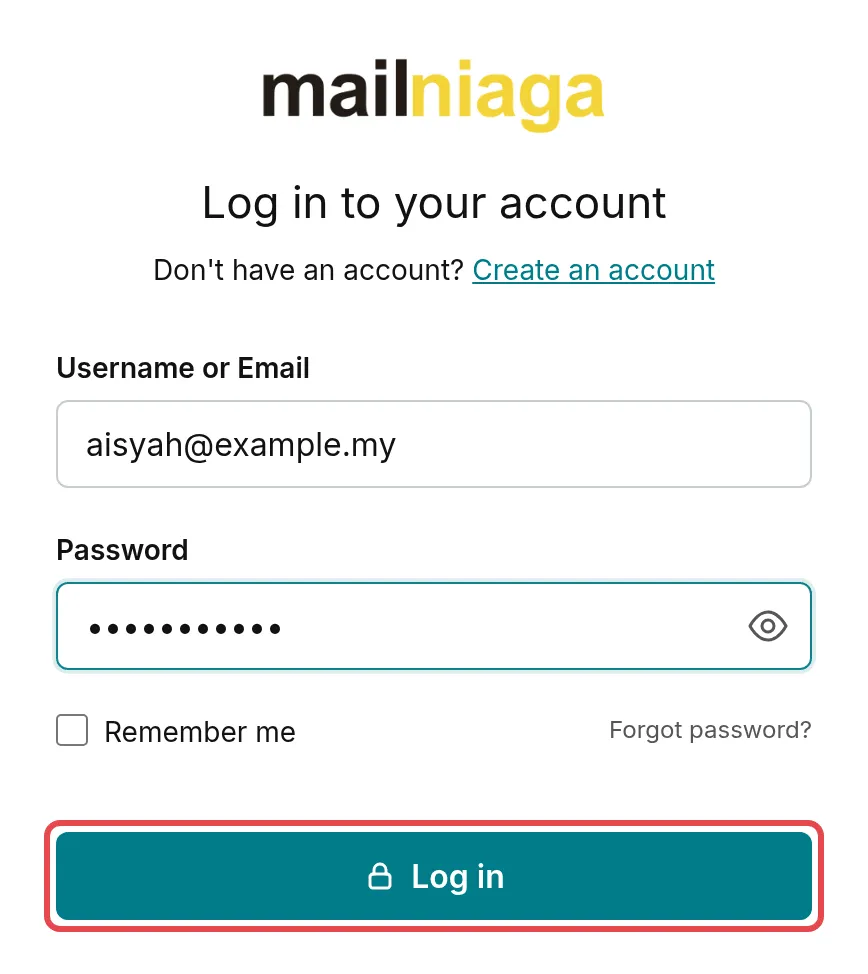
After you log in, the console opens the Home page (the dashboard). If 2FA is on for your account, the console asks for an additional code first. See Turn on two-factor authentication (2FA).
The login page uses reCAPTCHA to stop bots. You do not have to tick a box or choose pictures.
Change the language of the login page
Section titled “Change the language of the login page”The login page can show English or Bahasa Melayu. Do these steps to change the language:
-
Click the English button at the top right of the page.
-
Choose Bahasa Melayu.
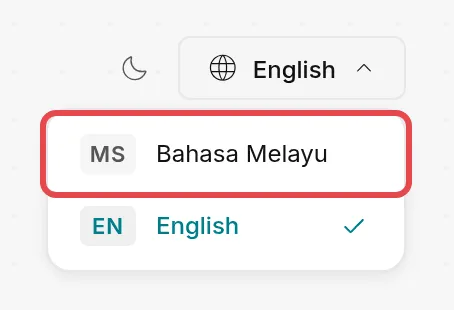
The labels on the page change to Bahasa Melayu, for example Log masuk and Lupa kata laluan?. Only your browser keeps this choice. To change the language of the console after you log in, use the language menu in the console.
If you cannot log in
Section titled “If you cannot log in”The login page shows a message if the login fails. This table tells you about the common messages and what to do:
| Message | What to do |
|---|---|
| These credentials do not match our records. | The email address or the password is incorrect. Check them and try again, or reset your password. |
| Too many login attempts. Please try again in … seconds. | Wait until that time ends, then try again. |
| The captcha check failed. Please try again. | Reload the page, then log in again. |
| Your account hasn’t been activated. | Click the link in the confirmation email, or click Resend activation email. See Register a Mail Niaga account. |
This advice helps you log in safely:
- Do not tick Remember me on a shared computer. Other people can open your account if it stays logged in on that browser.
- Keep manage.mailniaga.com as a bookmark. This is the only login address of the Mail Niaga console.
Common issues
Why does the page show the message These credentials do not match our records?
The email address or the password is incorrect. Check the spelling and the upper case and lower case letters, then try again. If you forgot your password, click Forgot password?. See Forgot your password.
Why does the page show the message Too many login attempts?
You tried to log in too many times. Wait until the time in the message ends, then try again with the correct password.
I logged in at newsletter.aplikasiniaga.com before. Where do I log in now?
That address is the old version of Mail Niaga, which is no longer in use. The guides on this site are for the Mail Niaga console. Log in to the Mail Niaga console at manage.mailniaga.com.
Was this article helpful?
Thanks for your feedback.
Sorry, this page did not help. Chat on Messenger and we will help you fix it.