
Ask an AI about this page
 ChatGPT
 Claude
 Perplexity
 Google AI Mode
 Microsoft Copilot
 Grok
 Mistral Le Chat
Update your billing address & invoice details
The Billing page in the Mail Niaga console keeps your billing address. Mail Niaga prints this address on invoices and receipts. Update this address before you make a payment. Then your invoices are correct for the accounts of your company.
Open the Billing page
Section titled “Open the Billing page”This page is in the user menu at the bottom of the sidebar.
-
Click your name at the bottom of the sidebar.
-
Click Billing.
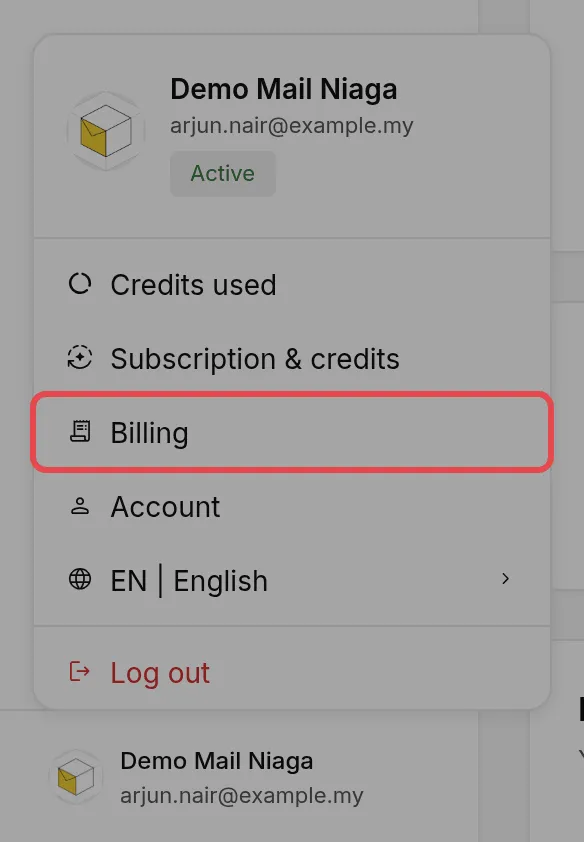
You can also open Account Settings (user menu → Account). Then click Billing in the BILLING & PLAN area of the left menu.
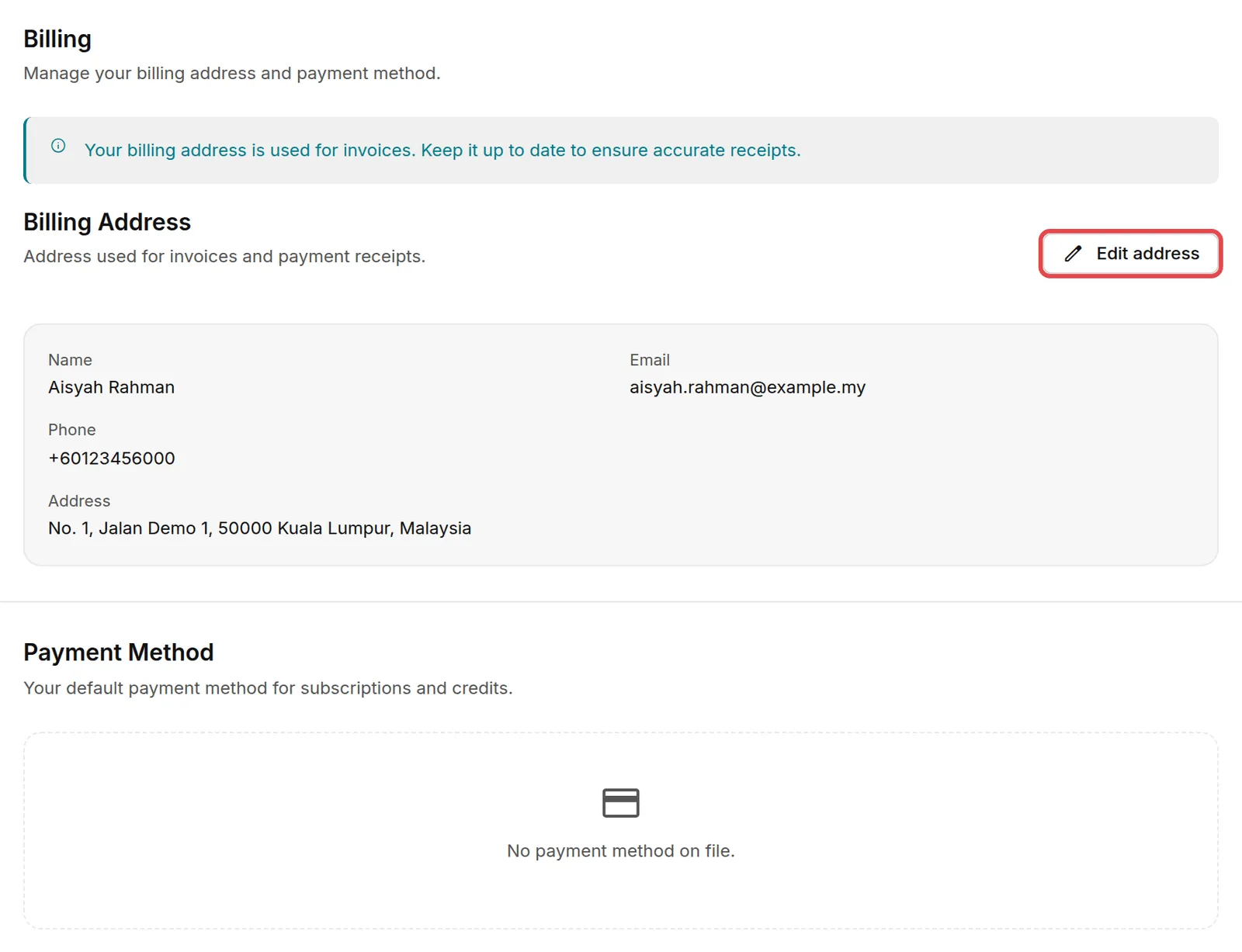
The Billing page has two areas. The Billing Address area shows the Name, Email, Phone and Address for invoices. The Payment Method area shows the saved payment method for subscriptions and credits.
Update your billing address
Section titled “Update your billing address”Do these steps to change the name, email address, phone number or address on your invoices.
- In the Billing Address area, click Edit address.
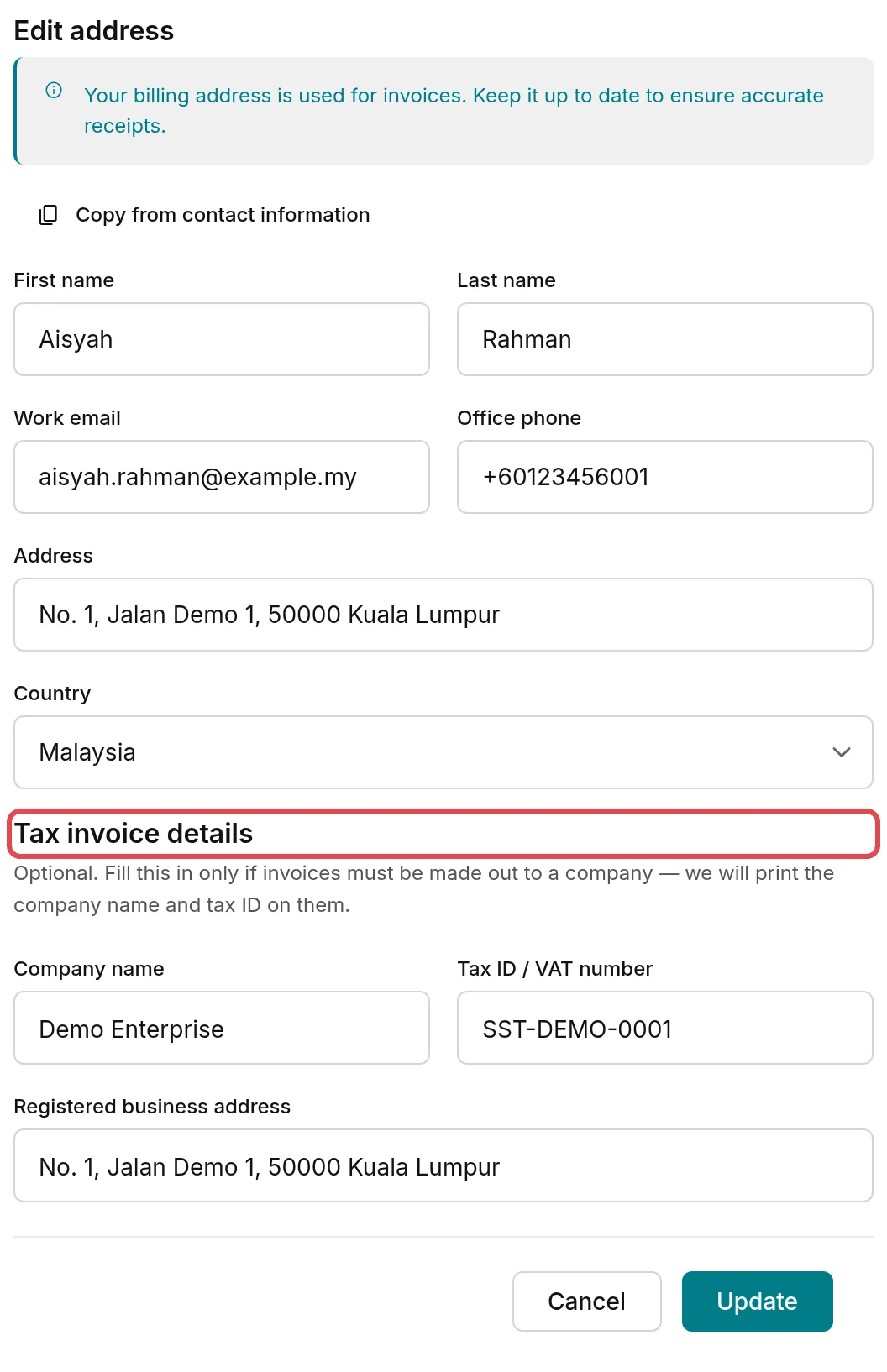
- The Edit address popup opens. If your billing address is the same as your company information, click Copy from contact information. The console fills the fields with the information from the Contact Information page, also the company name.
- Fill in or check the First name, Last name, Work email, Office phone, Address and Country.
- Click Update to save.
Fill in tax invoice details
Section titled “Fill in tax invoice details”Fill in the Tax invoice details area only if the invoice must be in the name of a company. Mail Niaga prints the company name and the tax number on your invoice.
- In the Edit address popup, go to the Tax invoice details area.
- Fill in the Company name, Tax ID / VAT number and Registered business address.
- Click Update.
Payment method
Section titled “Payment method”The Payment Method area shows your primary payment method for subscriptions and credits. If there is no saved payment method, the console shows No payment method on file.
If there is a saved card, you can remove the card with Remove payment method. After you remove the card, it is possible that a subscription that uses that card does not renew automatically.
Tax information in Contact Information
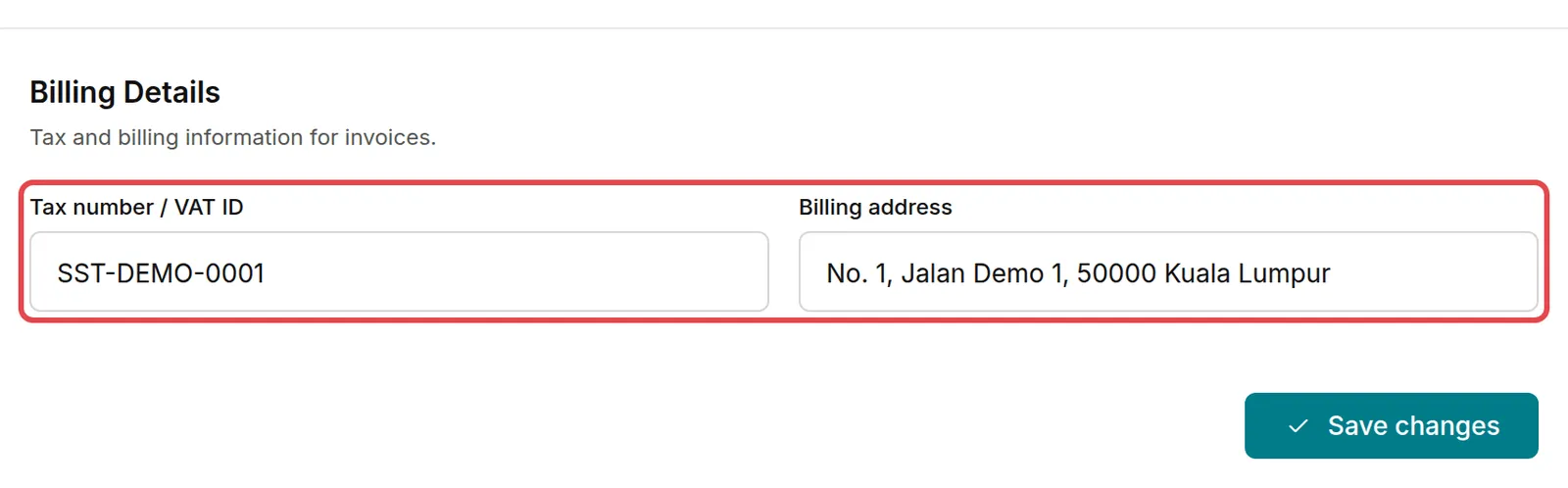
Section titled “Tax information in Contact Information”Mail Niaga keeps tax information in two locations. The Contact Information page in Account Settings has a Billing Details area, with the Tax number / VAT ID and Billing address fields.
This table shows the difference between the two locations:
| Location | Fields | Use |
|---|---|---|
| Billing → Edit address → Tax invoice details | Company name, Tax ID / VAT number, Registered business address | The company name and the tax number that Mail Niaga prints on the invoice. |
| Account Settings → Contact Information → Billing Details | Tax number / VAT ID, Billing address | Tax and billing information for invoices. Save with Save changes. |
| Account Settings → Contact Information → Company Information and Address | Name, company, phone number, email address, address | The company information that shows in the footer of your campaigns. |
Fill in the same tax number in the two locations. Then your information is always the same.
This advice helps you keep your invoices correct:
- Check your billing address before each payment. The invoice uses the address that is in the console at the time of the payment.
- Use a company email address for Work email. Then it is easy for your finance team to find the invoices and receipts.
Common issues
How do I put my company name on the invoice?
Click Edit address on the Billing page. Then fill in the Company name, Tax ID / VAT number and Registered business address in the Tax invoice details area. Do this before you pay for your next package or plan.
What is the difference between Billing and Contact Information?
The Billing page keeps the address for invoices and receipts. The Contact Information page keeps the company information that shows in the footer of your campaigns. That page also has a Billing Details area for tax information.
Why does the Billing page show No payment method on file?
Your account has no saved payment method yet. You can still pay each invoice on the payment page. See Buy credits and pay with Bayarcash.
Was this article helpful?
Thanks for your feedback.
Sorry, this page did not help. Chat on Messenger and we will help you fix it.