
Ask an AI about this page
 ChatGPT
 Claude
 Perplexity
 Google AI Mode
 Microsoft Copilot
 Grok
 Mistral Le Chat
Create an email signature
A signature is the last block of an email. It contains your name, job title, phone number and website. Save the signature one time in the Mail Niaga console. Then put that signature in any email with the Signature block in the email builder.
Create a signature
Section titled “Create a signature”Do these steps to create a new signature:
-
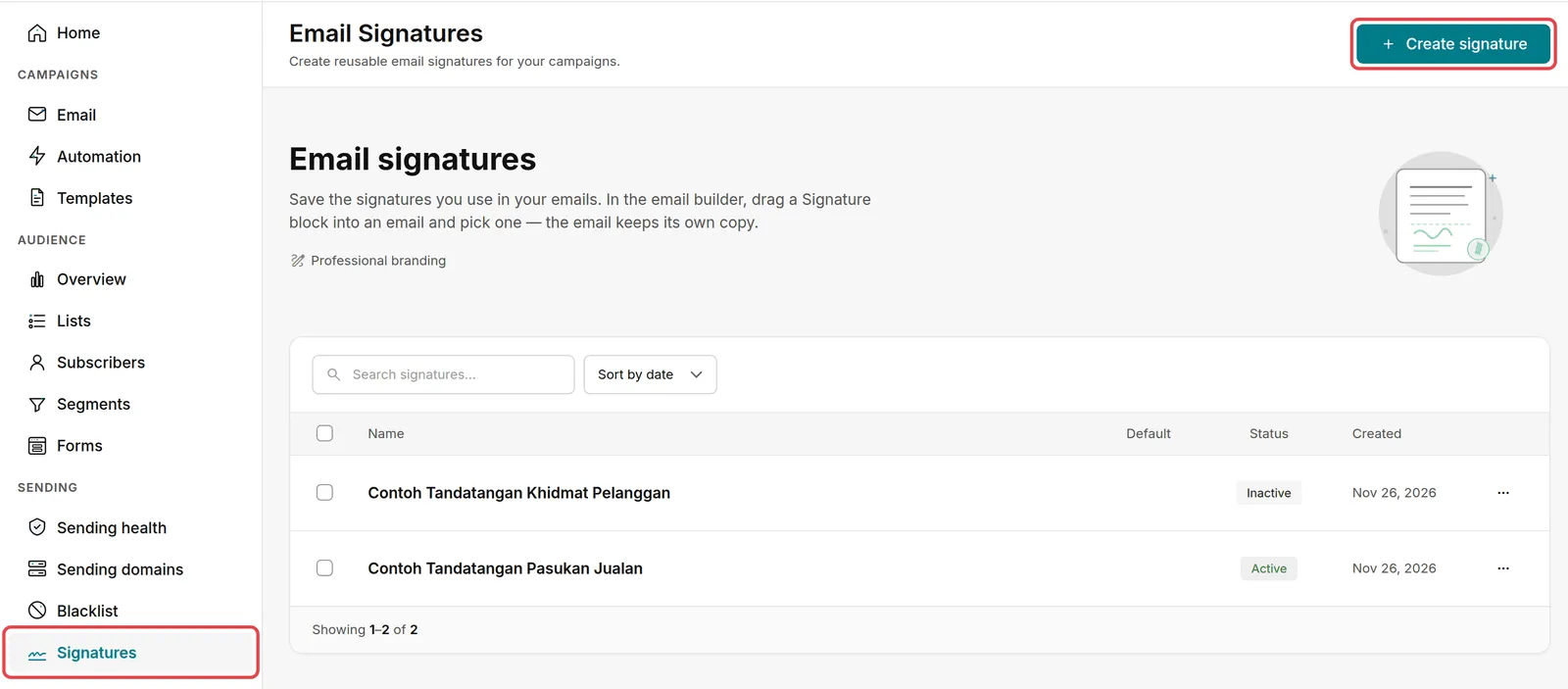
In the sidebar, below Sending, click Signatures.
-
Click Create signature.
-
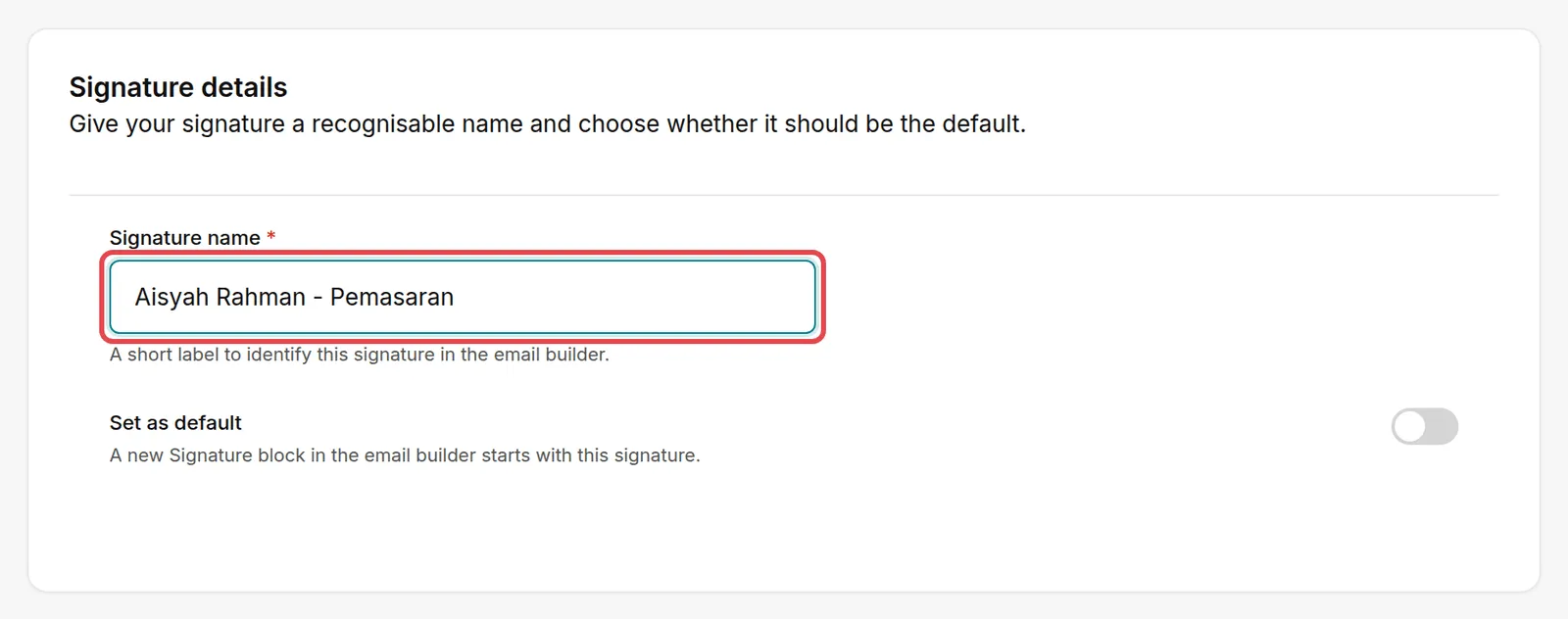
In Signature name, type a name that is easy to recognise, for example your name and department.
-
Turn on the Set as default switch to make this signature the first choice in each new Signature block.
-
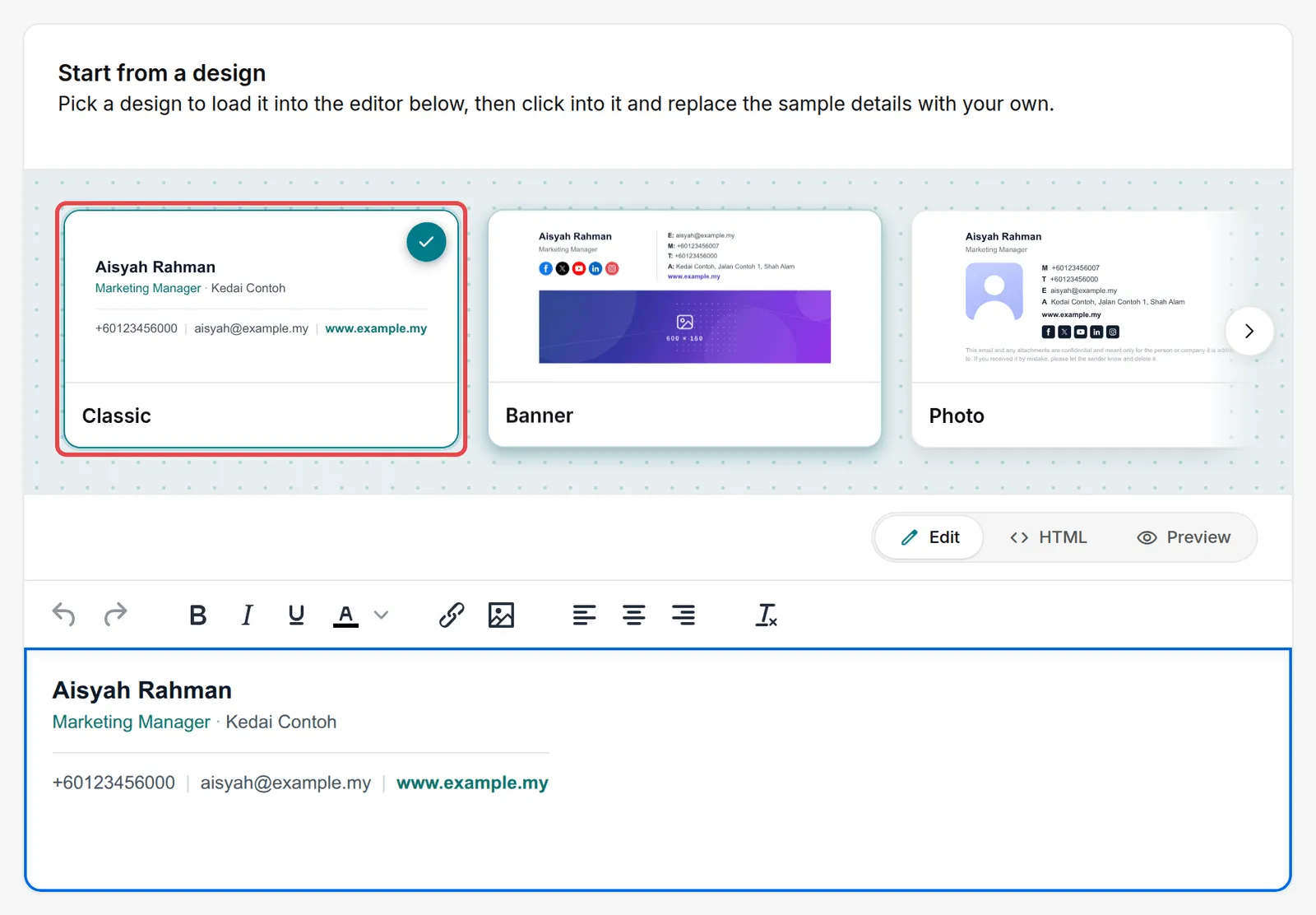
In Start from a design, click a design. The design loads into the editor below.
-
In the Edit tab, click the sample text and change it to your information.
-
Click Preview to see how the signature will look in an inbox.
-
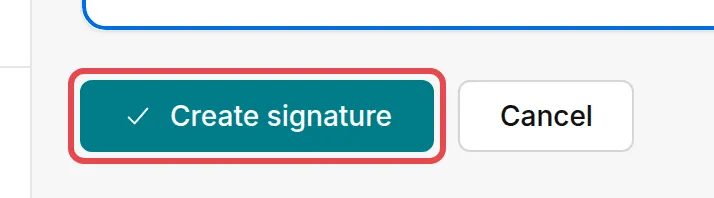
Click Create signature.
If you click a different design after you change the signature, Mail Niaga asks you to confirm. The new design will replace the contents of the editor.
Design options
Section titled “Design options”Start from a design has nine designs: Classic, Banner, Photo, Photo & banner, Monogram, Side by side, Call to action, Elegant and Card. Click the arrows at the sides to see the other designs. Each design uses sample information. Thus, change all the text to your own information.
If you want full control, you can change the code of the signature in the HTML tab.
Manage your signatures
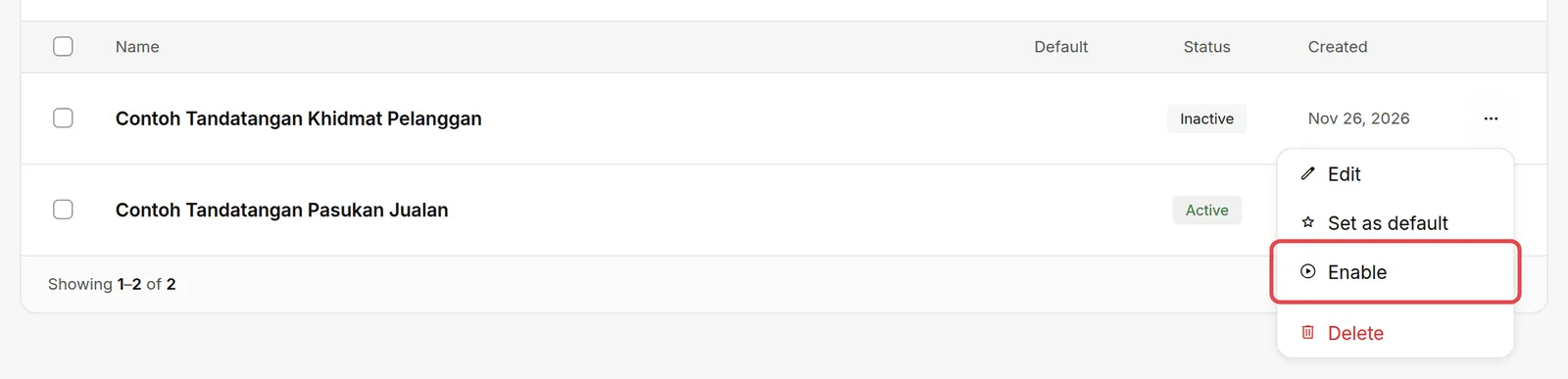
Section titled “Manage your signatures”The Signatures page shows all your signatures with the Default and Status columns. Each row has a … menu with these options:
| Option | What occurs |
|---|---|
| Edit | Opens the signature, so that you can change the name, the contents or the default setting. Click Save after you make your changes. |
| Set as default | The console selects this signature first in each new Signature block. Confirm in the popup. |
| Disable / Enable | An Inactive signature does not show in the email builder. An Inactive signature has the Enable option. |
| Delete | Removes the signature. The popup asks you to confirm, and tells you that you cannot undo this action. |
Put a signature in an email
Section titled “Put a signature in an email”Do these steps in the email builder:
-
In the blocks panel, below Basic, find the Signature block.
-
Drag the Signature block into the email.
-
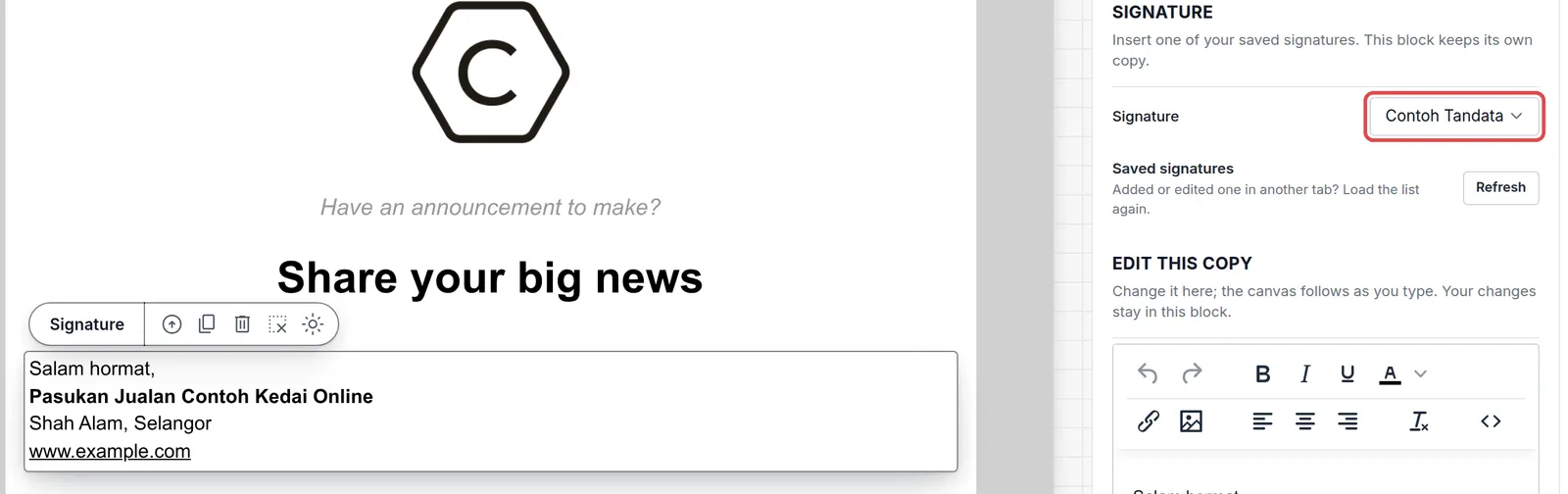
In the settings panel on the right, choose your signature in the Signature list.
-
If you must change the text for this email only, change it in the Edit this copy section.
The block keeps its own copy of the signature. If you change the signature later, the old emails keep the old version until you choose the signature again in the builder. If a new signature is not in the list, click Refresh below Saved signatures.
This advice helps you make good signatures:
- Use the same information in all your signatures. Your customers will recognise your brand in each email.
- Look at the Preview tab before you save the signature. A signature with a large image can look different in a phone inbox.
Common issues
Why do my old emails still use the old version after I changed my signature?
Each email keeps its own copy of the signature. Open the email in the email builder and choose the signature again in the Signature block.
Why is my signature not in the Signature block?
Only Active signatures show. Click Sending → Signatures, click the ... menu on the row of the signature, then click Enable.
Why is a signature that I just created in a different tab not in the builder?
The list in the Signature block loads when the builder opens. Click Refresh below Saved signatures to load the list again.
Was this article helpful?
Thanks for your feedback.
Sorry, this page did not help. Chat on Messenger and we will help you fix it.