
Ask an AI about this page
 ChatGPT
 Claude
 Perplexity
 Google AI Mode
 Microsoft Copilot
 Grok
 Mistral Le Chat
Activate, pause, copy & delete automations
An automation sends emails only when its status is active. You can activate and pause an automation in the editor or in the automation table. You can also make a copy of an automation, and delete an automation that you do not need.
Automation status
Section titled “Automation status”The table in Campaigns → Automation shows the status of each automation in the Status column. The editor uses different names for the same statuses:
| Table | Editor | Meaning |
|---|---|---|
| Active | ACTIVE | New subscribers enter the flow and Mail Niaga sends the emails. |
| Inactive | PAUSED | No new subscribers enter the flow. New automations and copies of automations start with this status. |
To see only the active automations, choose Active in the All statuses filter.
Activate or pause in the editor
Section titled “Activate or pause in the editor”Use this method after you complete the flow.
- Click Campaigns → Automation.
- Click Edit workflow on your automation.
- Click Activate at the top of the editor. To pause an active automation, click Pause.

Activate works immediately, with no confirmation question. If the flow is complete, the automation becomes active immediately and starts to process subscribers.
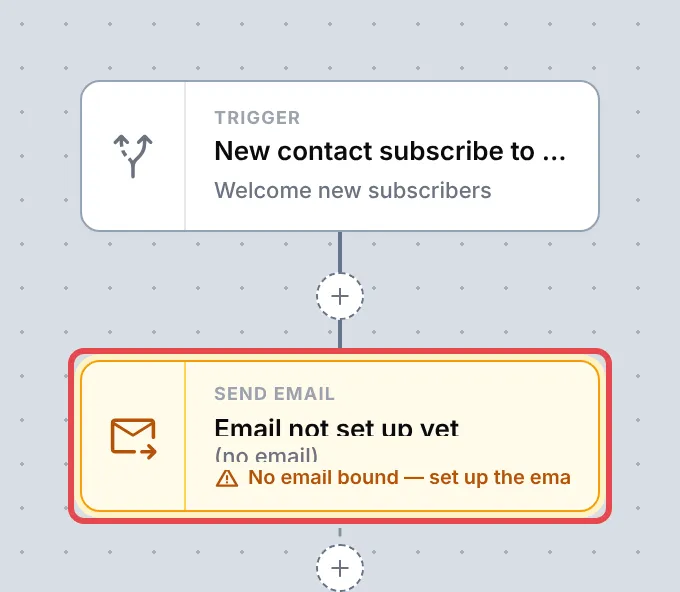
Mail Niaga checks each step before it activates the automation. If the trigger or a step is not complete, the automation stays paused. The card of that step is yellow and shows what to complete. An example is No email bound for an email that is not set up.
Activate or pause from the table
Section titled “Activate or pause from the table”This method is faster if you do not need to open the editor.
- Click Campaigns → Automation.
- Click ⋯ on the row of the automation.
- To pause an active automation, click Disable. To activate a paused automation, click Enable.
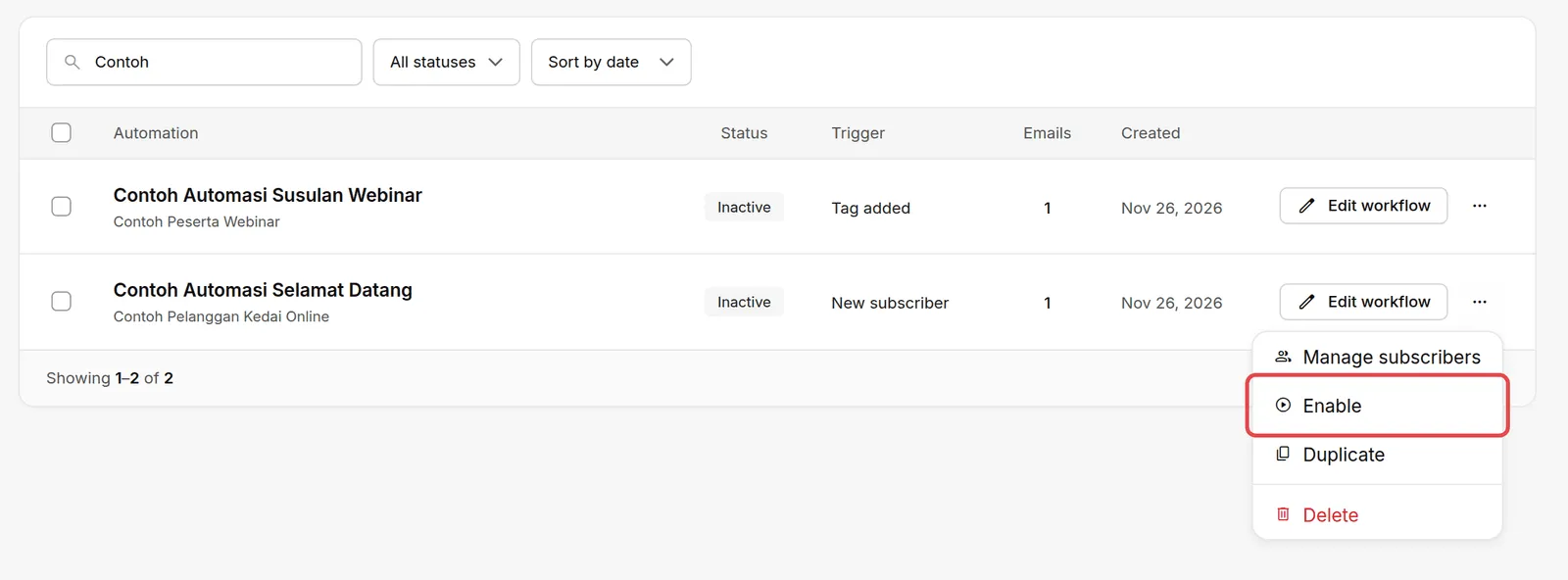
Enable and Disable work immediately with no confirmation question, the same as Activate.
The Statistics page of a paused automation also shows Your automation is paused with the Activate automation button.

Copy an automation
Section titled “Copy an automation”A copy contains the full flow: the trigger, the steps, the conditions and a copy of each email. Use a copy to build a new automation that is almost the same.
- Click ⋯ on the row of the automation, then click Duplicate.
- In Automation name, type a new name that is easy to identify.
- Click Duplicate automation.
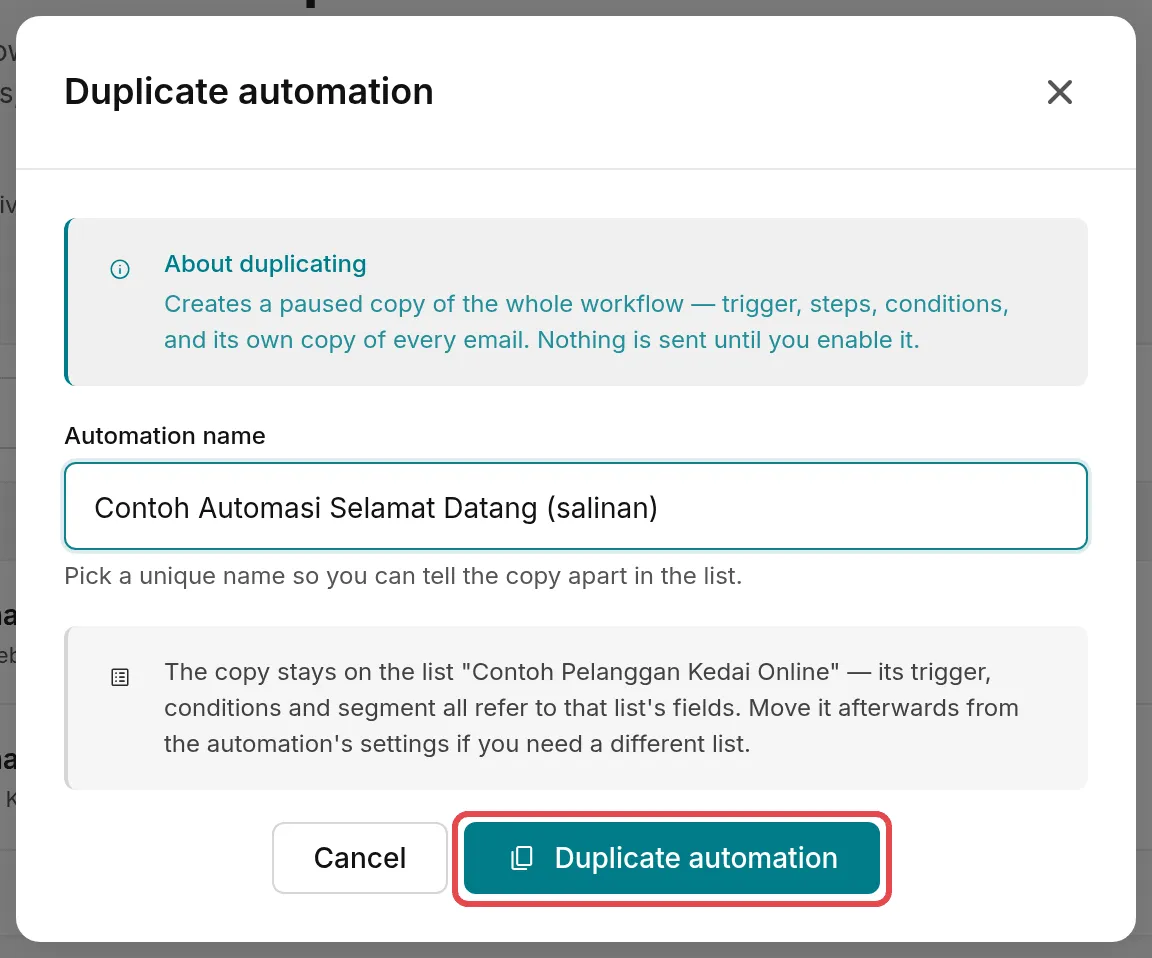
Mail Niaga makes the copy in the paused state. The copy stays on the same list as the original automation. To change the list, open the settings of the copy.
Delete an automation
Section titled “Delete an automation”Delete only an automation that you are sure you will not need.
- Click ⋯ on the row of the automation, then click Delete.
- Read the confirmation message, then click Delete. To stop, click Cancel.
To delete many automations at one time, tick the boxes on the rows of those automations. The Delete button shows above the table.
The automation does not run
Section titled “The automation does not run”If subscribers do not get the automation emails, look for these causes:
| Cause | What occurs | What to do |
|---|---|---|
| The automation is paused | The status is Inactive or PAUSED. New subscribers do not enter the flow. | Click Activate in the editor or Enable in the table. |
| A step is not complete | You cannot activate the automation. The step card is yellow. | Open the card and complete its settings. |
| The subscriber is not in the segment | An automation with a segment filter accepts only the subscribers in that segment. | Check the segment in the automation settings, or check the subscriber data. |
| No list | The automation is not linked to a list. | Choose a list in the automation settings. |
| No credits | The send stops until the account has credits again. | Check the credit balance in the Mail Niaga console. Add credits if necessary. |
| No confirmation yet | The Welcome new subscribers trigger starts when a subscriber confirms the subscription. On a double opt-in list, the automation waits for that confirmation. | Ask the subscriber to click the confirmation link in their email. |
The Statistics page shows the step and the status of each subscriber in the flow. See Read automation statistics.
This advice helps you manage automations safely:
- Test the flow with a small list before you activate it. Then you can see each email before real subscribers get it.
- Pause first, delete later. A paused automation keeps its flow and history, so you can activate it again if necessary.
- Give copies clear names. If a copy has the same name as the original, the two automations are difficult to tell apart in the table.
Common issues
Why is the automation not active after I click Activate?
Mail Niaga does not activate an automation if its trigger or a step is not complete. Open the editor, find the yellow card with a message, complete that step, then click Activate again.
If I pause an automation, do the subscribers who are already in the flow stop?
No. Subscribers who are already in the flow continue their steps. Only new subscribers do not enter the flow until you activate the automation again.
Does a copy of an automation send emails immediately?
No. Mail Niaga makes the copy in the paused state, and the copy sends nothing until you activate it. The copy also stays on the same list as the original automation.
Was this article helpful?
Thanks for your feedback.
Sorry, this page did not help. Chat on Messenger and we will help you fix it.