
Ask an AI about this page
 ChatGPT
 Claude
 Perplexity
 Google AI Mode
 Microsoft Copilot
 Grok
 Mistral Le Chat
Check the account activity log
The activity log records important actions in your Mail Niaga account, for example lists, segments and campaigns that a user created. Use the log to see who made a change and when.
Open Activity Logs
Section titled “Open Activity Logs”The full log is in the account settings. Do these steps:
- Click your name at the bottom of the sidebar, then click Account.
- In the Account Settings menu on the left, click Activity Logs. This item is after Billing, in a group with no name, together with Notifications and API.
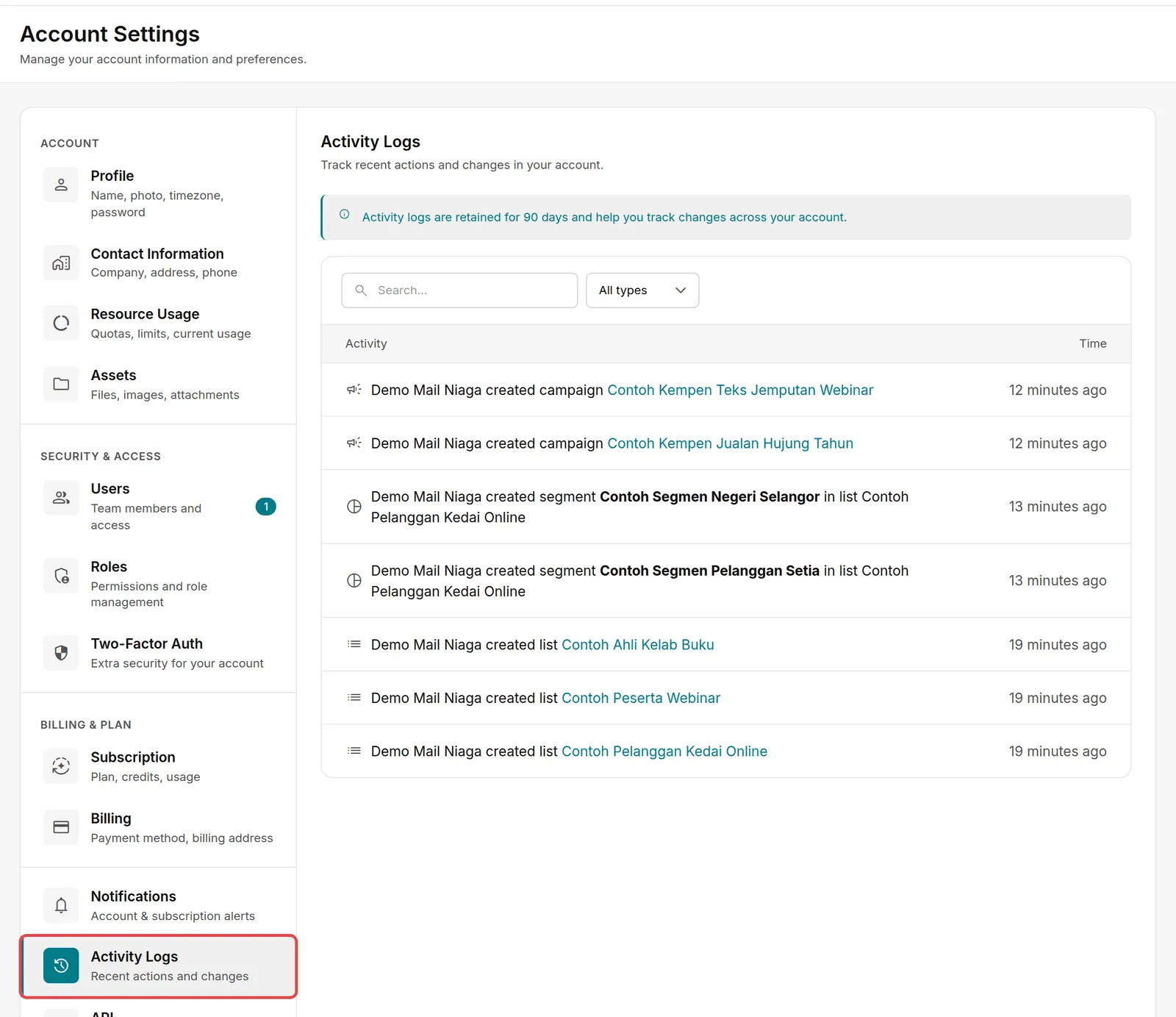
You can also press Ctrl+K, type “activity”, then choose Activity Log in the PAGES list. See Menus and navigation in the Mail Niaga console.
What the log records
Section titled “What the log records”Each log row starts with the name of the person who did the action, for example “Demo Mail Niaga created list Contoh Peserta Webinar”. The item name is a link to the item. These are examples of rows that you can see:
| Type | Example row |
|---|---|
| List | “… created list Contoh Ahli Kelab Buku” |
| Segment | “… created segment Contoh Segmen Pelanggan Setia in list Contoh Pelanggan Kedai Online” |
| Campaign | “… created campaign Contoh Kempen Jualan Hujung Tahun” |
The log does not record all actions. When we checked this guide, subscriber imports, new templates and new automations did not show in the log.
Search & filter the log
Section titled “Search & filter the log”The newest log is at the top. The Activity column shows the action, and the Time column shows how long ago the action occurred. Put the mouse pointer on the time to see the full date and time.
To find a specific action:
- Type the name of the item in the Search… box, for example the name of a campaign or a list, then press Enter.
- Choose a type in the All types filter: Lists, Segments, Subscribers or Campaigns.
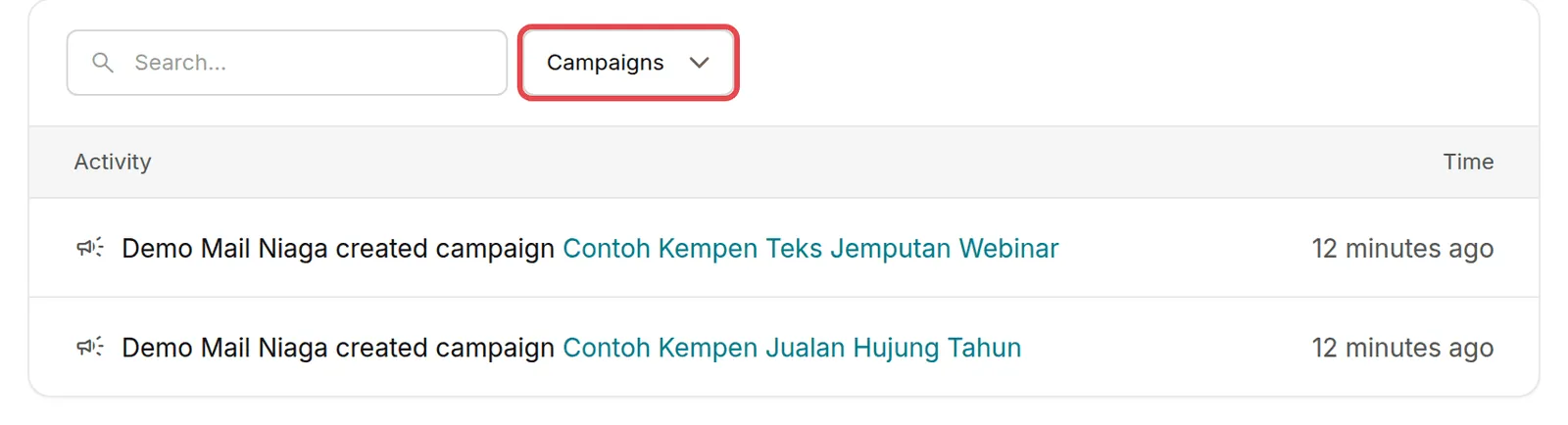
If no log matches your search, the page shows “No activity logs yet.”.
The Activity Log card on the dashboard
Section titled “The Activity Log card on the dashboard”The Activity Log card on the Home page shows the newest actions in your account, with no search or filter. If there are no actions yet, the card shows “No activity yet”. See Get to know the Mail Niaga dashboard.
This advice helps you use the log well:
- Look at the log after a large change. For example, after a team member creates some campaigns, look at who created each campaign.
- Keep your own record if necessary. This page says that the logs stay for 90 days only.
Common issues
Why does Activity Logs show No activity logs yet?
No log matches your search or filter, or your account has no recorded actions yet. Choose All types and clear the Search... box, then look again.
How long does Mail Niaga keep the activity log?
The Activity Logs page says that the logs stay for 90 days. If you need a longer record, keep your own copy.
Why is my subscriber import not in the log?
The log does not record all actions. When we checked this guide, subscriber imports, new templates and new automations did not show in the log. Look at the import result in the list.
Was this article helpful?
Thanks for your feedback.
Sorry, this page did not help. Chat on Messenger and we will help you fix it.