
Ask an AI about this page
 ChatGPT
 Claude
 Perplexity
 Google AI Mode
 Microsoft Copilot
 Grok
 Mistral Le Chat
Update your account profile
The Profile page in the Mail Niaga console keeps your basic information: name, phone number, profile photo, timezone, language and password. Your team members can see this name and photo, so use a name that they know.
Open the Profile page
Section titled “Open the Profile page”This page is in the account menu at the bottom of the sidebar.
-
Click your name at the bottom of the sidebar.
-
Click Account.
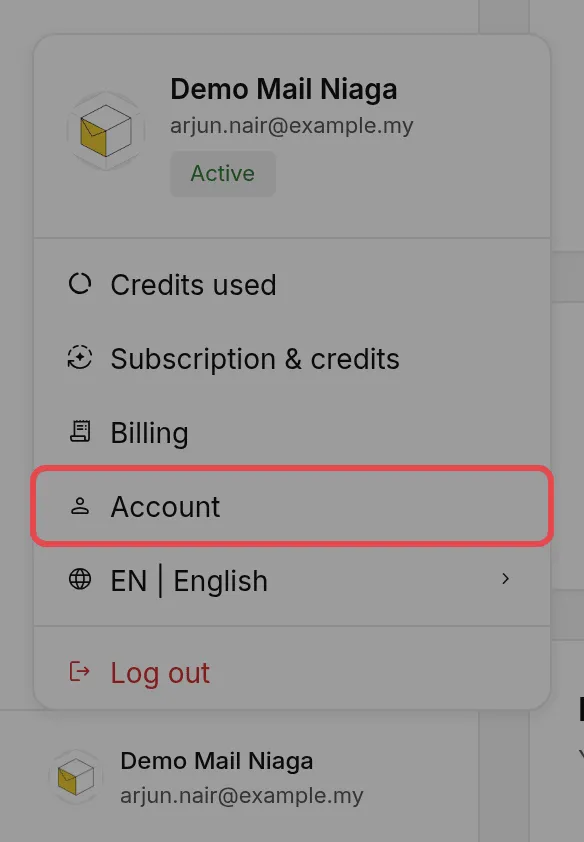
-
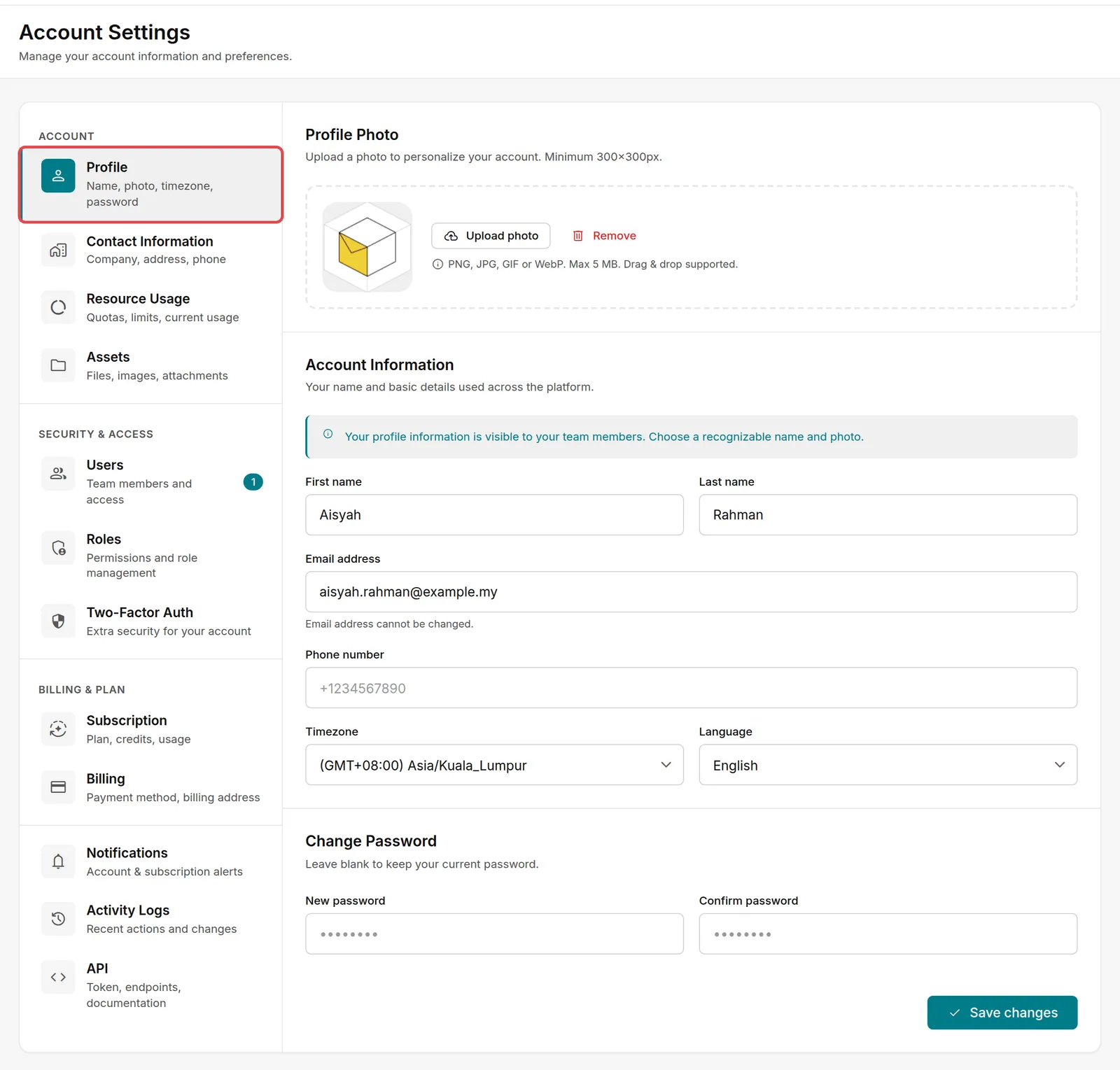
The Account Settings page opens on Profile.
You can also press Ctrl+K, then choose Account Settings.
Change the profile photo
Section titled “Change the profile photo”The photo must be a minimum of 300×300 pixels and a maximum of 5 MB. Use the PNG, JPG, GIF or WebP format.
- In the Profile Photo section, click Upload photo, then choose a photo. You can also drag the photo and drop it into the box.
- The console saves the photo immediately. You do not click Save changes.
To remove the photo, click Remove, then confirm. You cannot get back a photo that you removed.
Change your name & phone number
Section titled “Change your name & phone number”Do these steps in the Account Information section.
- Update First name and Last name. These two fields are required.
- Fill in Phone number if necessary.
- Click Save changes at the bottom of the page.
The console shows the message Profile updated successfully. when it saves the changes.
You cannot change the Email address field. To change the timezone or the language, see Change the language & timezone. To change the password, see Change your password.
The Account Settings menu
Section titled “The Account Settings menu”The menu on the left of the Account Settings page takes you to the other account settings.
| Group | Item | What it is for |
|---|---|---|
| ACCOUNT | Profile | Name, photo, timezone, password |
| ACCOUNT | Contact Information | Company, address and company phone |
| ACCOUNT | Resource Usage | Quotas, limits and current usage |
| ACCOUNT | Assets | Files, images and attachments |
| SECURITY & ACCESS | Users | Team members and their access |
| SECURITY & ACCESS | Roles | Roles and permissions |
| SECURITY & ACCESS | Two-Factor Auth | More security when you log in |
| BILLING & PLAN | Subscription, Billing | Plan, credits, payment method and billing address |
| (no group name) | Notifications, Activity Logs, API | Account notifications, activity logs and API tokens |
This advice helps you keep your account safe:
- Use your real name in First name and Last name. Then your team knows who made a change.
- Turn on two-factor authentication after you update your profile. 2FA keeps your account safe even when your password leaks. See Turn on two-factor authentication (2FA).
Common issues
Can I change the email address of my account?
No. The Email address field is locked, and the console shows Email address cannot be changed. Contact the Mail Niaga support team if you must use a different address.
Must I click Save changes after I click Upload photo?
No. The console saves the profile photo immediately when you upload it. Save changes is only for the name, phone, timezone, language and password.
Why can I not change my profile photo?
Only a user whose role has Full Access in the OTHER RESOURCES group (for example, the Full Access role) can change the profile photo and the timezone. Ask the account owner to change your role. See Add team members and set roles.
Was this article helpful?
Thanks for your feedback.
Sorry, this page did not help. Chat on Messenger and we will help you fix it.