
Ask an AI about this page
 ChatGPT
 Claude
 Perplexity
 Google AI Mode
 Microsoft Copilot
 Grok
 Mistral Le Chat
Manage the campaign list
The campaign list shows all the email campaigns in your account: the drafts and the sent campaigns. From this list, you can find a campaign and see its status and its performance. You can also open a menu for other actions, for example to copy, send again or archive a campaign.
Open the campaign list
Section titled “Open the campaign list”This list is in the Mail Niaga console (manage.mailniaga.com).
- Click Campaigns → Email.
- Use the Search campaigns… box to find a campaign by its name.
- To sort the list, choose Sort by date or Sort by name. To change the sort direction, click the arrow button next to it.
- To show only the campaigns with one status, choose that status in All statuses.
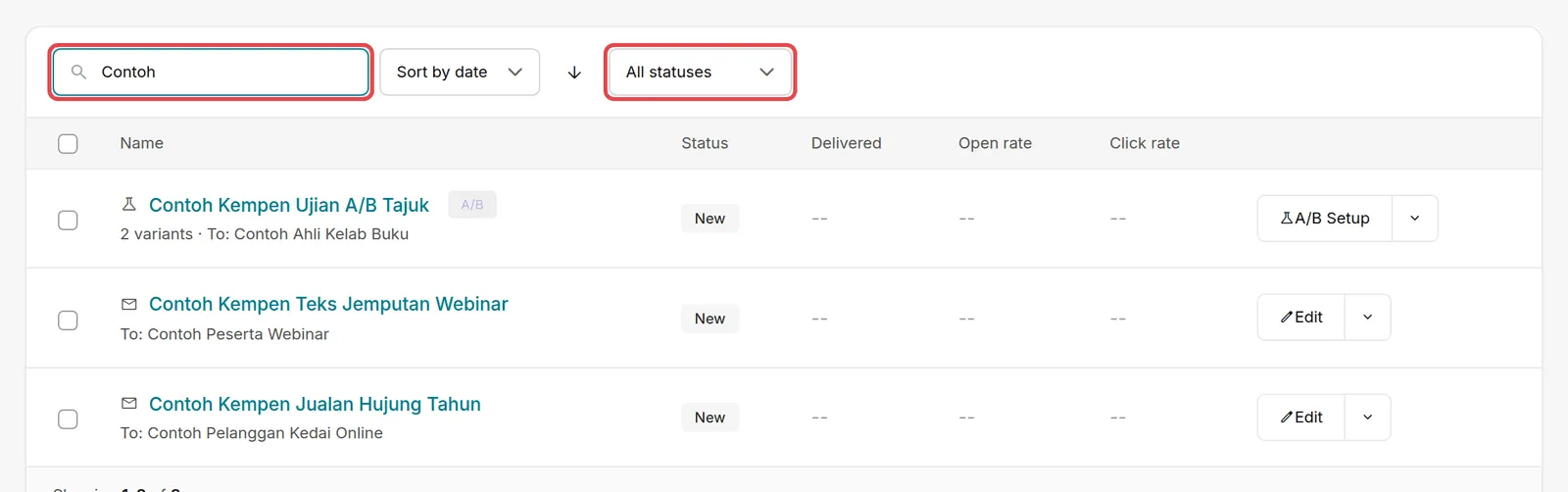
Each row shows the campaign name, the recipient list (“To: …”), the status and three numbers. The numbers are Delivered (the number of emails delivered from the total recipients), Open rate and Click rate. A draft campaign shows “–” because it is not sent yet. An A/B test campaign has an A/B badge next to the name. It also shows the number of variants before the recipient list, for example “2 variants · To: …”.
Campaign statuses
Section titled “Campaign statuses”The All statuses filter has these options. The badge on the campaign row uses almost the same words.
| Status | Meaning | What to do |
|---|---|---|
| New | A draft. The campaign is not launched yet. | Click Edit to continue the settings. |
| Queued | The campaign waits for its turn to send. | Wait. |
| Sending | Mail Niaga sends the campaign now. | Wait, or pause the campaign if necessary. |
| Done | The campaign is fully sent. The badge on the row shows Sent with the send date. | Click View to read the report. |
| Scheduled | The campaign will send at a specific date and time. | Wait, or pause the campaign to make changes. |
| Awaiting Winner | The A/B test waits for the winning variant. | Wait for the result of the A/B test. |
| Sending Winner | The A/B test sends the winning variant. | Wait. |
| Error | The send stopped because of an error. | Click the badge to read the last error. |
| Paused | The campaign is paused. | Resume it when you are ready. |
Sometimes Mail Niaga sends a campaign, but the current time is outside the sending hours that you set. Its badge then shows “Outside sending hours”. The send continues automatically when the sending hours start again.
The menu on each row
Section titled “The menu on each row”The main button on the row changes with the status of the campaign. A draft campaign shows Edit, which opens the first step of the campaign. A sent campaign shows View, which opens the campaign report. An A/B test draft shows A/B Setup, which opens the A/B test settings.
Click the arrow next to that button to open the menu:
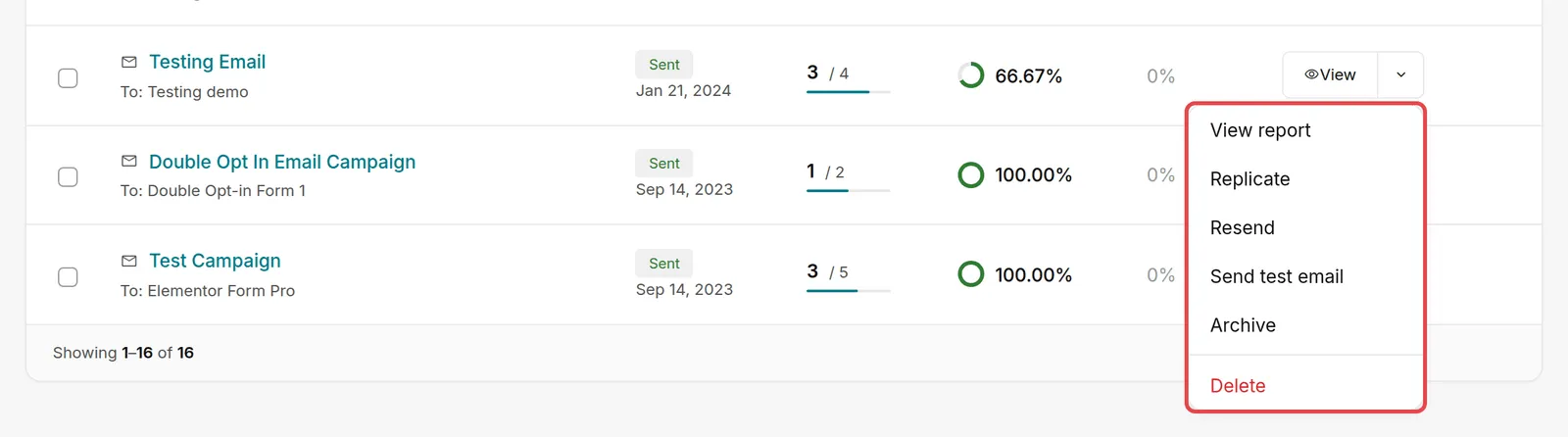
| Item | When it is available | What it does |
|---|---|---|
| A/B Report | A/B test campaigns | Opens the A/B test report. |
| A/B Test Setup | A/B test campaigns | Opens the A/B test settings. |
| View report | All campaigns | Opens the campaign report. |
| Replicate | All campaigns | Copies the campaign as a new draft. See Copy a campaign (Replicate). |
| Resend | Campaigns that are sent, paused or have an error, and are not archived | Sends the campaign again to some of the subscribers. |
| Send test email | All campaigns | Sends a test email to one address. |
| Archive | Campaigns that are fully sent | Removes the sending logs to save space. The statistics stay. |
| Delete | All campaigns | Deletes the campaign. You cannot undo this action. |
Pause and Resume also show in this menu when you can pause or resume the campaign. See Pause & resume a campaign.
Send a campaign again (Resend)
Section titled “Send a campaign again (Resend)”Resend sends the same campaign one more time, but only to the subscribers that you choose.
- Open the menu on the row of the campaign.
- Click Resend.
- In the Resend campaign popup, read the Delivered, Opened and Clicked numbers at the top.
- Choose one option.
- Click Resend.
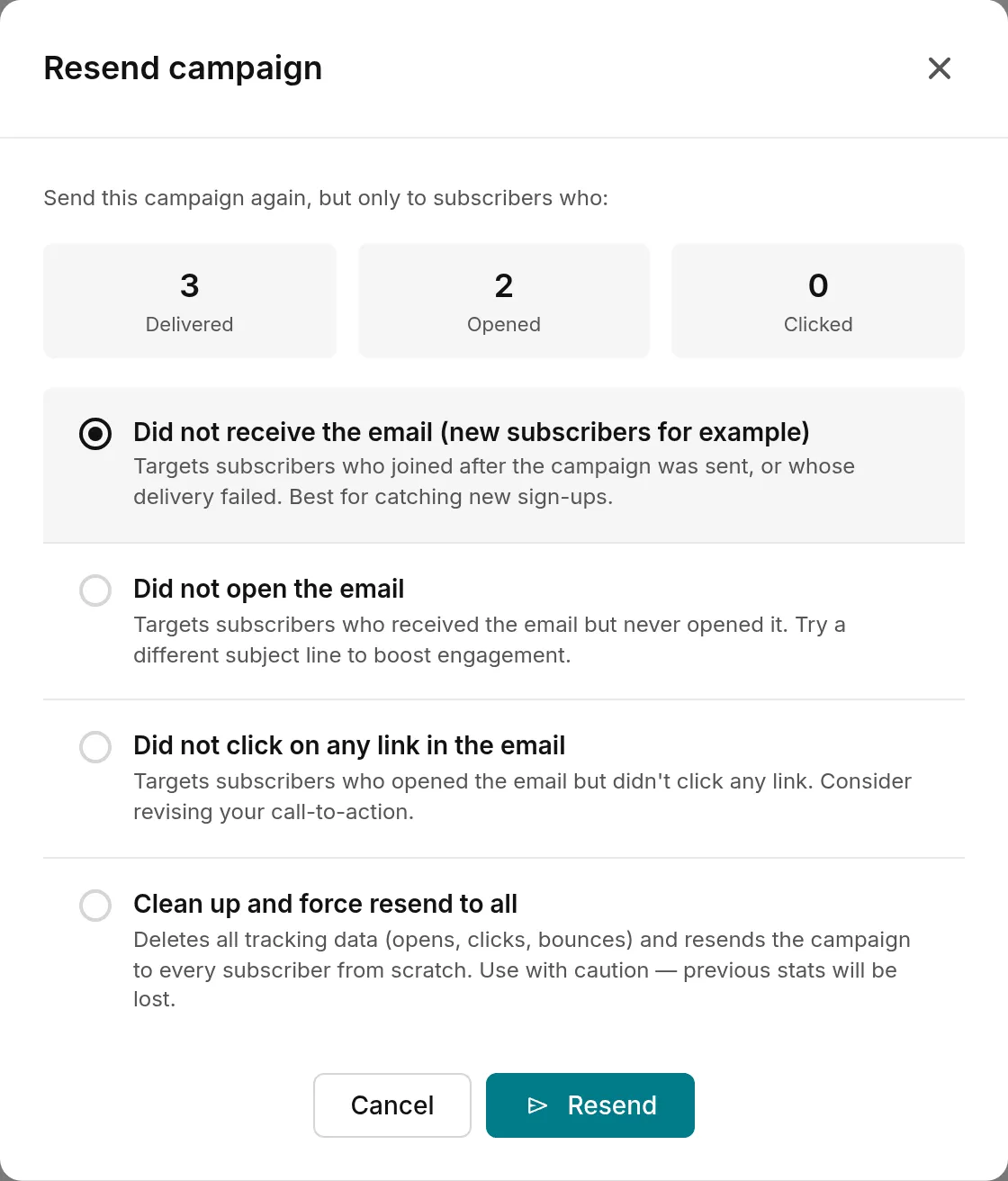
This table tells you about each option:
| Option | Who gets the email | When to use it |
|---|---|---|
| Did not receive the email (new subscribers for example) | Subscribers that joined the list after the campaign was sent, or subscribers with a failed delivery. | For new subscribers. |
| Did not open the email | Subscribers that got the email but did not open it. | To try a different subject. |
| Did not click on any link in the email | Subscribers that opened the email but did not click a link. | When you changed the call to action. |
| Clean up and force resend to all | All subscribers, from the start. | Use it rarely. Mail Niaga deletes all the open, click and bounce data of the campaign. |
Archive a campaign (Archive)
Section titled “Archive a campaign (Archive)”Archive removes the sending logs of a sent campaign (deliveries, opens, clicks, bounces, complaints and unsubscribes) to save space. The statistics numbers stay as they were on that day. You can also download the result of each recipient as a CSV file.
After you archive a campaign, you cannot send it again. Bounces, complaints and unsubscribes that come later do not count for that campaign. Segment conditions on opens and clicks also do not count that campaign. The console asks for a confirmation before it archives the campaign.
Bulk actions
Section titled “Bulk actions”To manage many campaigns at the same time, tick the check box on the row of each campaign. The Actions button shows with the number of campaigns that you ticked.
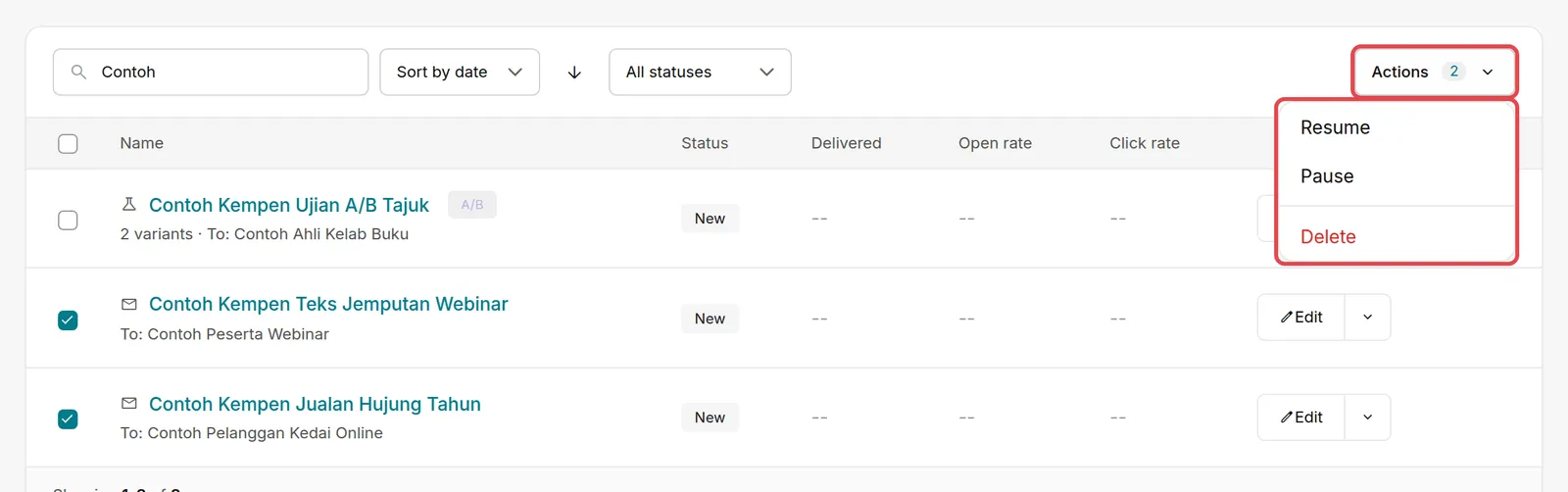
The Actions menu has Resume, Pause and Delete. Each action asks for a confirmation first. Replicate, Resend and Archive are not bulk actions. Do those actions one at a time from the row menu.
This advice helps you manage your campaigns:
- Filter by Error after you launch a large campaign. You will see the campaigns that stopped, and you can read the error from the badge.
- Choose Did not open the email for a second round. Change the subject first. A new subject gives the subscribers who did not see the email a new reason to open it.
- Archive an old campaign only when you will not send it again. After you archive a campaign, you cannot use Resend on it.
Common issues
Why does the status filter show Done, but my campaign shows Sent?
The two words have the same meaning: the campaign is fully sent. The All statuses filter uses the word Done. The status badge on the campaign row uses Sent.
Why do I not see Resend or Archive on my campaign?
Archive is available only for a campaign that is fully sent. Resend is available for a campaign that is sent, paused or stopped because of an error. Resend is not available for an archived campaign. A usual draft campaign (status New) has only View report, Replicate, Send test email and Delete. An A/B test draft also has A/B Report and A/B Test Setup.
Can I send an archived campaign again?
No. When you archive a campaign, Mail Niaga removes its sending logs. Then Mail Niaga does not know who got the email. You cannot send that campaign again.
Was this article helpful?
Thanks for your feedback.
Sorry, this page did not help. Chat on Messenger and we will help you fix it.