
Ask an AI about this page
 ChatGPT
 Claude
 Perplexity
 Google AI Mode
 Microsoft Copilot
 Grok
 Mistral Le Chat
Change the list subscription pages & emails
Each list has its own set of templates for the pages and emails that subscribers see. These templates cover each step: when subscribers sign up, update their profile and unsubscribe. You can change each template in Forms / Pages in the list.
Open the template list
Section titled “Open the template list”Do these steps to see all the templates of a list:
- Go to Audience → Lists and open your list.
- Click Forms / Pages → All templates.
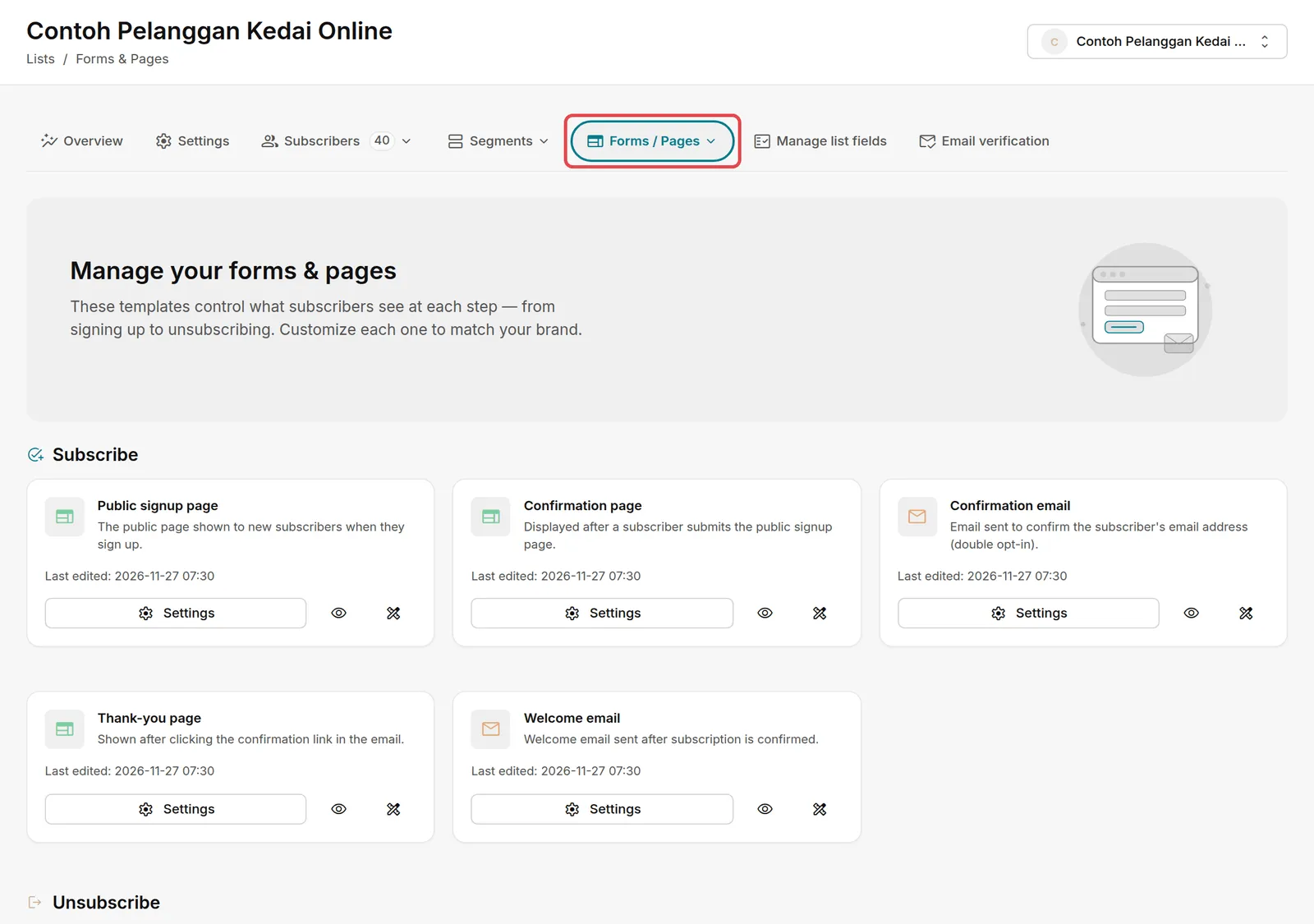
The templates are in three groups:
| Group | Template | Type | When it is used |
|---|---|---|---|
| Subscribe | Public signup page | Page | The public page where people sign up. |
| Confirmation page | Page | After a visitor sends the signup page. | |
| Confirmation email | The email to confirm the email address (double opt-in). | ||
| Thank-you page | Page | After the subscriber clicks the confirmation link in the email. | |
| Welcome email | The welcome email after the subscription is confirmed. | ||
| Unsubscribe | Unsubscribe form | Page | The form that opens when a subscriber clicks the unsubscribe link. |
| Success page | Page | After the subscriber unsubscribes successfully. | |
| Goodbye email | The email that confirms that the subscriber unsubscribed. | ||
| Unsubscribe notification | The email to the list owner when a subscriber unsubscribes. | ||
| Update profile | Update email | The email with a link to update the profile. | |
| Update form | Page | The form where subscribers update their details. | |
| Success page | Page | After the profile is updated successfully. | |
| Email sent page | Page | After the subscriber asks for a link to update the profile. |
Click Settings on a card to open that template. The Forms / Pages menu also has a link to each template, but not to Unsubscribe notification. That template is only in All templates.
Change a template with the builder or HTML
Section titled “Change a template with the builder or HTML”Each template has four buttons:
| Button | Use |
|---|---|
| Open builder | Change the template with the drag-and-drop builder. |
| Use HTML editor | Paste your own HTML. |
| Preview | See the result of the template. |
| Reset to default | Restore the default template. All your changes to that template are lost. |
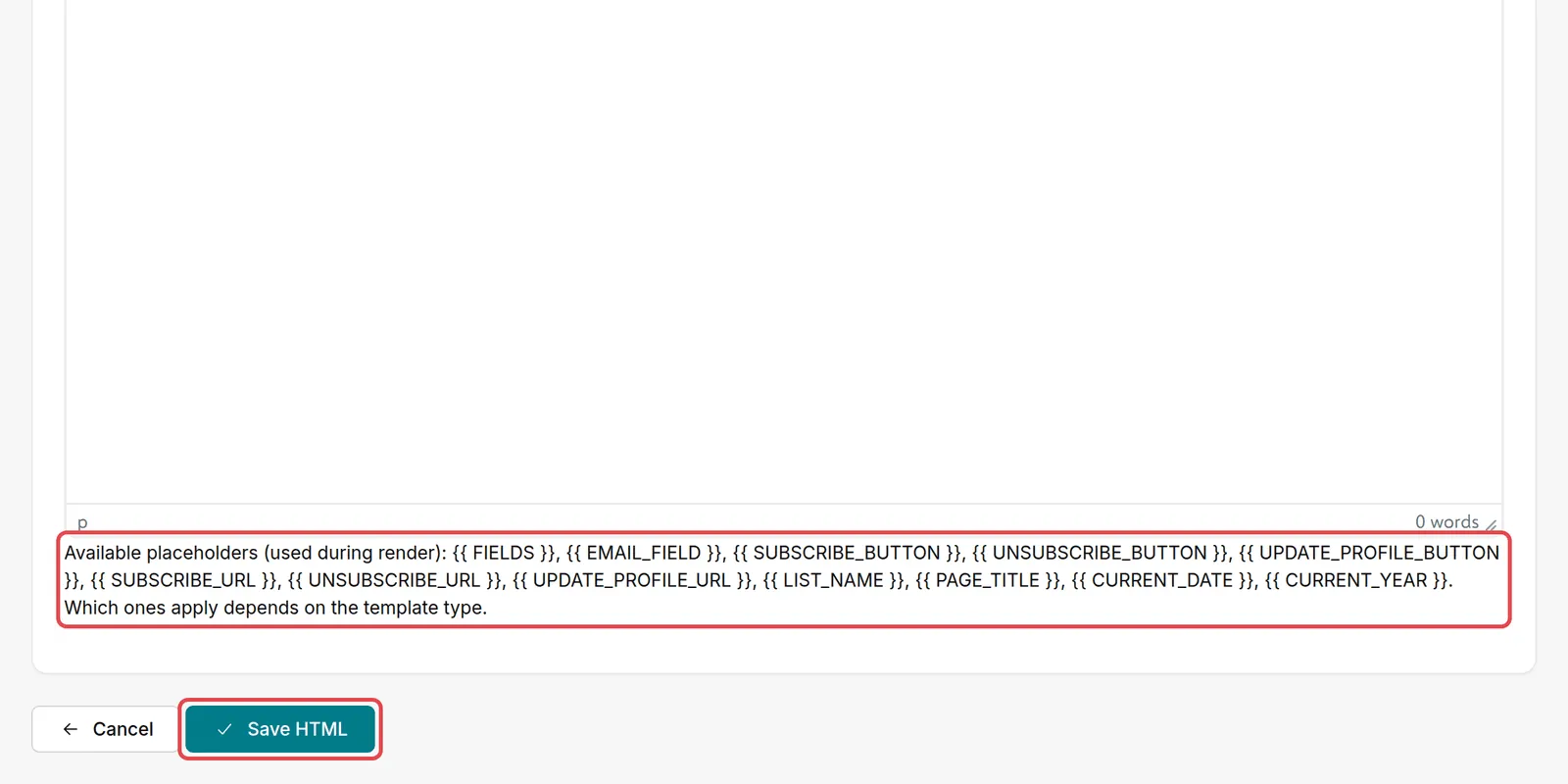
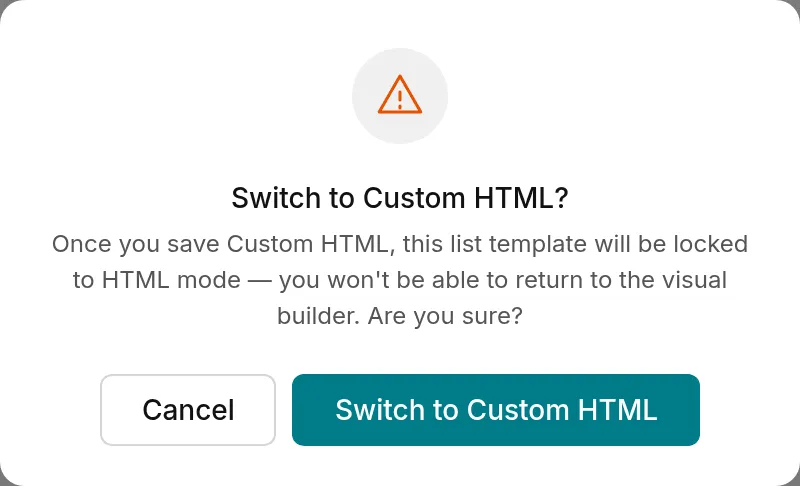
The hint below the HTML editor gives the placeholders that you can use, such as {{ FIELDS }} and {{ SUBSCRIBE_BUTTON }}. Click Save HTML to save. The first time, the console asks Switch to Custom HTML?. Click Switch to Custom HTML to continue, or click Cancel.
Some templates need specific placeholders in your HTML:
| Template | Required placeholders |
|---|---|
| Public signup page | {{ FIELDS }}, {{ SUBSCRIBE_BUTTON }} |
| Confirmation email | {{ SUBSCRIBE_CONFIRM_URL }} |
| Welcome email | {{ UNSUBSCRIBE_URL }} |
| Unsubscribe form | {{ UNSUBSCRIBE_BUTTON }} |
| Update email | {{ UPDATE_PROFILE_URL }} |
| Update form | {{ FIELDS }}, {{ UPDATE_PROFILE_BUTTON }}, {{ UNSUBSCRIBE_URL }} |
The hint below the HTML editor does not give {{ SUBSCRIBE_CONFIRM_URL }}. But the Confirmation email needs this placeholder for the confirmation link.
Send subscribers to your own page
Section titled “Send subscribers to your own page”Some page templates can use a page on your website. These are the Confirmation page, the Thank-you page, the two Success page templates and the Email sent page. Do these steps:
- Open the template from Forms / Pages, for example Thank-you page.
- In Settings, choose Use an external URL.
- Fill in the address of your page.
- Click Save.
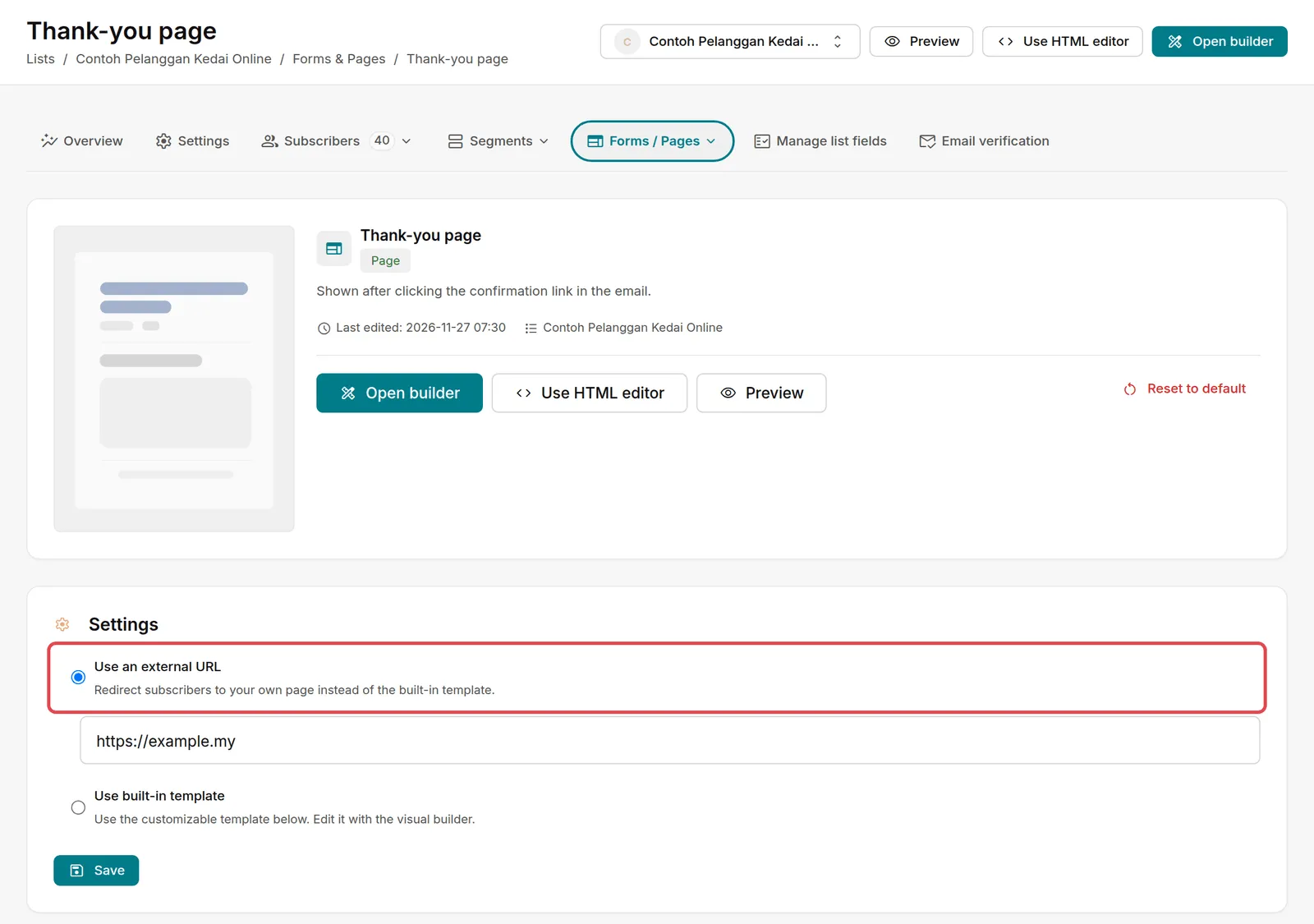
To go back to the Mail Niaga template, choose Use built-in template and click Save.
Change the email subject
Section titled “Change the email subject”Templates of the type Email have an Email subject field. Do these steps:
- Open an email template, for example Confirmation email.
- Fill in the subject in Email subject. You can use tags such as
{{ SUBSCRIBER_FIRST_NAME }}. - Click Save subject.
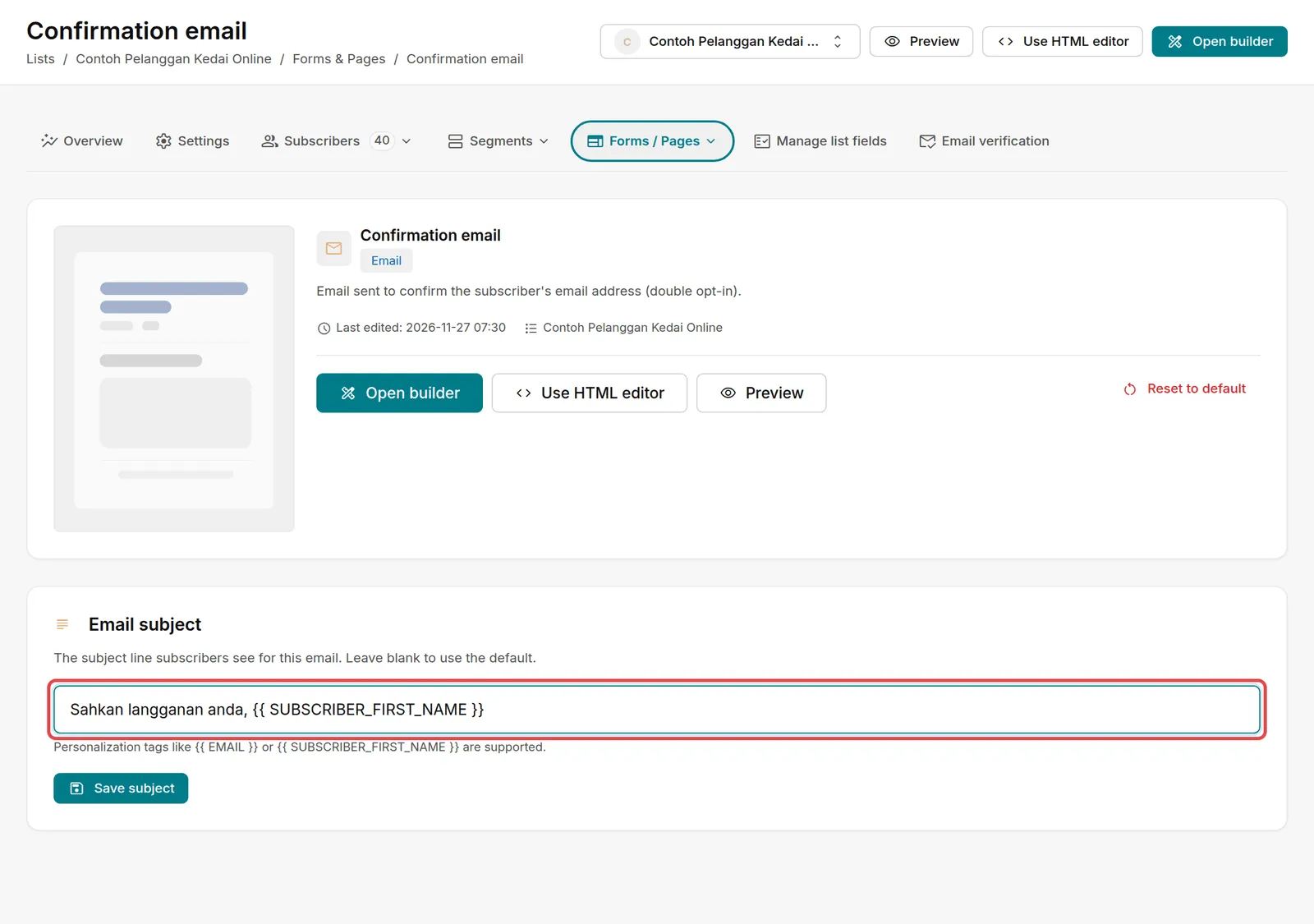
Leave this field empty to use the default subject.
This advice helps you make pages and emails that your subscribers understand:
- Change the default text to Bahasa Melayu if your subscribers read Malay. The default templates are in English. Local subscribers understand Malay text better.
- Click Preview after each change. You see the result before your subscribers see it.
- Try the builder first before you use your own HTML. HTML locks the template. Use HTML only when the builder is not sufficient.
Common issues
Why can I not open the builder again after I saved my own HTML?
After you save your own HTML, the template is locked in HTML mode. Click Reset to default to use the builder again. All your changes to that template will be lost.
Can I send subscribers to a page on my own website?
Yes, for pages such as the Confirmation page and the Thank-you page. Choose Use an external URL, and fill in the address of your page. Then click Save.
Why does the confirmation email still use the default subject?
If the Email subject field is empty, the email uses the default subject. Fill in your subject and click Save subject.
Was this article helpful?
Thanks for your feedback.
Sorry, this page did not help. Chat on Messenger and we will help you fix it.