
Ask an AI about this page
 ChatGPT
 Claude
 Perplexity
 Google AI Mode
 Microsoft Copilot
 Grok
 Mistral Le Chat
Choose the campaign recipients
Recipients is the first step in the campaign wizard. Here you choose the lists and segments that will receive the email. You can also choose lists or segments that will not receive the email.
Choose lists & segments
Section titled “Choose lists & segments”Do these steps in the Recipients step.
-
Click the MAILING LIST option, then choose a list. Each list shows its number of subscribers below its name.
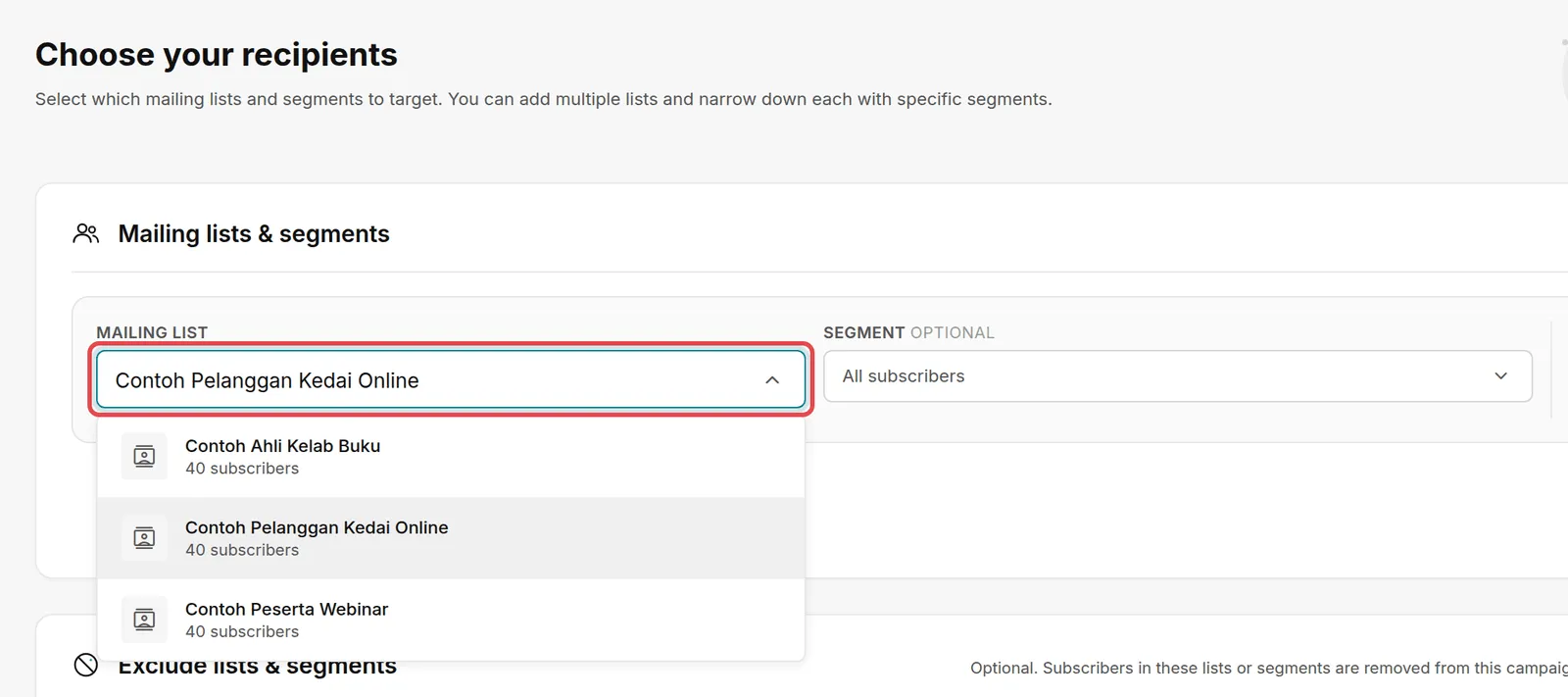
-
To send the email to some subscribers only, click SEGMENT and choose one or more segments. Keep All subscribers to send the email to all the subscribers in the list.
-
To add a different list, click Add another list and do steps 1 and 2 again.
-
Click Default on the main list of the campaign.
-
Click Save & Continue.
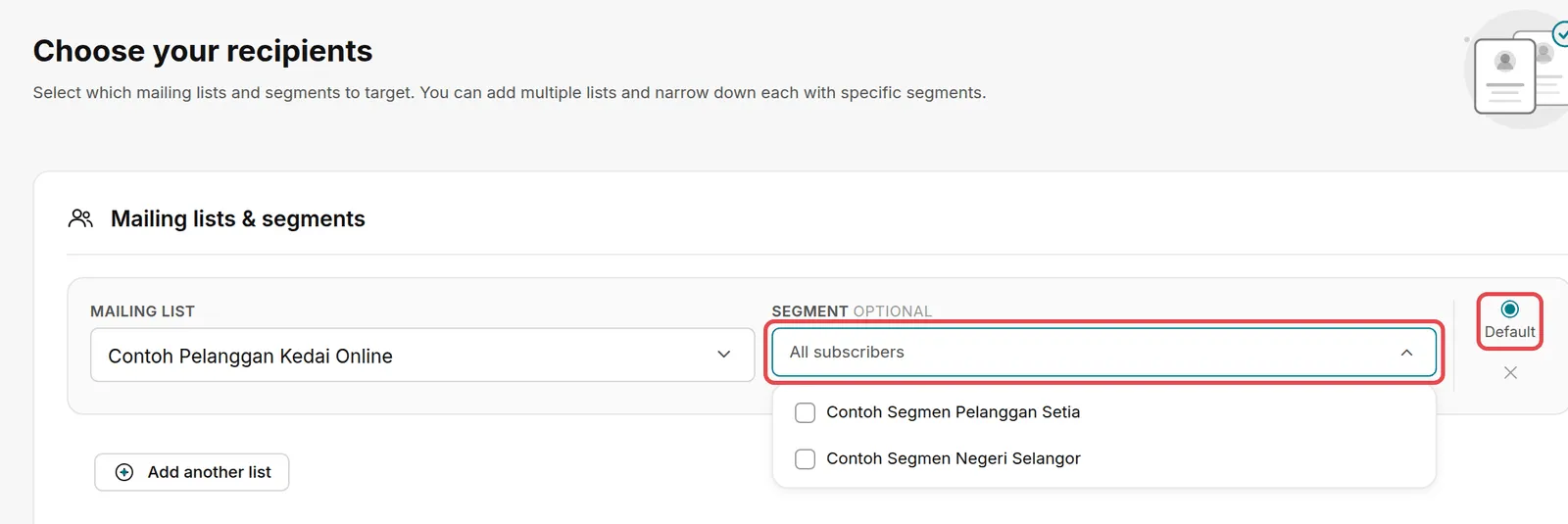
The cross icon at the end of the row (Remove this list) removes that list from the campaign. You create segments in Audience → Segments. You cannot create them in the wizard. See Create a segment to filter subscribers.
Remove subscribers with an exclude list
Section titled “Remove subscribers with an exclude list”The Exclude lists & segments section is optional. The campaign does not go to the subscribers in the lists or segments in this section. This also applies when they are in a list that you chose above.
- Click Add list to exclude.
- Choose a list in MAILING LIST. If necessary, choose a segment in SEGMENT.
- Click Save & Continue.
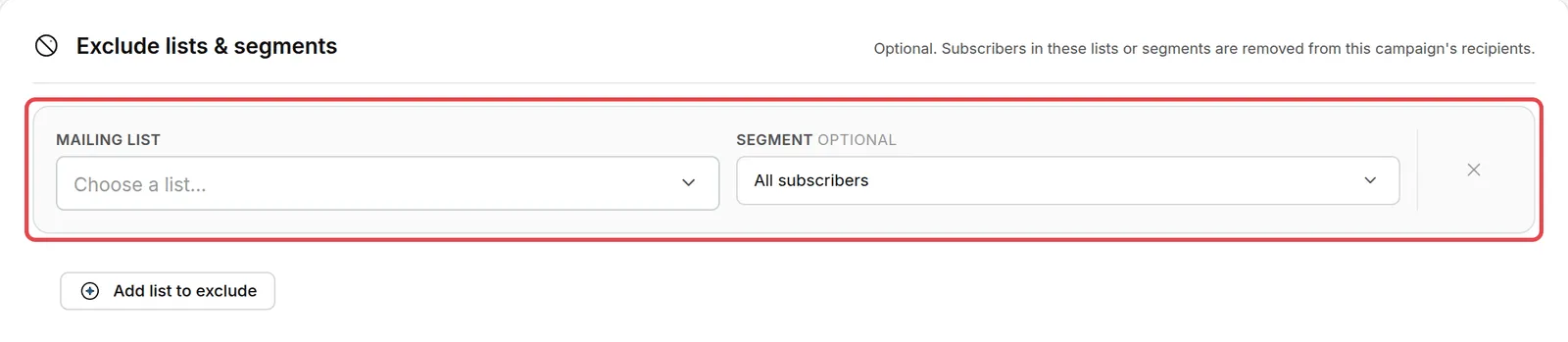
For example, you send a promotion to the “Customers” list, but you exclude the “Bought this month” segment.
This advice helps you send the campaign to the correct people:
- Check the number of recipients before you launch the campaign. In the Confirm step, the Recipients row shows the number of subscribers and the list names.
- Use segments for more targeted campaigns. Subscribers open emails about their interests more frequently.
Common issues
Why do segments not show in the SEGMENT option?
Choose a list in MAILING LIST first. If that list has no segments, the option tells you that there are no segments. The campaign will go to all the subscribers in that list. Create segments in Audience → Segments.
Can I send one campaign to more than one list?
Yes. Click Add another list to add a row for a different list. Choose one list as Default.
How many people will receive my campaign?
Each list in the MAILING LIST option shows its number of subscribers. The Recipients row in the Confirm step shows the total number of recipients of the campaign.
Was this article helpful?
Thanks for your feedback.
Sorry, this page did not help. Chat on Messenger and we will help you fix it.